
QuotesPro
Turn a priced entry into a numbered quote with a PDF and a secure link.
Requires Neural Forms Pro (with Lite installed and active).
On this page
A quote turns the pricing of an entry into a numbered, branded document you can edit, send and revise. Your customer opens it from a secure link, can print or download it, and can pay the amount due online when the form takes payments.
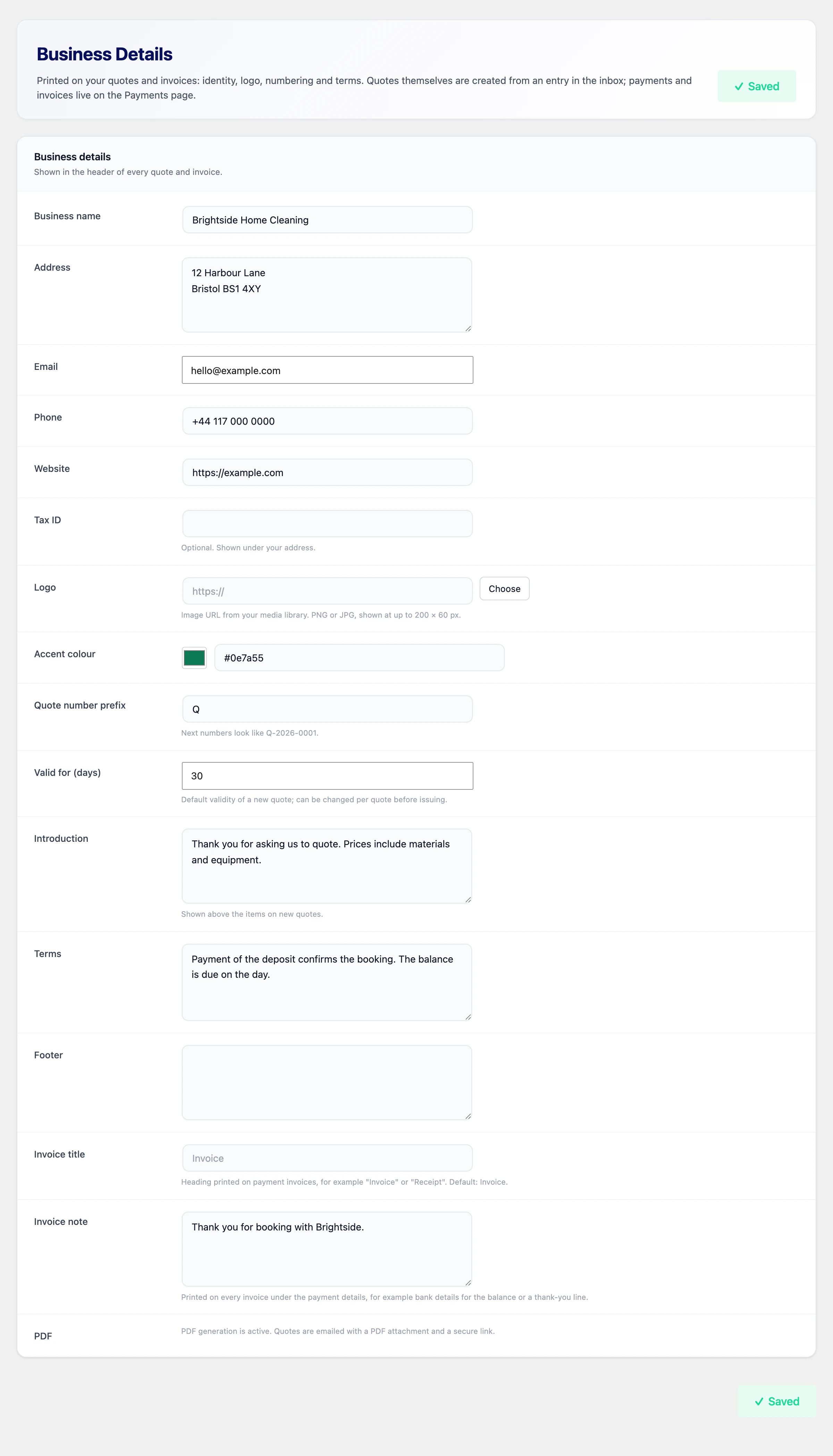
Set up Business Details#
Go to Neural Forms → Business Details and fill in what appears on quotes and invoices: business name, address, email, phone, website, tax ID, logo and accent colour, the Quote number prefix (default Q, giving numbers like Q-2026-0001), Valid for (days) (default 30), and the introduction, terms and footer printed on new quotes. The Invoice title and Invoice note are for payment invoices. The PDF row tells you whether PDFs can be made on your server.
Create and send a quote#
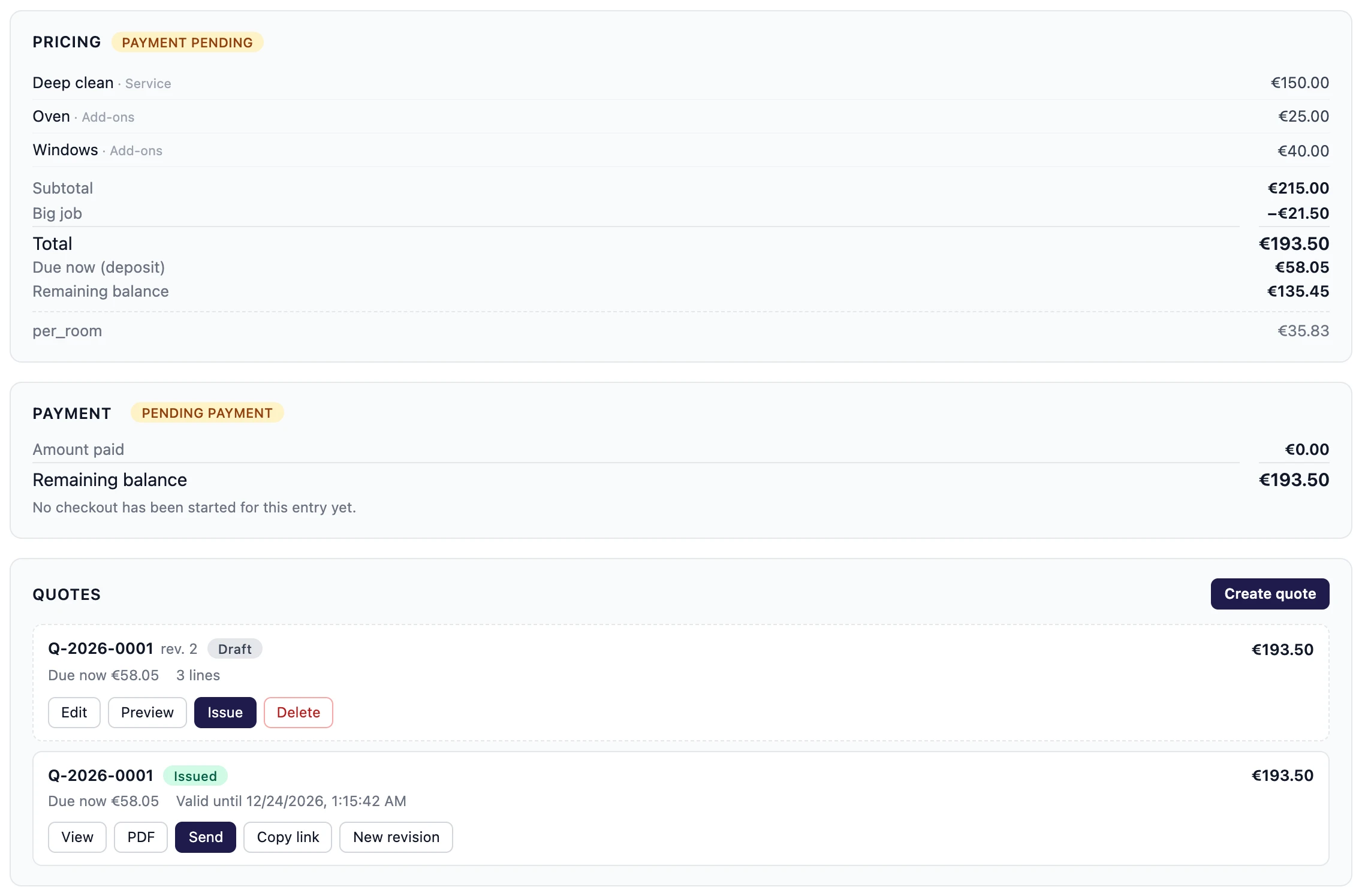
- Open an entry that has pricing. In the Quotes card, click Create quote. A Draft is made from the entry’s lines, discount and deposit.
- Click Edit to change lines, the discount, the deposit, the validity, the customer and the texts, then Save draft. Preview shows it as the customer will see it.
- Click Issue. The quote gets its number and a valid-until date and becomes read-only.
- Click Send, check the recipient, add an optional message and send. The email has the secure link and, when available, the PDF.
What your customer can do#
- Open the quote from the link, print it, and download the PDF when available.
- Pay the amount due online with Pay … securely now, if the form the entry came from has payments turned on and a gateway is connected.
- There is no online accept or decline: the customer replies to you, or pays.
Change an issued quote#
Click New revision. You get a draft with the same number and the next revision (“rev. 2”). When you issue it, the old one becomes Superseded and its open checkout is cancelled. Issued quotes cannot be deleted; drafts can. After the valid-until date a quote becomes Expired and its link stops working; make a new revision to extend it.
Good to know#
- Quote statuses: Draft, Issued, Expired, Superseded.
- A quote can have up to 100 lines. Its currency comes from the entry.
- Nothing is sent automatically, unless a workflow uses the Create a quote action with sending turned on (see Workflows).
- Without PDF support on the server, quotes are sent as a secure printable link.

