
PollsLite
Ask one question, collect votes and show live results.
Available in Neural Forms Lite (free) and Pro.
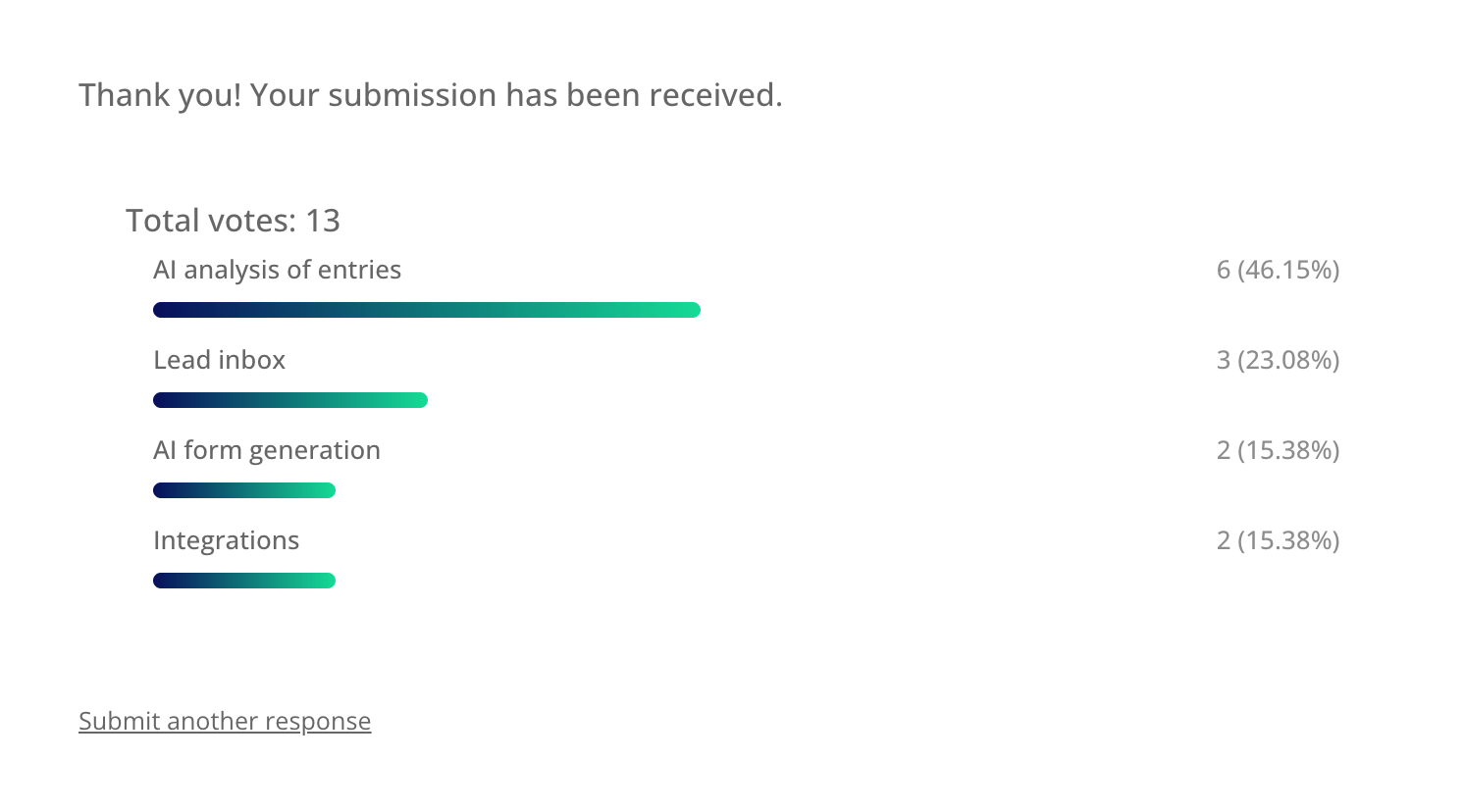
A poll asks visitors to pick an answer and can show the results as a chart straight after they vote.
Create a poll#
- Go to Neural Forms → Forms and create a form (or start from a poll template).
- Click Poll in the field palette to add a poll question.
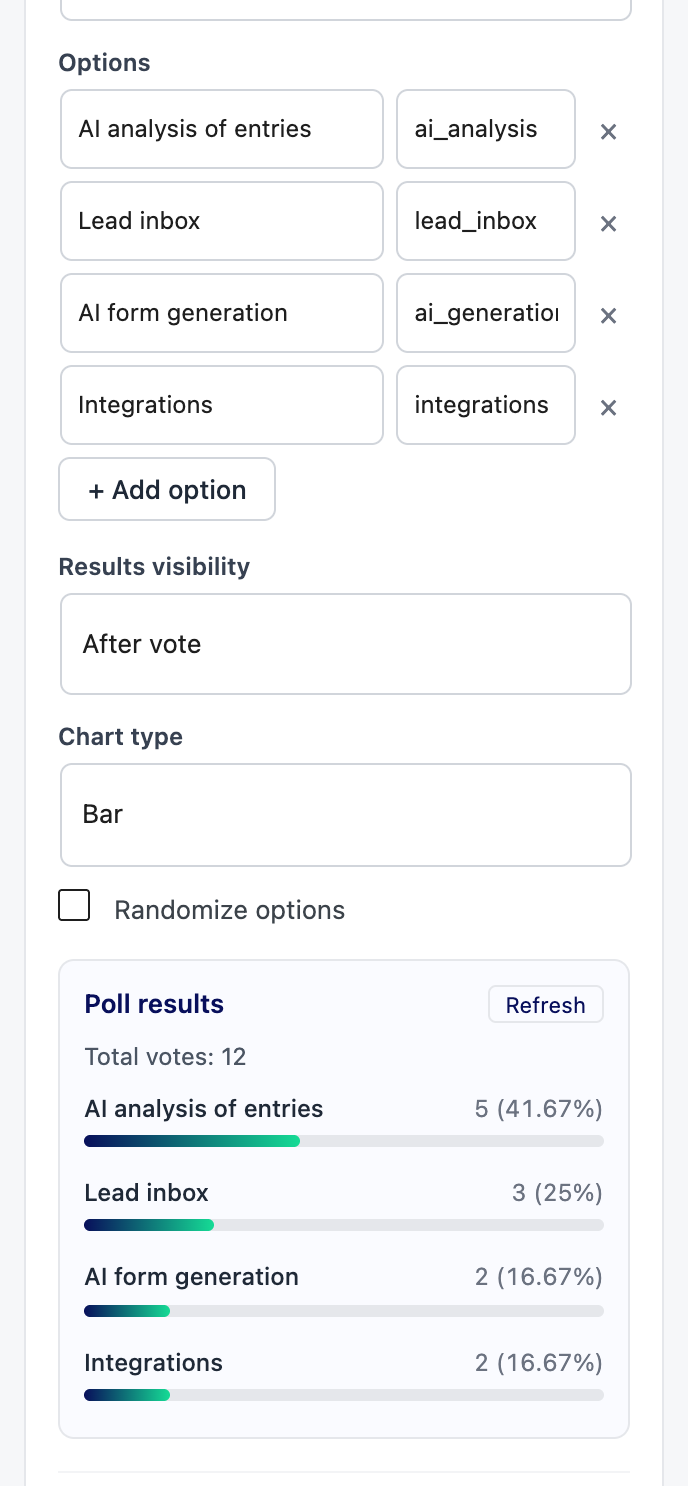
- Click the poll field and set its Label (the question) and Options (the answers). Each option has a label and a value; click + Add option for more.
- Choose Results visibility and Chart type (below), then save.
- Add the form to a page with the Poll block, the shortcode or the Neural Poll Divi module.
Poll settings#
| Setting | Options |
|---|---|
| Results visibility | After vote: visitors see results once they have voted. Always: results show before voting too. Never: results stay private. |
| Chart type | Bar or Percentage. |
| Randomize options | Shows the answers in a random order for each visitor, to avoid order bias. |
| Poll results | Live vote counts in the builder. Click Refresh to update. |
What voters see#
See the results#
Go to Neural Forms → Analytics and pick the form. You get total votes and the count and percentage for every answer, with the top answer highlighted. Each vote is also an entry in the Lead Inbox. With Pro, Page Performance also shows which pages the votes came from.
Limits#
Lite Each poll or quiz form accepts up to 200 submissions. Pro removes the limit.
AI for polls#
Analysing every vote one by one rarely helps. In the form’s Settings → Process with AI, choose Process final results to analyse the results as a whole, or Manual only to run AI on demand.