
MailchimpPro
Add submitters to a Mailchimp audience, with tags and merge fields.
Requires Neural Forms Pro (with Lite installed and active).
On this page
1. Connect Mailchimp#
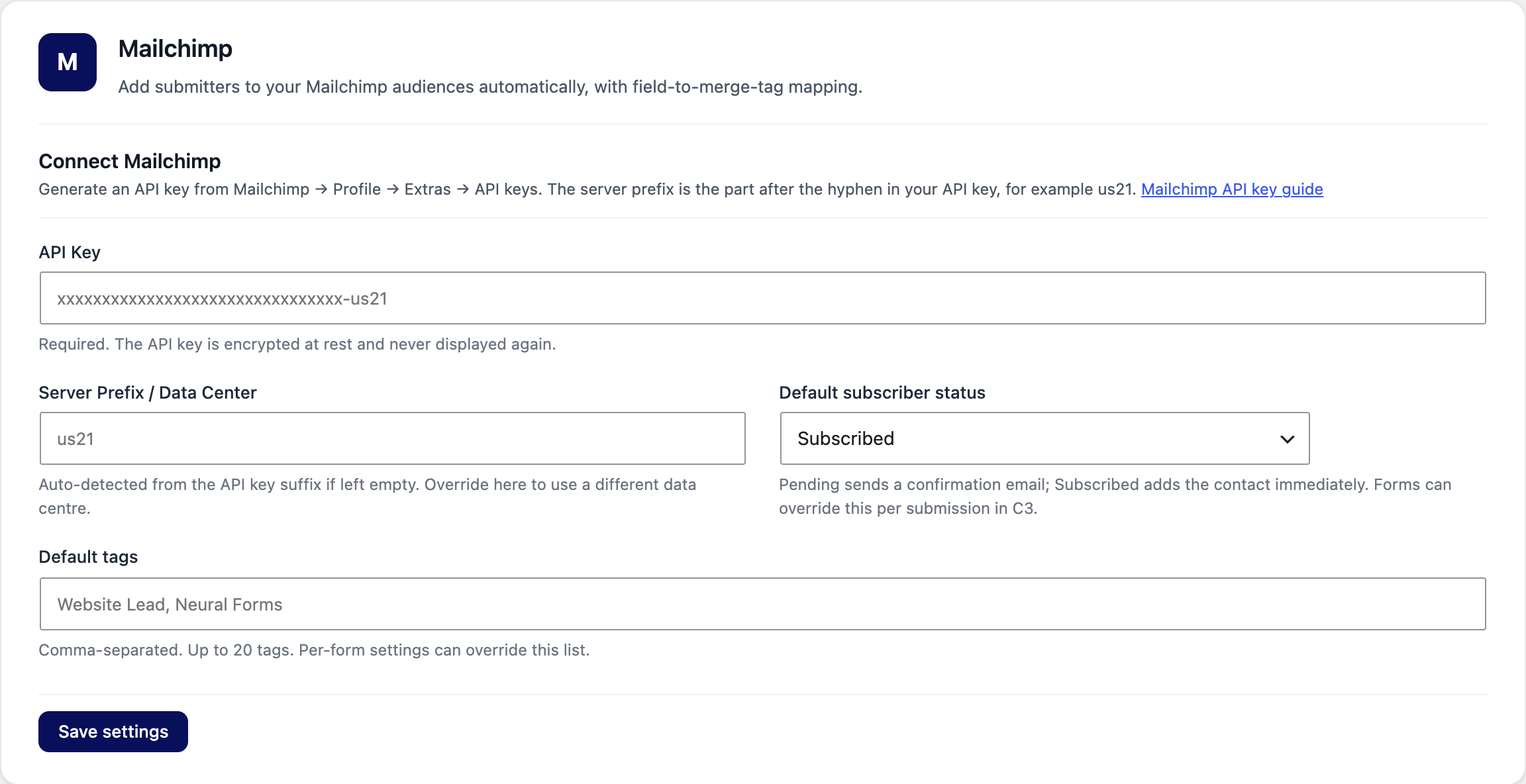
- In Mailchimp, go to Profile → Extras → API keys and create a key.
- Go to Neural Forms → Integrations → Mailchimp and paste the API Key. The Server Prefix (for example
us21) is detected from the key automatically. - Set the defaults: Default subscriber status and Default tags (below).
- Click Save settings.
| Setting | What it does |
|---|---|
| Default subscriber status | Subscribed adds the contact immediately. Pending — double opt-in sends Mailchimp’s confirmation email first. |
| Default tags | Comma-separated, up to 20. Each form can override them. |
2. Set up a form#
- Open the form, click Settings → Integrations → Mailchimp.
- Turn on Sync submissions to a Mailchimp audience and choose the Audience.
- Under Mailchimp Email Address, pick the form’s email field (required).
- Optional: change the Subscriber status and Tags for this form, and turn on Update existing subscribers to refresh merge fields and tags when an email already exists.
- In Merge field mapping, map fields such as First Name, Last Name and Phone, or click Auto-map fields. Save the form.
The form needs an Email field. If it has a single Full Name field, the whole name is sent as First Name; use separate First Name and Last Name fields for cleaner contacts.