Connect Stripe or PayPalPro
Add your Stripe or PayPal credentials and the webhook that confirms payments.
Requires Neural Forms Pro (with Lite installed and active).
Neural Forms Pro takes payments through Stripe Checkout or PayPal. Visitors pay on the gateway’s hosted page, so no card details are entered on your site. You connect the gateway once, then switch payments on per form.
Before you start#
- Neural Forms Lite 1.2.0 and Pro 1.1.0 or later are active.
- You are a WordPress administrator.
- You have a Stripe account, or a PayPal REST API app from the PayPal Developer dashboard.
Connect Stripe#
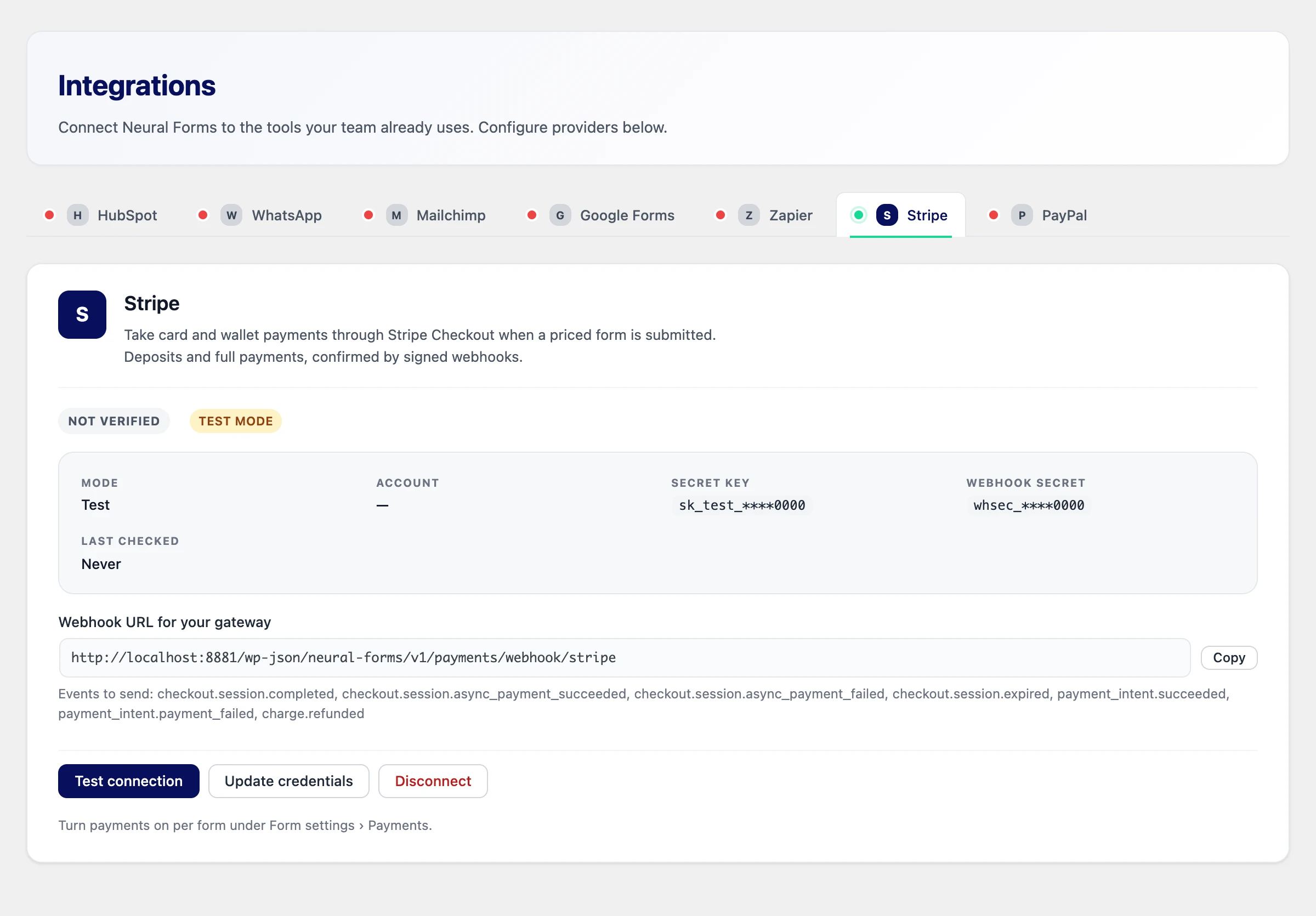
- Go to Neural Forms → Integrations and open the Stripe tab.
- Under Connect Stripe, choose the Active mode: Test or Live. Each mode keeps its own keys, and the active mode decides which set new checkouts use.
- Paste the Secret key from Developers › API keys in Stripe (it starts with
sk_test_orsk_live_; restrictedrk_keys work too). The Publishable key is optional. - In Stripe, add a webhook endpoint that points at the Webhook URL for your gateway shown on this tab, and send the events listed under it. Paste its signing secret (
whsec_…) into Webhook signing secret. - Click Save settings, then Test connection. The status changes from Not verified to Connected and shows your Stripe account.
Connect PayPal#
- Open the PayPal tab and choose Sandbox or Live.
- Paste the Client ID and Client secret of your REST API app.
- In the same PayPal app, add a webhook pointing at the URL shown on the tab with the listed events, and paste its Webhook ID.
- Click Save settings, then Test connection.
Why the webhook matters#
The gateway tells your site through the webhook when a payment is confirmed, refunded or fails. Without it, the status card shows Missing — payments cannot be confirmed in red. Neural Forms also checks the status when the visitor returns from checkout, once a day for open payments, and when you click Check status now on an entry, but payments that confirm late, refunds made in the gateway dashboard and visitors who close the tab are only picked up quickly with the webhook. PayPal webhooks are rejected without a Webhook ID.
Test first#
- Run a full payment in test or sandbox mode before switching to Live. Test payments are tagged “test” on the entry and on the Payments page.
- Use a currency your gateway account supports. Neural Forms does not check gateway minimum amounts or currency support; if the gateway refuses, the checkout does not start and the error is logged on the entry.
- Payments need the gateway to reach your site, so a local site without a public address cannot complete a test payment.
- Disconnect removes the saved credentials for both modes. Existing payment records are kept.
Next: add prices to a form, then turn payments on.

