

A quiz turns a page people read into a page people do. Training teams use them to check that a lesson landed, teachers use them for homework, and site owners use them to make a topic stick. The part that makes a quiz useful is the feedback: a score, a clear pass or fail, and a short explanation for every question someone got wrong.
This guide builds a scored quiz with the free Neural Forms plugin: three questions worth different points, an explanation on each, a 70% pass mark, and a different message for low, middle and high scores. Then it shows what a visitor sees after submitting and where you read the results. Everything was built and tested on a fresh WordPress site with only the free plugin installed.
What kind of quiz this is
Neural Forms builds knowledge quizzes: each question has one correct answer, a correct answer earns its points, and the total becomes a score and a percentage. That covers knowledge checks, training quizzes, trivia and practice tests. It is not a personality quiz builder, where each answer adds to a “type” rather than a score.
- Free: quiz questions, points, explanations, the pass mark, result messages by score, the quiz block and the results screen.
- The limit to know about: in the free version, each quiz form accepts up to 200 entries. After that, new submissions are refused with a message to the visitor, so check the entry count on the results screen if your quiz gets heavy use.
Step 1: Start from the Quiz Form template
Go to Neural Forms > Forms, click + New Form and pick Quiz Form under More templates. It creates two working questions (“What is the capital of India?” and “Which planet is known as the Red Planet?”), each with a correct answer, 1 point and an explanation, plus pass/fail settings. Editing a working quiz is faster than starting from a blank form, and it shows you how each setting looks when filled in.
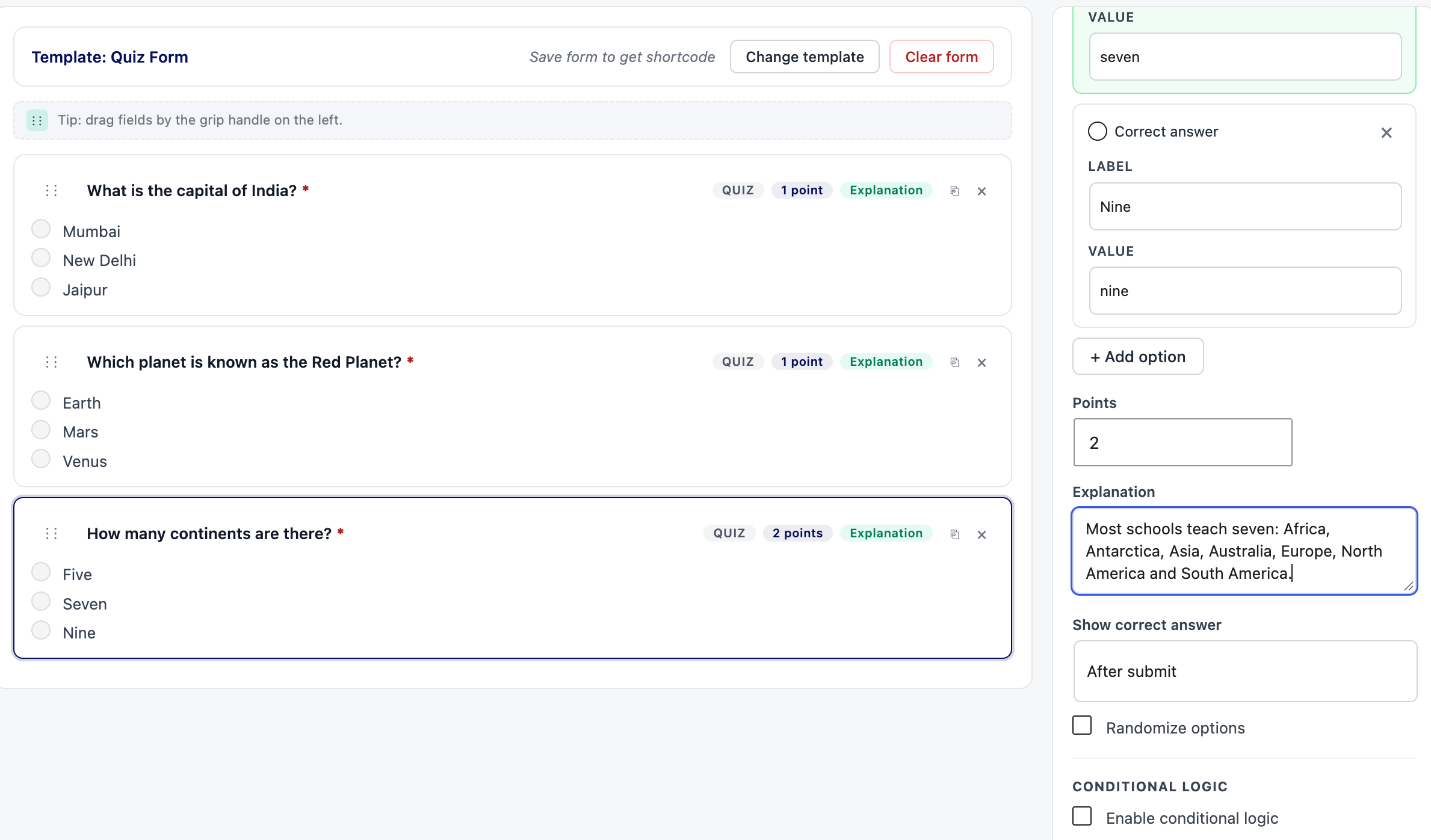
Click Quiz in the field list to add more questions. Each question in the builder shows three badges: QUIZ, its points, and Explanation when one is set.
Step 2: Write each question and mark the right answer
Click a question to open its settings on the right:
- Label is the question: “How many continents are there?”
- Under Options, each answer has a Label (what visitors see) and a Value. Click + Add option for more answers. Three or four answers per question work well; the builder asks for at least two.
- Click Correct answer on the right option. It turns green. Each question has exactly one correct answer.
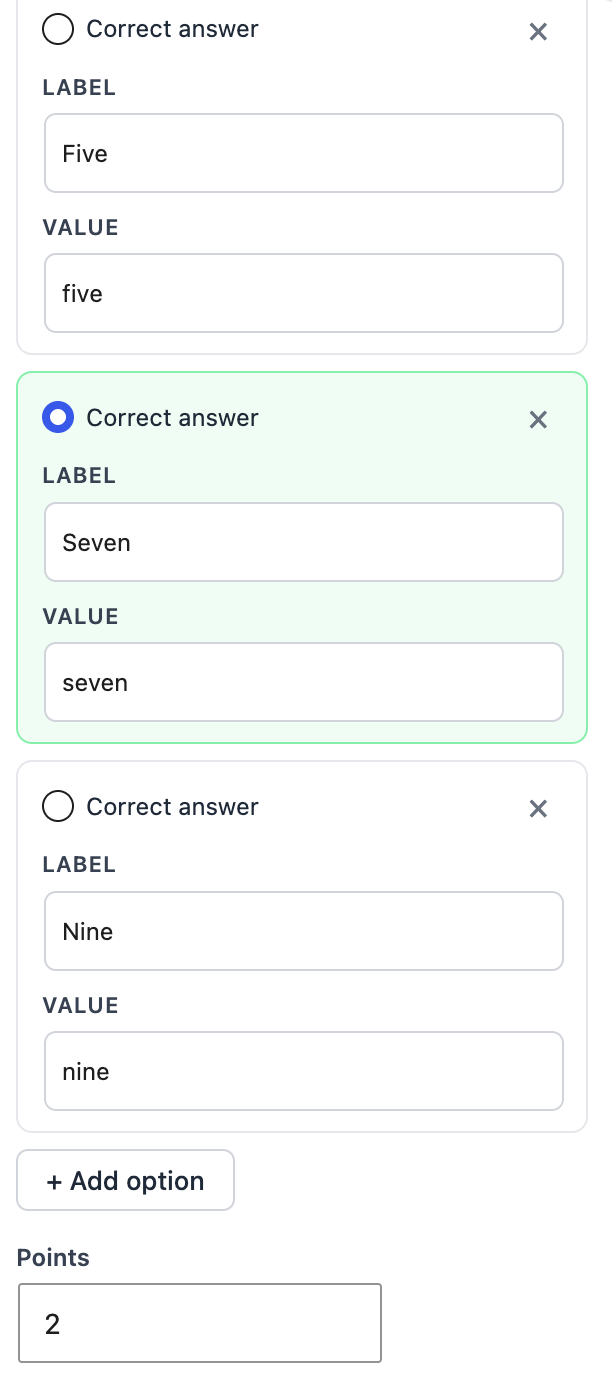
Write wrong answers that a person who half-knows the topic might pick. “Five” and “Nine” are plausible for continents; “Purple” is not. A quiz where the right answer is obvious tells you nothing about what people know.
Step 3: Set points, an explanation and when to reveal the answer
Below the options, each question has four more settings:
- Points: how much a correct answer is worth. The default is 1. Give harder or more important questions more points; in the example, the continents question is worth 2, so the quiz totals 4 points.
- Explanation: one or two sentences shown after submitting. This is where people learn something, especially when they got it wrong: “Mars appears red because of iron-oxide dust on its surface.”
- Show correct answer: After submit shows the right answer and the explanation on the results; Never keeps it hidden. Use Never for a test people can retake, so the answers are not handed out after the first try.
- Randomize options: in version 1.1.2 this setting is saved but the answers still appear in the order you set them, so vary the position of the correct answer yourself.
Step 4: Set the pass mark and result messages
Switch from Build to Settings at the top of the builder and open Quiz. This section appears when the form has quiz questions.
- Show pass/fail result: tick it to show a Passed or Failed badge with the score.
- Passing score (%): submissions at or above this percentage pass. The template uses 70.
- Result messages: a title and message for each score range, set by Min % and Max %. The first range that matches is shown. Click + Add message for more ranges.
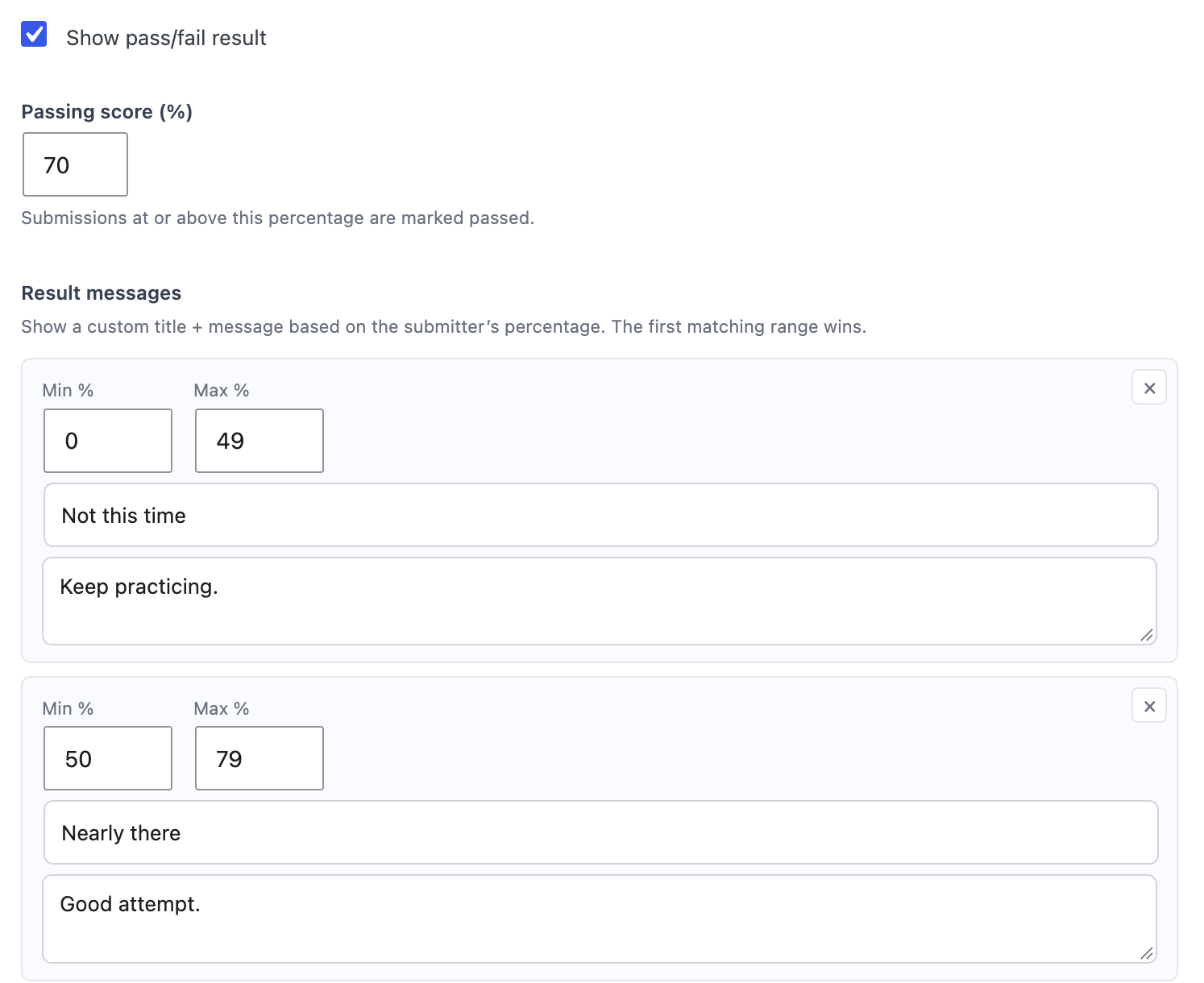
The example uses three ranges: 0 to 49% (“Not this time”), 50 to 79% (“Nearly there”) and 80 to 100% (“Map master”). Scores are worked out to two decimal places but Min % and Max % take whole numbers, so ranges like 50 to 79 and 80 to 100 leave a score such as 79.5% with no message. To cover every score, let each range share its edge with the next and list the highest first (80 to 100, then 50 to 80, then 0 to 50), since the first range that matches is shown. Keep the messages short and point people to the next step: retake the quiz, reread a lesson, or move on.
Click Save.
Step 5: Add the quiz to a page
Open a page in the block editor and add the Neural Quiz block. It lists forms that contain quiz questions; choose yours. Each question always shows above its answers, so you do not need Show Field Labels. In its display settings, leave Show Quiz Results and Show Success Message on: the score appears inside the success message, so turning either off hides it, and so does setting the form to redirect after submitting. You can also paste the form’s shortcode from the top of the builder, such as Upload your resume and tell us why you're a great fit.Apply for This Role

Visitors never see which answer is correct before they submit: the score is worked out on the server, after the form is sent.
What visitors see after submitting
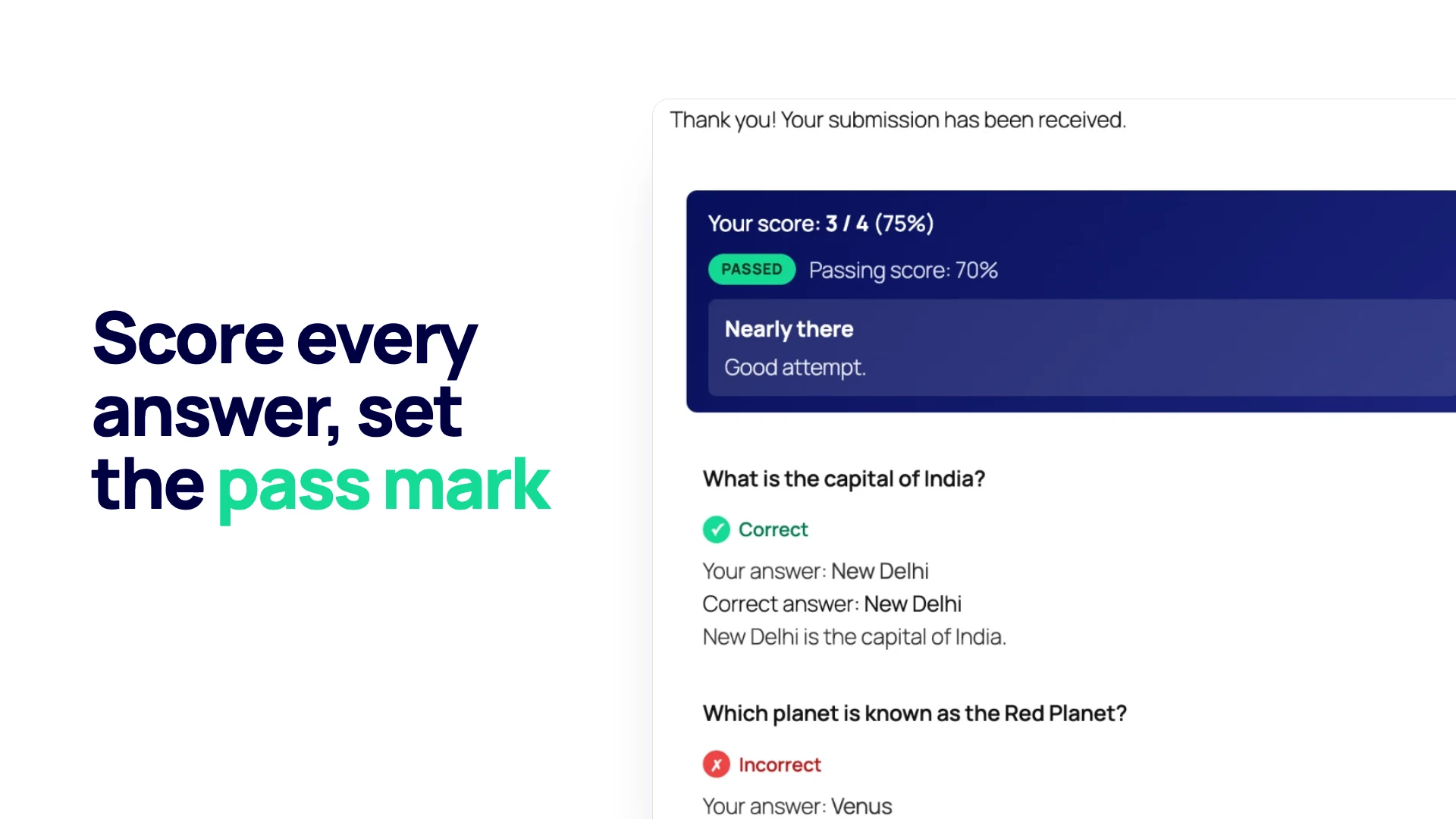
We answered two questions correctly (1 point and 2 points) and one wrong. The results appeared on the same page: Your score: 3 / 4 (75%), a Passed badge with the 70% passing score, the “Nearly there” message for the 50 to 79% range, and then every question marked Correct or Incorrect with the visitor’s answer, the correct answer and the explanation.

Notice how the points change the outcome. With 1 point per question, two right out of three would be 67% and a fail at a 70% pass mark. Because the continents question is worth 2 points, the same answers score 75% and pass. Decide what “passing” should mean before you set the points.
Step 6: Read the results
Every attempt is saved as an entry in Neural Forms > Entries. For the totals, go to Neural Forms > Analytics and choose the quiz. The screen shows total entries and attempts, the average score and percentage, the pass rate, the highest and lowest scores, and the number of questions.
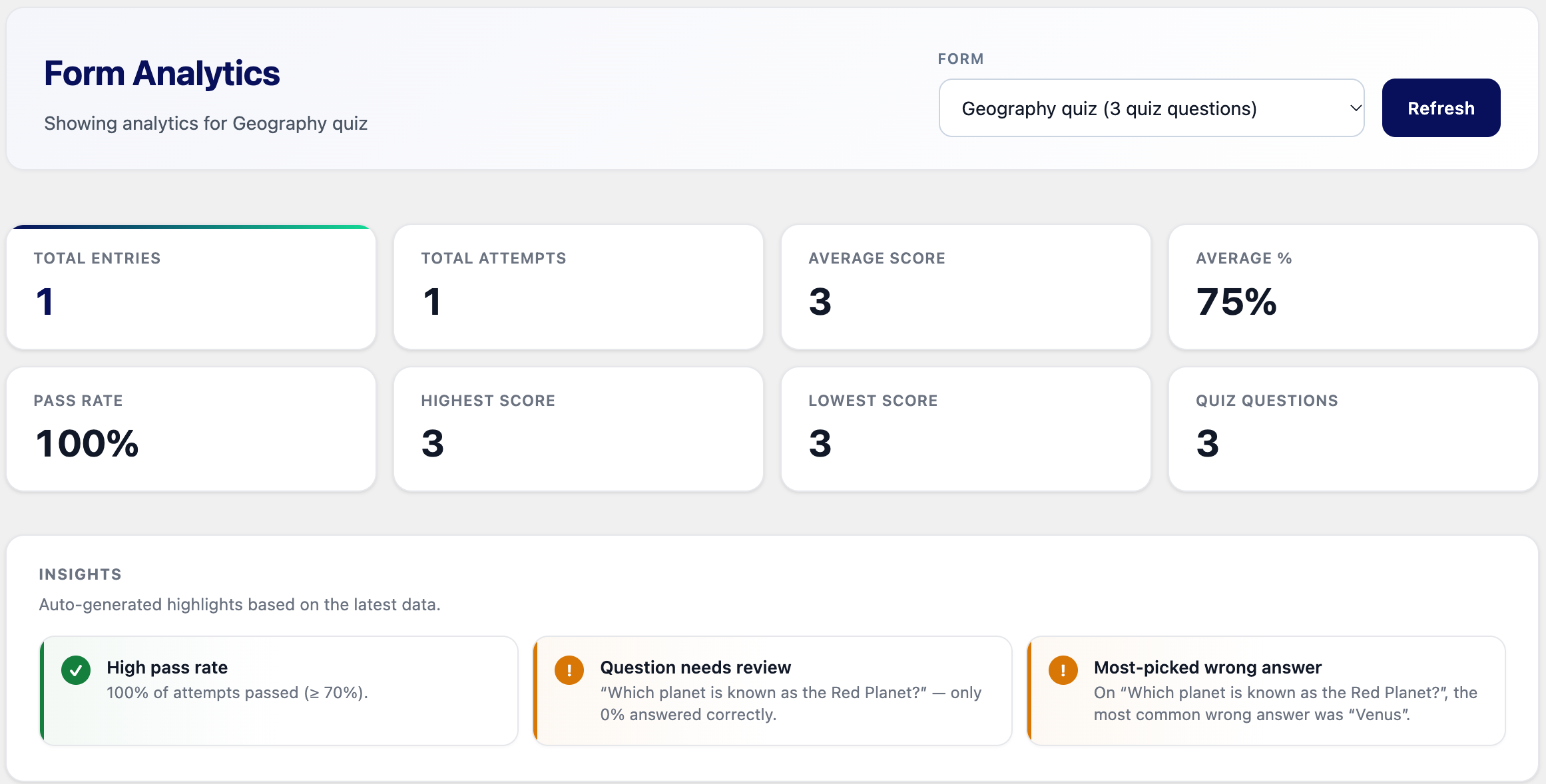
Below the numbers, Insights points out patterns from the answers, such as a question few people get right and the wrong answer picked most often. Our test flagged “Which planet is known as the Red Planet?” with “Venus” as the most common wrong answer. When a question shows up there again and again, either the lesson behind it needs work or the question is unclear.
Test it before you share it
- Take it twice: once aiming to pass and once to fail. Check that the badge, the score and the result message match what you expect for each.
- Check every range: work out which answers land in each message range and try at least one per range.
- Read every explanation on the results. A typo in an explanation reads worse than one in a question.
- Try it on a phone and with the keyboard: Tab to a question, arrow keys to choose an answer.
- Delete your test entries from Entries afterwards (move them to Trash) so they do not skew the averages and pass rate.
Frequently asked questions
Can I make a quiz in WordPress for free?
Yes. Neural Forms is free on WordPress.org, and scored quizzes with points, explanations, a pass mark and result messages are part of the free plugin. Each quiz form takes up to 200 entries in the free version.
How do I show the score after someone submits?
The score and percentage appear on the page after submitting. To add a Passed or Failed badge, tick Show pass/fail result in the form’s Quiz settings and set the passing score.
Can I hide the correct answers?
Yes. Set Show correct answer to Never on each question. Visitors still get their score, but not the right answers or explanations.
Can I show different messages for different scores?
Yes. Add result messages with a minimum and maximum percentage for each range. The first range that matches the score is shown.
Can a question be worth more than one point?
Yes. Set Points on each question. The percentage is the points earned divided by the total points in the quiz.
Where do I see everyone’s results?
Each attempt is an entry in Neural Forms > Entries. Neural Forms > Analytics shows the average score, pass rate, highest and lowest scores, and the questions people miss most.
Build your first quiz
Start from the Quiz Form template, swap in your own questions, set points and explanations, choose a pass mark, then take the quiz yourself twice before sharing it. For more on quiz features, see the quiz form page. Running a quick opinion question instead of a test? A survey form may fit better.


Leave a Reply