
HubSpotPro
Send submissions to a HubSpot form so leads land in your CRM.
Requires Neural Forms Pro (with Lite installed and active).
On this page
1. Connect HubSpot#
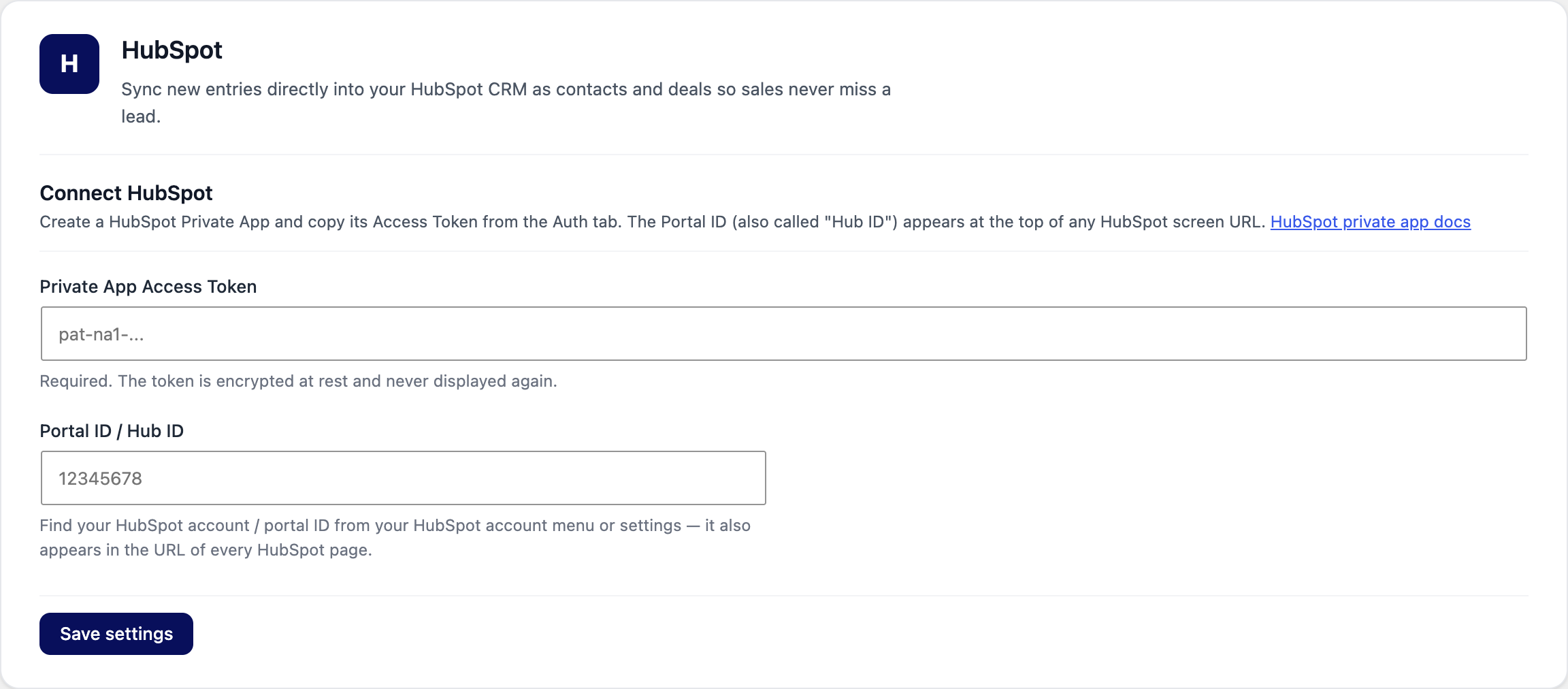
- In HubSpot, create a Private App and copy its Access Token from the Auth tab (it starts with
pat-). - Find your Portal ID (also called Hub ID): it is in your HubSpot account menu and in the URL of every HubSpot page.
- Go to Neural Forms → Integrations → HubSpot, paste the Private App Access Token and the Portal ID / Hub ID.
- Click Save settings.
2. Map a form#
- Open your form, click Settings → Integrations → HubSpot.
- Turn on Send this form’s submissions to HubSpot.
- Choose the HubSpot Form to send to (click Refresh forms if a new one is missing).
- In Field mapping, pick the Neural Forms field for each HubSpot field, or click Auto-map fields. Fields set to Do not send are skipped.
- Make sure every HubSpot field marked Required is mapped; Neural Forms warns you if one is not. Save the form.
Create the receiving form in HubSpot first, with the fields you want to collect. Submissions then appear in HubSpot as form submissions and contacts.