
How AI analysis works
Summary, category, priority and score on entries, plus AI-drafted replies.
On this page
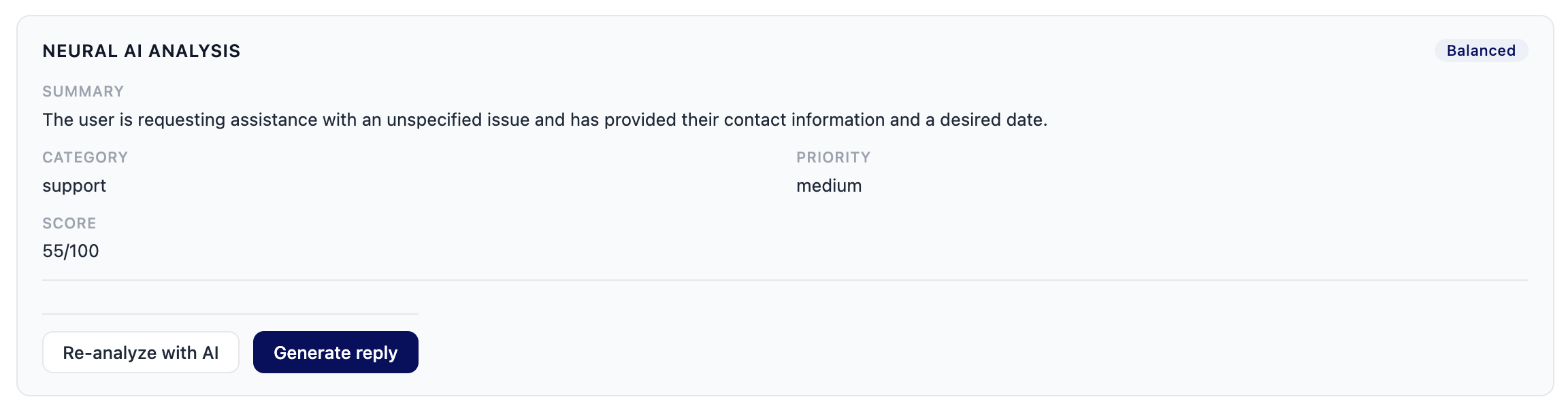
Neural AI reads an entry and adds a summary, category, priority and score, and can draft a reply. It needs a connected API key and AI credits (connect your key).
| Result | What it is |
|---|---|
| Summary | A one-line description of what the person wants |
| Category | Such as inquiry, support or sales |
| Priority | Low, medium or high. Shown as a badge in the inbox list |
| Score | 0 to 100, so the most important leads stand out |
Lite and Pro#
| Lite (free) | Pro | |
|---|---|---|
| Analysis | Once per entry, when you click Analyze with Neural AI on it | Every new entry, automatically, with Auto-process entries on; Re-analyze with AI at any time |
| Reply draft | One draft per entry with Generate reply | Regenerate reply, Refine with AI and translation |
Draft a reply#
Click Generate reply on the entry to have Neural AI write a draft answer. Edit it and send it from the entry’s reply thread. When an entry looks like it needs an answer, Neural Forms also suggests Mark as Needs Reply so it shows up in the Needs Reply folder.
Use it in the inbox#
- The inbox list shows each entry’s AI priority.
- The High Priority smart filter lists the leads that need attention first.
- With spam detection on (Pro), Spam Suspected lists entries flagged as likely spam.
Keep a field away from the AI#
In the form builder, click a field and tick Exclude from AI (free, every field type except Hidden). Its answer is removed before anything is sent to Neural Forms Cloud for analysis or a reply draft. Use it for ID numbers, card numbers, health details or anything the AI should never see. The answer is still saved with the entry and shown in the inbox and in emails.
Pro: refine and translate#
Re-analyze with AI refreshes the summary, category, priority and score. Regenerate reply writes a new draft, and Refine with AI polishes a draft you have edited. When a draft is in a different language from your site, a Translate to … button creates a translated copy as a new draft in your site’s language; it uses one polish credit and the original stays. With business context set, drafts reflect what your business does.
If entries are not analysed#
- Check Settings → Neural AI Cloud shows Connected and has credits left.
- Make sure Enable Neural AI is on, and in Pro Auto-process entries too.
- Look at the Processing health card in Settings (see Requirements). Click Process AI Queue Now; if that works, WP-Cron is not running on your site, so set up a server cron job.

