WorkflowsPro
When → If → Then: let a form assign, notify, follow up and sync on its own.
Requires Neural Forms Pro (with Lite installed and active).
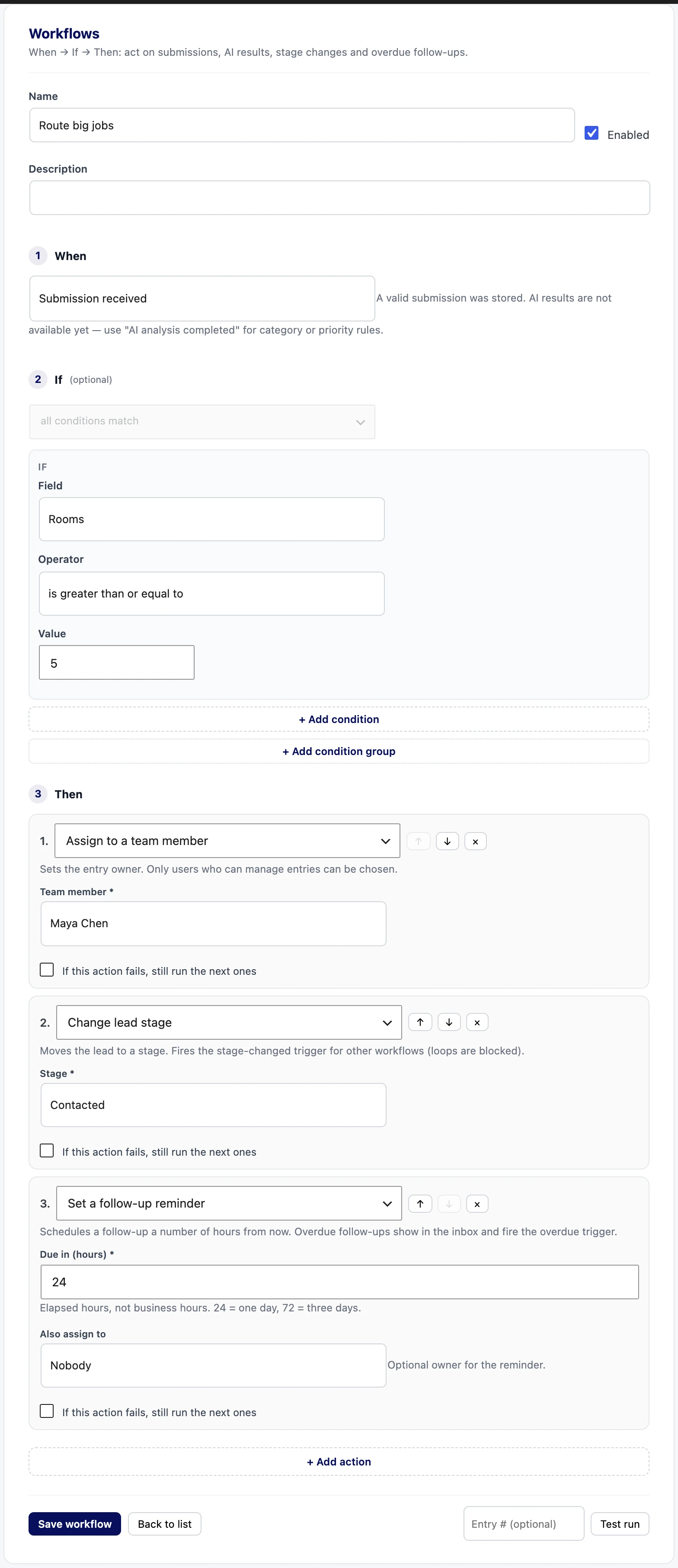
A workflow runs actions automatically when something happens to an entry, for example: when a submission is received, if Rooms is 5 or more, assign it to Maya, set the stage to Contacted and add a follow-up for tomorrow. Workflows belong to one form.
Create a workflow#
- Open the form in the builder, switch to the Settings tab and choose Workflows. Save the form once first if it is new.
- Click + New workflow and give it a Name.
- 1 When: choose the trigger.
- 2 If (optional): add conditions on the answers or on entry details such as AI priority or lead stage. No conditions means it always runs.
- 3 Then: add actions with + Add action (up to 10). They run in order.
- Click Create workflow. Use Test run to check it (below).
Triggers#
| When | Fires |
|---|---|
| Submission received | When a valid submission is saved. AI results are not ready yet at this point. |
| AI analysis completed | When the first AI analysis of an entry finishes. Tick Also run when an entry is re-analysed to run again after re-analysis. Use this for conditions on AI category, priority or score. |
| Lead stage changed | When a person or a workflow moves the lead between stages. Choose a From stage and To stage, or Any. |
| Follow-up overdue | Once per due date, when a follow-up passes its time. Checked hourly. |
| Payment confirmed | Once per payment, when the gateway confirms a deposit or full payment. |
Actions#
| Then | What it does |
|---|---|
| Assign to a team member | Sets the entry owner (administrators only). |
| Change lead stage | Moves the lead to a stage. |
| Set a follow-up reminder | Sets a follow-up a number of hours from now (default 24), optionally with an owner. It sends no email itself. |
| Notify your team | Emails fixed addresses you enter. Subject and message can use {form_name}, {site_name}, {entry_url} and {field_id} placeholders. |
| Send a fixed acknowledgement | Emails the person who submitted, with your own text. It never sends AI text. |
| Prepare an AI reply draft for review | Asks Neural AI for a draft and puts it on the entry for a person to review and send. Uses AI credits. |
| Create a quote | Creates a quote from the entry’s pricing; optionally issues it and emails it to the visitor (see Quotes). |
| Sync to HubSpot, Add to Mailchimp audience, Send WhatsApp notification, Send to Zapier | Sends the entry using the form’s saved integration settings, even if automatic sending is off for that integration. |
There is no wait or delay step: actions run in order as soon as the background queue picks up the run, usually within minutes (see Requirements for background processing).
Test it#
Click Test run to see whether the conditions match and which actions would run, without sending, changing or charging anything. Leave Entry # empty to test on sample data, or enter an entry number from this form. The test uses your current edits, even before you save them.
When an action fails#
- A failed action is retried up to 3 times (after 1, 5 and 30 minutes) when the failure may be temporary, such as an email the server rejected.
- By default the next actions are skipped after a failure. Tick If this action fails, still run the next ones on an action to carry on.
- Click History on a workflow to see its last 30 runs with each action’s result, and Retry a failed or skipped action.
- Each run is also written to the entry’s Activity.
- A workflow cannot trigger itself, and workflows that trigger each other stop after 3 steps.
Turn a workflow off with its On/Off checkbox in the list. Deleting it cancels its pending runs. Editing a workflow only affects new runs.

