
Prices, totals and calculationsPro
Priced Item and Calculated fields, currency, discount rules and deposits.
Requires Neural Forms Pro (with Lite installed and active).
On this page
With Neural Forms Pro you set prices in the form itself, with no shop plugin needed. The visitor sees a live total as they fill in the form, and the total is always recalculated on the server when they submit.
Add a Priced Item#
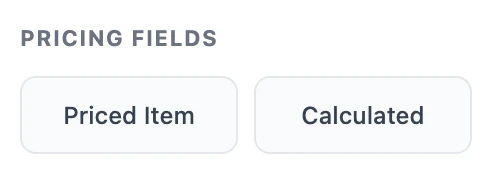
- Open the form in the builder. In the field palette, find Pricing Fields and add a Priced Item.
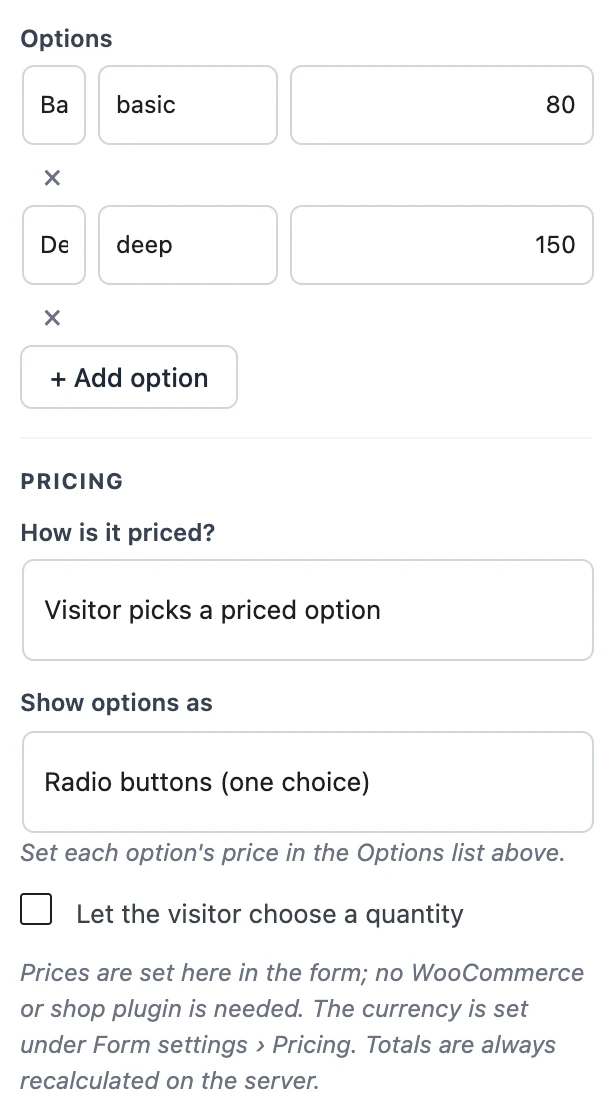
- Under How is it priced?, choose Fixed price, Visitor picks a priced option or Visitor enters an amount.
- For options, set each option’s label, value and price in Options, and choose Show options as: Dropdown (one choice), Radio buttons (one choice) or Checkboxes (add-ons, several).
- Optional: tick Let the visitor choose a quantity and set Min, Max and Default (not available when the visitor enters the amount).
- Save the form.
| Pricing mode | What the visitor does |
|---|---|
| Fixed price | Nothing to choose; the price is always added. Set it in Price. |
| Visitor picks a priced option | Picks one option, or several with checkboxes. Each option’s price shows beside it. |
| Visitor enters an amount | Types an amount, for example a donation. Set a Minimum and Maximum; an amount outside them is brought back to the limit on submit. |
Add a Calculated field#
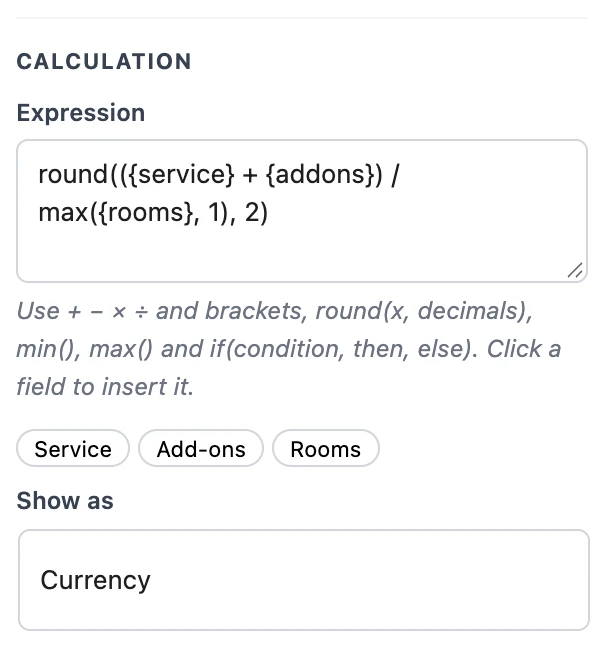
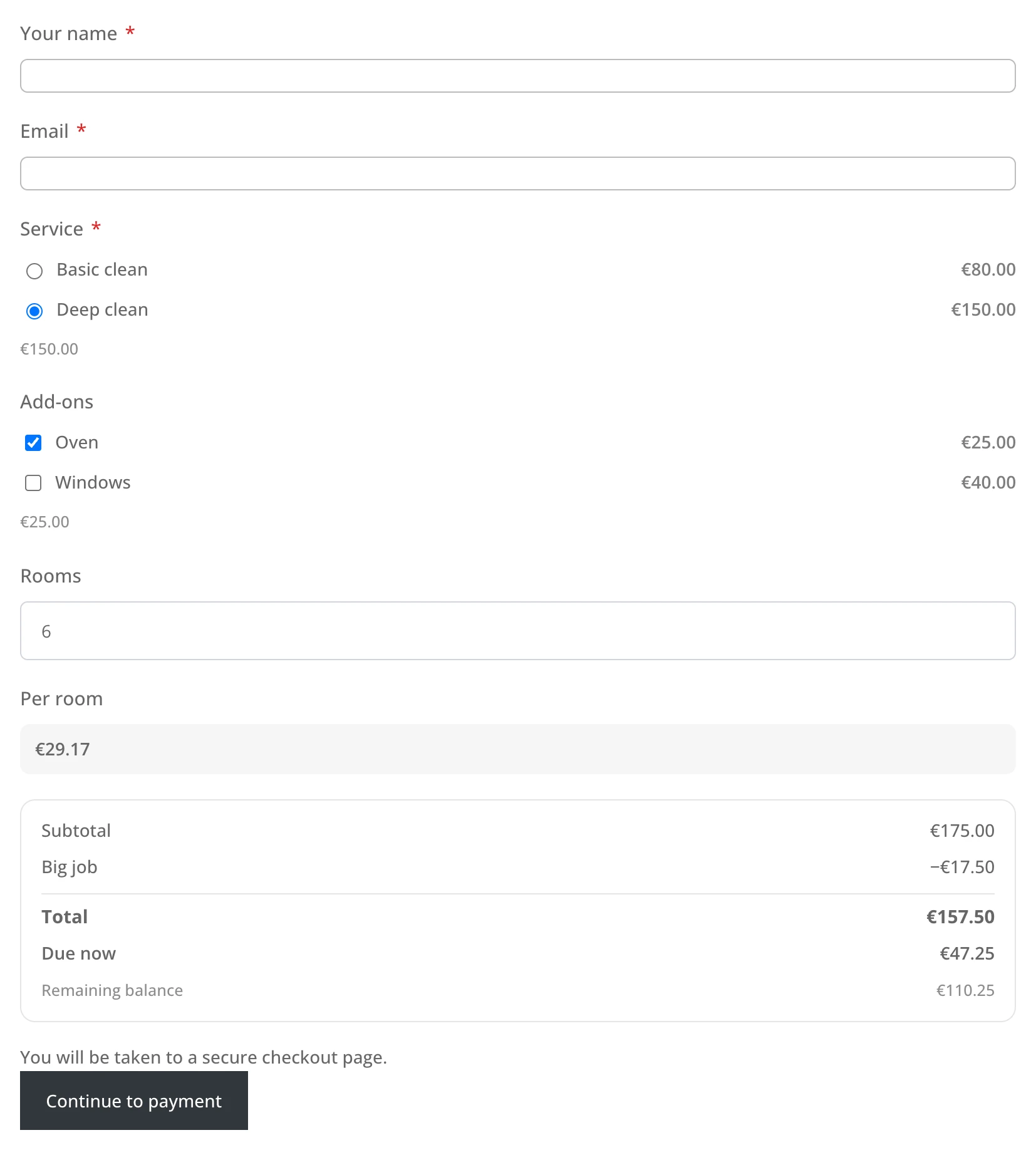
A Calculated field shows a value worked out from other answers, such as a price per room. Add Calculated from Pricing Fields and write an Expression. Click a field chip to insert it as {field_id}.
- Use
+ - * /and brackets,round(x, decimals),min(),max()andif(condition, then, else). Comparisons< <= > >= == !=work insideif. - Fields you can use: Number, Range, Rating, Priced Item (its line total) and other Calculated fields. Empty answers and hidden fields count as 0. Dividing by zero shows “—”.
- Show as: Currency or Number (with Decimals).
- A Calculated field is for display. It does not change the amount charged: only Priced Items, discounts and the deposit do. Its value is kept with the entry’s pricing, listed by field ID.
Currency, discounts and deposit#
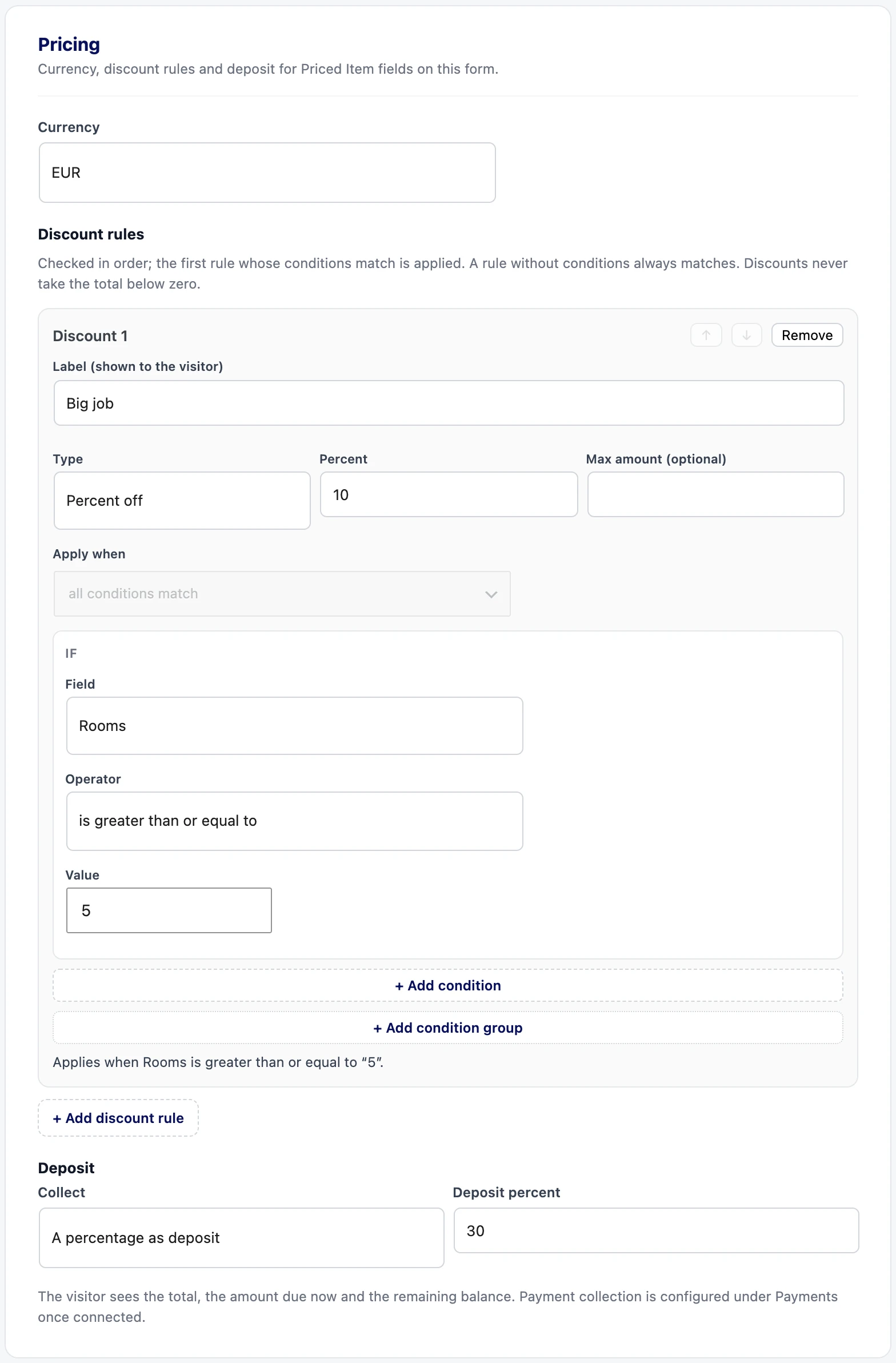
In the builder, open Settings → Pricing.
| Setting | What it does |
|---|---|
| Currency | One currency per form. Pick one of the common currencies or Other ISO code… and type a 3-letter code. Default USD. |
| Discount rules | Click + Add discount rule: a Label the visitor sees, Percent off or Fixed amount off, an optional Max amount, and Apply when conditions. Rules are checked in order and only the first matching rule applies. A rule without conditions always matches. Up to 20 rules. |
| Deposit | The full amount, A percentage as deposit (0.01–99.99%) or A fixed deposit. The deposit is worked out on the total after the discount. |
What the visitor sees#
Each priced field shows its own line total, and a summary box shows Subtotal, the discount under its label, Total, and with a deposit Due now and Remaining balance.
Every entry keeps a Pricing card with its lines and totals. To charge the amount online, see Take payments on a form; to send a formal quote first, see Quotes.

