

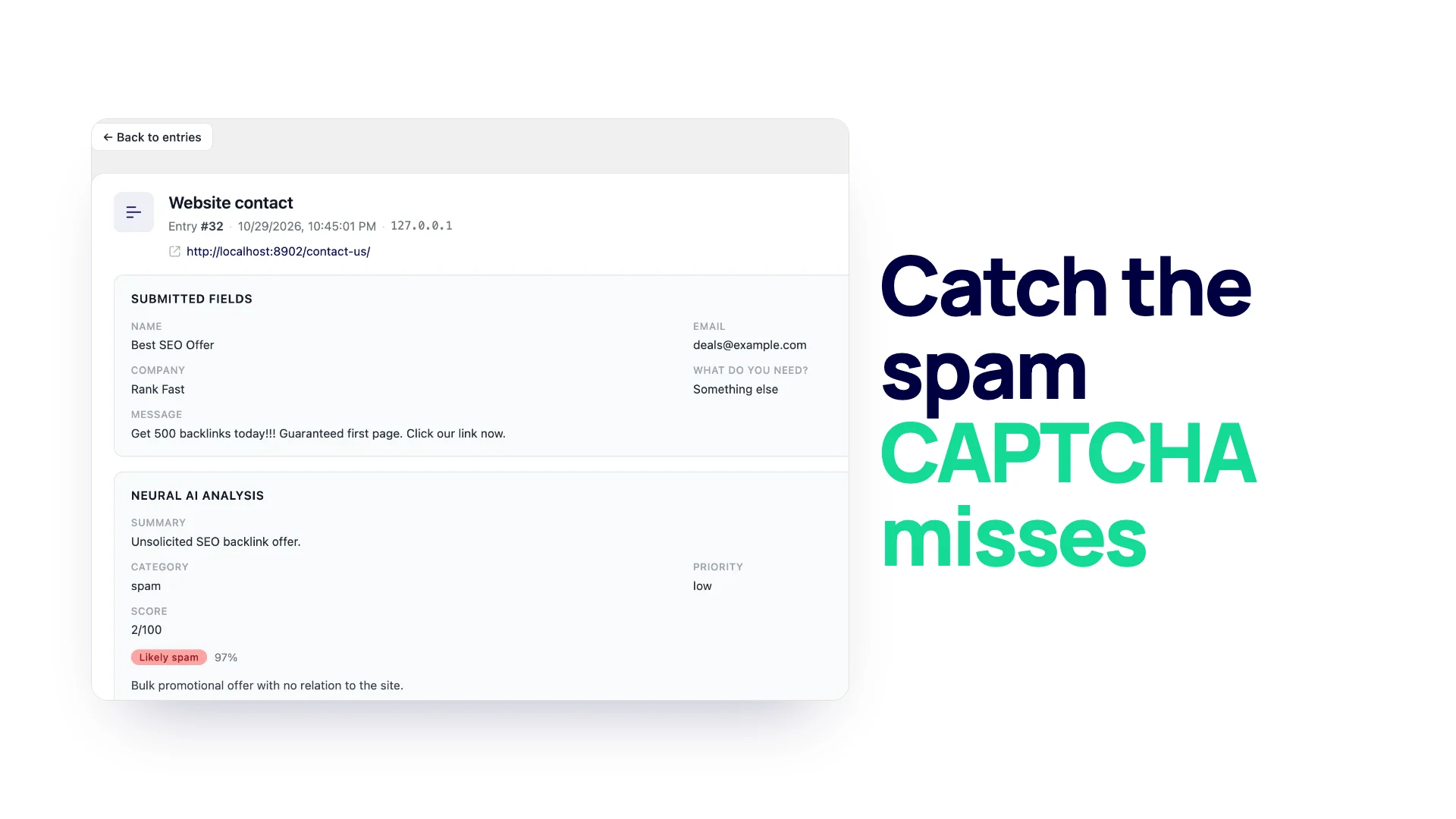
You switched on CAPTCHA, the bot traffic dropped, and the contact form still delivers a “partnership opportunity” every morning. This guide is for site owners in that spot. It explains which kinds of spam each defense stops, why the messages getting through now look human, and how an AI spam filter for contact forms reads the message itself so you can set one up without guessing at the settings.
The spam that gets through now
Ten years ago form spam was easy to spot: a wall of links, broken English, the same text on a thousand sites. Most of that is now stopped by the first layers on any decent form. What reaches your inbox today falls into four groups.
- AI-written bot messages. Spam tools now write a separate message for each site. In April 2025 SentinelLabs described AkiraBot, which used OpenAI models to write messages tailored to each site’s content and used CAPTCHA-solving services. It had targeted more than 400,000 sites and successfully spammed at least 80,000 of them (SentinelLabs report). A message that mentions your business by name no longer proves a person wrote it.
- Hired humans. Some senders pay people to fill in forms by hand. A real browser, a real mouse and a real person pass every bot check, because they are not bots.
- SEO and service pitches. “I noticed your site is not ranking for…” These are often typed by people, sometimes with your own page title pasted in.
- Cold outreach dressed as an inquiry. Guest post offers, “partnership” requests, lead lists for sale, app development quotes you never asked for.
All four have something in common: the problem is the content of the message, not the way it was sent. That is why the checks that look at the sender let them through.
What each defense stops and misses
Every layer below looks at something different. The honeypot and rate limit look at behavior, CAPTCHA looks at whether a browser acts like a person, and an AI filter reads what was written.
| Defense | What it checks | Usually stops | Usually misses |
|---|---|---|---|
| Honeypot | A hidden field that people never see | Simple bots that fill every field | Bots that skip hidden fields, all humans |
| Rate limit | How many entries one IP address sends | Bursts from one address | Slow senders, rotating addresses |
| CAPTCHA (Turnstile, reCAPTCHA v2) | Whether the visitor behaves like a person | Most scripted bots | Solver services, hired humans |
| Keyword blocklist | Banned words or links in the message | Repeat phrases you have seen before | New wording, AI-written text, false matches on real customers |
| AI reading | The meaning of the whole message | Pitches, cold outreach, AI-written spam | Very short or ambiguous entries; it needs a reviewed threshold |
No row stops everything, so the answer is layers. The cheap checks run first and throw out the obvious junk for free. The AI check reads only what is left.
How AI spam filtering works
An AI spam filter does not sit in front of the form. In Neural Forms the visitor submits, the honeypot, rate limit and CAPTCHA (if switched on for that form) run, and the entry is saved. Shortly after, the entry is sent to the Neural Forms cloud for analysis.
The analysis returns a spam flag, a confidence score from 0 to 100 and a short reason in plain words, for example that the message is a generic SEO offer that does not refer to anything you sell. The same analysis also gives the entry a summary, a category, a priority and a lead score, so the spam check and the rest of the AI work share one run.
Two things follow from that order of events:
- The filter cannot stop a submission from being saved. It sorts entries that are already saved.
- Nothing is deleted. A flagged entry is either labeled or moved to the Spam folder, where you can always restore it.
Setting it up in Neural Forms
AI spam detection is part of Neural Forms Pro, which comes with the Starter plan ($99/year) and the Agency plan ($199/year). It needs Pro installed, a connected Neural Forms Cloud API key and credits on your account. The free Lite plugin keeps the honeypot, rate limit and CAPTCHA.
Turn it on under Neural Forms > Settings, in the spam detection controls. Switch on Spam detection, then choose a mode.
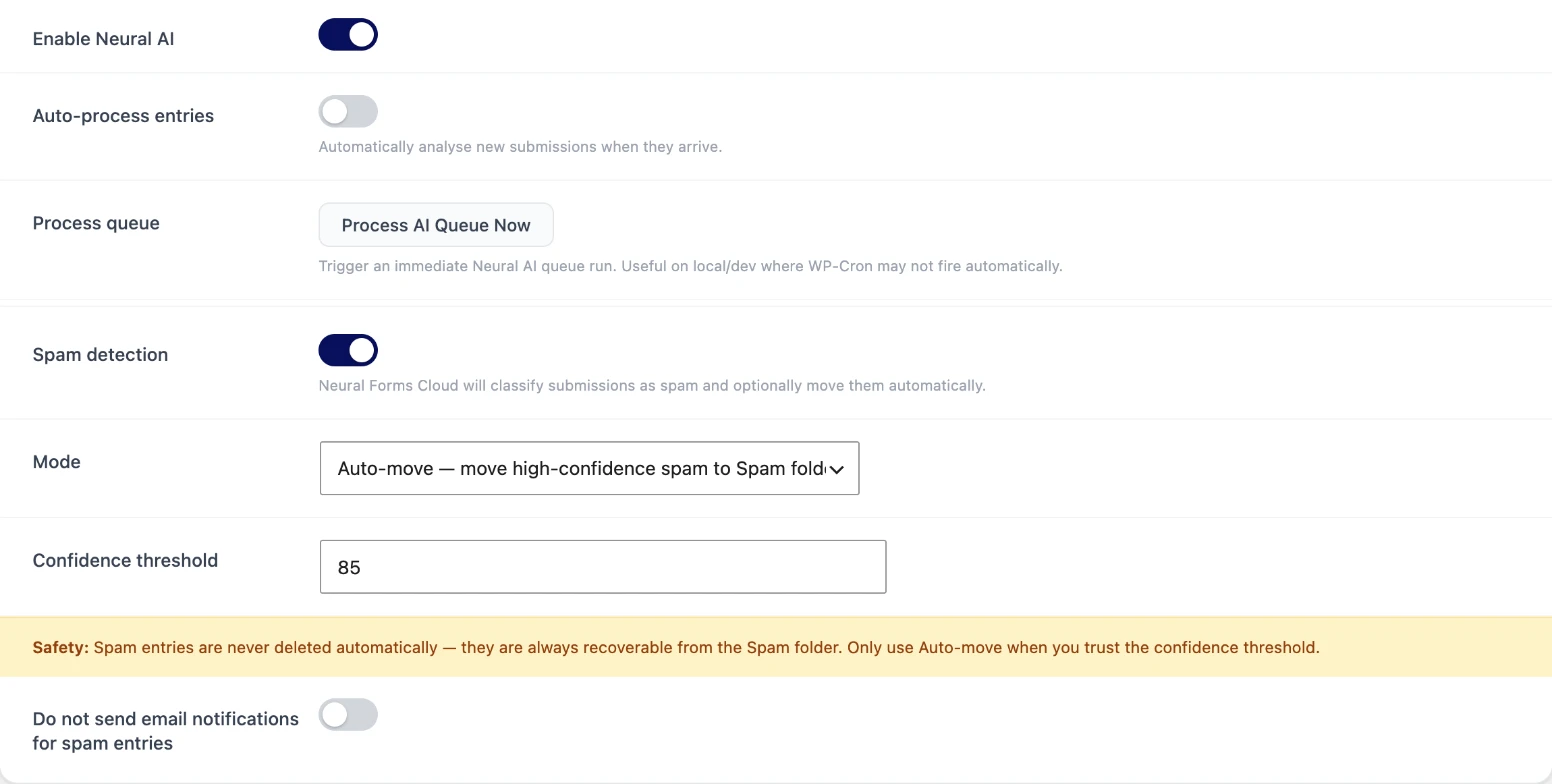
One condition is easy to miss: the check runs as part of the automatic analysis, so it only runs on forms that analyze new entries automatically. In each form’s settings, under Process with AI, the form should be on Process every entry, or on Use global setting with Auto-process entries switched on in Settings. A form set to Manual only or Do not process this form gets no spam check.
Suggest mode: flag and keep in the inbox
Suggest only labels the entry and leaves it where it is. Flagged entries show a “Likely spam” badge with the confidence and the reason, and they collect in the Spam Suspected view in the inbox sidebar.
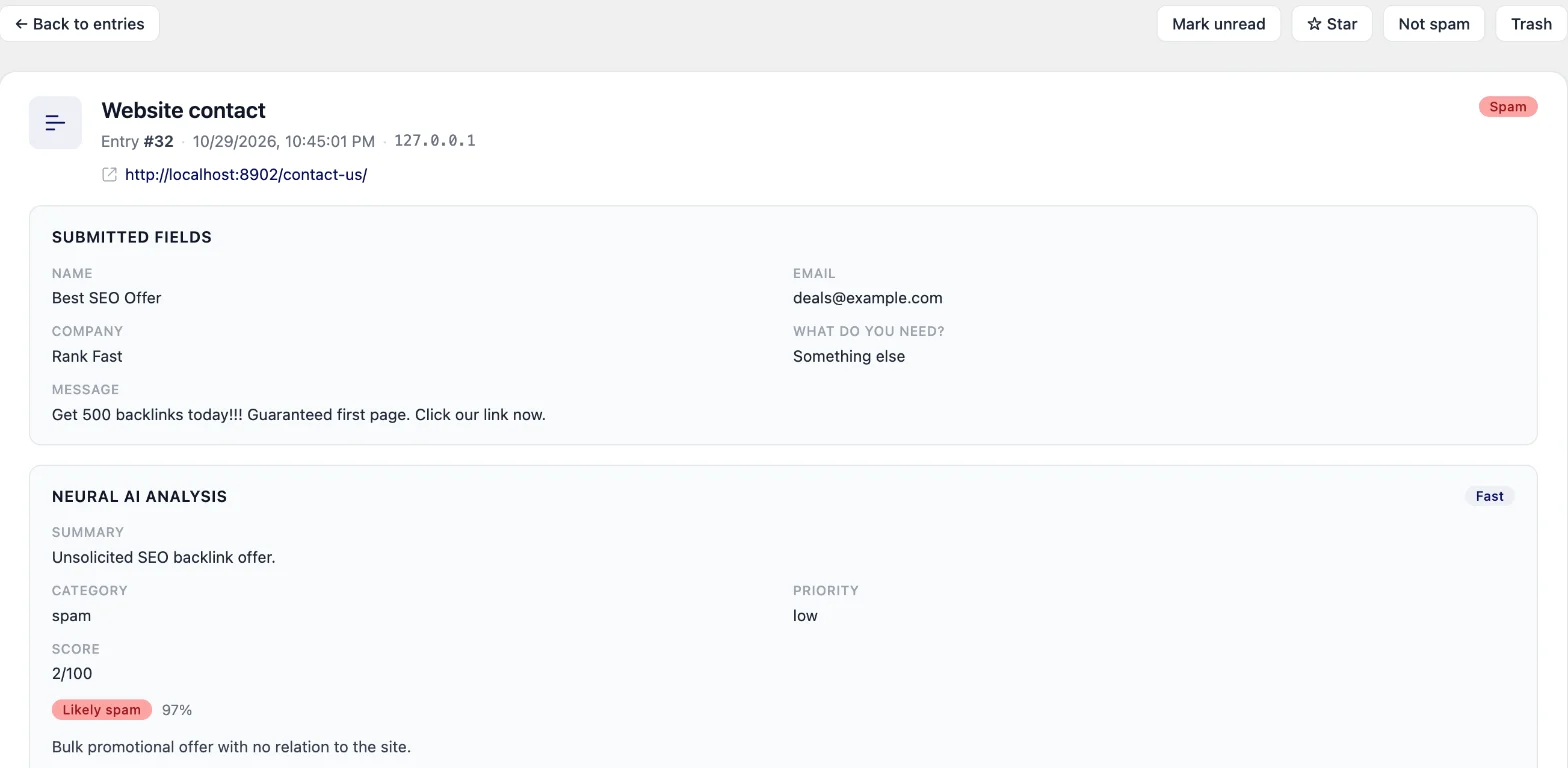
This is the mode to start in. For the first week or two you see every decision the filter makes, and nothing leaves your inbox until you move it.
Auto mode: move to Spam above a threshold
Auto-move sends an entry to the Spam folder when the AI flags it as spam with a confidence at or above your threshold. Flagged entries below the threshold stay in the inbox and show up in Spam Suspected, so you still see the borderline cases.
Picking a threshold
The Confidence threshold field accepts 60 to 100 and starts at 85. A few rules of thumb:
- Start at 85 or higher. A high threshold moves only the entries the filter is most sure about.
- Watch the Spam Suspected view for a week. If it fills with obvious junk at 70 to 84 confidence and no real customers, lower the threshold a little.
- Check the Spam folder at the same time. If you find one real inquiry there, raise the threshold back up. A missed customer costs more than a few extra clicks.
- Use different thinking for different forms. A newsletter signup form can live with more risk than a quote request form, but the threshold is one setting for the whole site, so set it for the form where a miss hurts most.
Skip notification emails for spam
Under the spam settings there is a switch called Do not send email notifications for spam entries. It is only available while spam detection is on.
With it on, the admin email for each new entry waits until the analysis is done. Entries the AI flags as spam get no email; everything else is emailed as usual. Note that this switch looks at the spam flag, not the threshold, so in Suggest mode a flagged entry still lands in your inbox but does not send an email.
Because the email waits for the analysis, turn this switch on only when every form on the site analyzes new entries automatically (see the Process with AI condition above) and your credit balance is healthy. After switching it on, send a test entry through each form and check that the notification arrives.
The trade-off is a short delay. The analysis is queued about 10 seconds after the entry is saved and takes a few seconds to run, and it uses WordPress’s scheduled tasks, which run when the site gets traffic. On a quiet site the email can arrive later than you are used to.
Keep the free layers on
The AI filter is the last layer, not the only one. Every Neural Forms form, free or paid, has:
- A honeypot. A hidden field that people never see. If it comes back filled in, the submission is rejected before it is saved.
- A rate limit. At most 10 submissions per form from one IP address in 10 minutes.
You can add a CAPTCHA per form. Neural Forms supports Cloudflare Turnstile and Google reCAPTCHA v2. Enter the keys once in Settings, then switch CAPTCHA on in each form’s Security settings. See CAPTCHA for your forms for the setup.
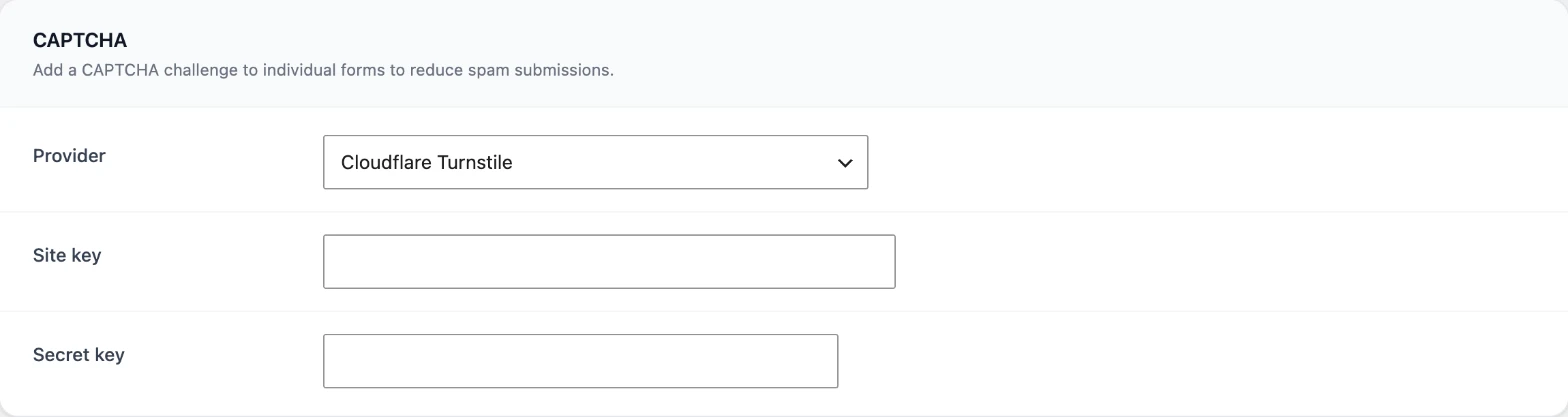
Keeping these on matters for cost as well as cleanliness. The honeypot, rate limit and CAPTCHA are free and stop the bulk of bot traffic before an entry exists. Every entry that reaches the AI check uses credits, so the fewer junk entries that get that far, the further your credits go.
Reviewing false positives
Any filter that reads meaning will sometimes misread it. A short message like “price?” or a reply written in a hurry can look like a pitch. Build a short review into your week:
- Open the Spam Suspected view. These are entries the AI flagged that are still in your inbox. Move the real junk with Spam, and leave real inquiries where they are.
- Open the Spam folder. In Auto-move mode, this is where moved entries go. Open anything that looks like a real person and click Not spam to restore it.
- Read the reason line on anything you restore. It tells you what the filter saw, which helps you decide whether to change the threshold or the form.
If real customers keep getting flagged, look at the form as well as the filter. A form with one message box and no other fields gives the AI very little to go on. A Select field for the service someone wants gives every real inquiry a clear signal.
Costs and privacy
Credits. Each AI analysis uses credits from your Neural Forms Cloud balance, and credits are only used when the analysis runs successfully. Starter includes 7,500 AI credits a year and Agency 25,000, and top-ups are available ($19 for 2,000 credits, $49 for 10,000). The cost per entry depends on the length of the entry, so watch the balance in Settings for the first month. If the balance runs out, spam detection stops classifying new entries until you top up; your settings are kept, and the free layers keep running.
What is sent. The submitted entry is sent to the Neural Forms cloud for analysis. Traffic is encrypted with TLS 1.3, logs are kept for 90 days with 100-character previews, and customer data is never used to train AI models. If you also want to keep visitor IP addresses and browser details off your own site, switch on privacy mode in Settings.
Where AI spam filtering fits
If spam is getting past your CAPTCHA, the fix is not a harder puzzle for your real visitors. Keep the free checks for bots, and let an AI filter read what is left. Start in Suggest mode, move to Auto-move at a high threshold once you trust what you see, and check the Spam folder each week.
For the full set of protections, free and paid, see spam protection for your forms. The same analysis that flags spam also sorts real leads by priority in the lead inbox, which is covered in AI lead scoring.
FAQ
Why am I still getting spam with reCAPTCHA?
CAPTCHA checks whether the visitor behaves like a person. Solver services and people paid to fill in forms pass that check, and AI tools now write messages that look personal. The content is the problem, so you need a check that reads the content.
Can AI detect spam in contact forms?
Yes. An AI filter reads the saved message and decides whether it looks like spam, with a confidence score and a reason. In Neural Forms Pro it either labels the entry or moves it to the Spam folder, depending on the mode you pick.
Will an AI spam filter block real customers?
It does not block anyone; the entry is always saved. In Suggest mode it only labels entries, and in Auto-move mode moved entries stay in the Spam folder until you restore them with Not spam. Start with a high threshold and check the Spam folder each week.
What spam threshold should I use?
Start at the default of 85 or higher. Lower it in small steps only if the Spam Suspected view keeps filling with obvious junk and no real inquiries.
Do I still need CAPTCHA if I use AI spam detection?
CAPTCHA is optional, but it is worth keeping on busy forms. It stops scripted bots before an entry is saved, which keeps your inbox shorter and saves the credits the AI check would use on them.
Does spam count toward form entry limits?
Contact, survey and multi-step forms have no entry limit in any plan. In the free Lite plugin, poll and quiz forms stop at 200 entries per form and spam entries count toward that number, while trashed entries do not. Pro removes the limit.

Leave a Reply