

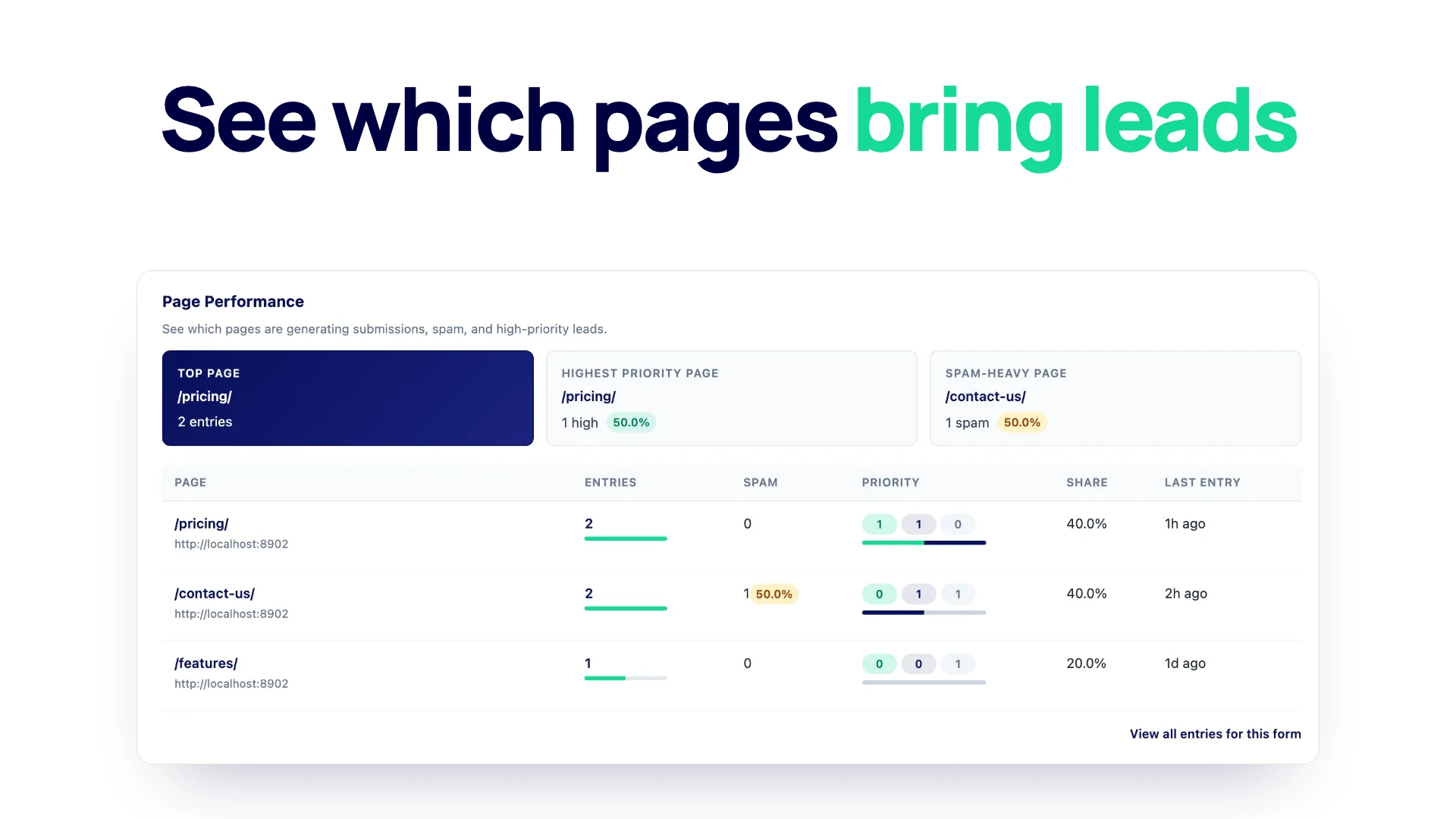
Plenty of sites use one contact or quote form on many pages: in the footer, on every service page, under each product. The inbox fills up, but you cannot tell which pages are doing the work. This guide shows how to see which pages your form entries come from on a WordPress site, without setting up Google Analytics, what that report can and cannot tell you, and what to change once you know.
The page report described here is Page Performance in Neural Forms, part of the Starter ($99 a year) and Agency ($199 a year) plans. The source page of each entry is recorded on the free plugin too.
Why the source page matters
The same form on two pages is really two different conversations. Someone who fills in your quote form from the pricing page has already seen your prices. Someone who sends it from a blog post may be months away from buying. A footer form on every page collects a bit of everything.
Knowing where entries start helps you answer practical questions:
- Which service pages bring in requests, and which ones nobody acts on?
- Is the footer form worth keeping, or does it mostly collect spam?
- Did the new landing page bring more entries than the old one?
- Which pages bring the leads your team marks as high priority?
Counting entries per form will not answer any of these, because it adds every page together.
What Neural Forms records with every entry
When someone submits a form, Neural Forms saves the answers along with the form, the date and time, and the address of the page the form was sent from. The page address comes from the visitor’s browser (the referrer it sends with the submission), so you do not need to add a hidden field or any tracking code.
Open any entry in Neural Forms > Entries and the source page shows as a link at the top, under the form name and date.
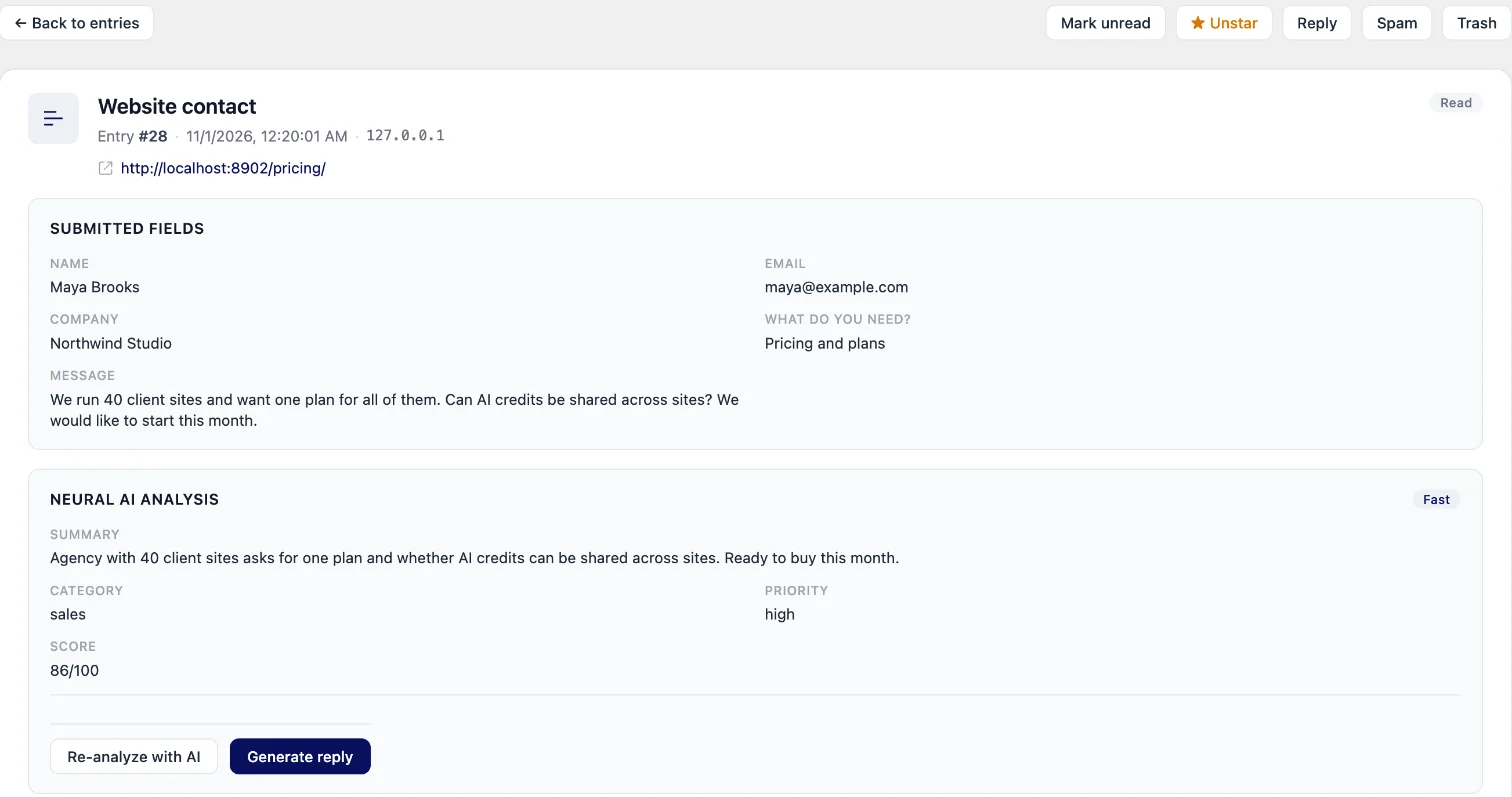
Two details worth knowing:
- Privacy mode (in the Neural Forms settings) stops the IP address and browser user agent from being stored. It does not remove the page address, so the page report keeps working with privacy mode on.
- Sometimes there is no page. Some browsers, privacy extensions and strict site settings send no referrer. Those entries are kept as normal; they show up in the report as “Unknown page”.
Open the Page Performance report
Go to Neural Forms > Analytics and pick the form in the Form selector at the top. The Page Performance section groups that form’s entries by the page they came from. On the free plugin, the section shows as locked with an upgrade link.
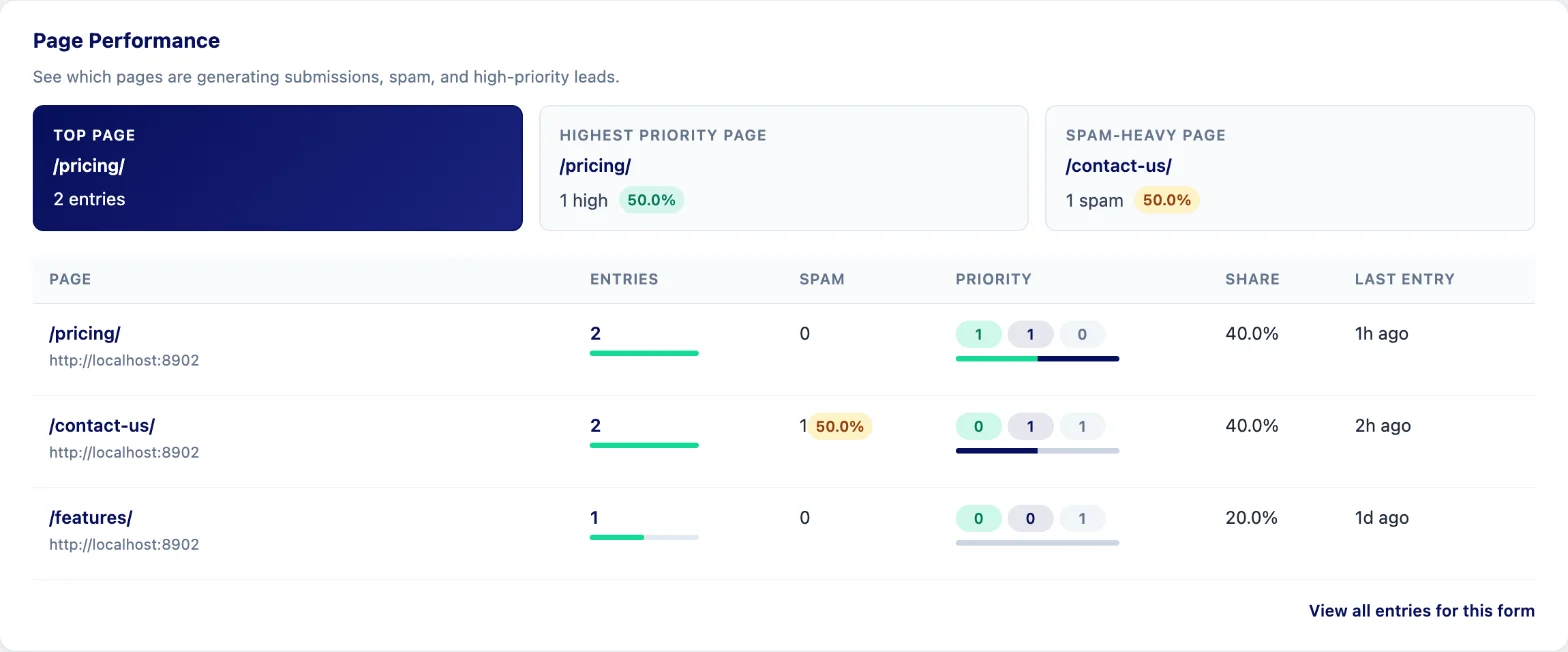
At the top are up to four summary cards:
- Top page: the page with the most entries.
- Highest priority page: the page with the most entries the AI marked as high priority.
- Spam-heavy page: the page with the highest share of spam.
- Unknown source: how many entries arrived with no referrer recorded.
Below them is a table with one row per page:
| Column | What it shows |
|---|---|
| Page | The page path, with a link to the page |
| Entries | How many entries came from that page, with a bar for comparison |
| Spam | Entries marked as spam, and the share of that page’s entries |
| Priority | Counts of high, medium and low priority entries |
| Share | That page’s share of all entries for this form |
| Last entry | When the most recent entry from that page arrived |
Pages are sorted by entries, most first. A link at the bottom takes you to all entries for the form.
A few things about how it counts:
- Query strings are removed.
/pricing/?utm_source=newsletterand/pricing/count as one page, which also keeps tracking tags and other personal details in links out of the report. - It covers every entry stored for the form. There is no date filter on this report in the current version, and entries in Trash still count until you delete them permanently. To compare periods, export the entries with a date range (see below).
- Priority needs AI analysis. High, medium and low come from Neural Forms AI, which on the Starter and Agency plans can analyze every new entry automatically. Entries that were never analyzed are counted in Entries but not in the priority pills. More on what the AI adds in AI lead scoring.
- Entries from before the update may have no page data. The report fills in as new entries arrive.
Read it with the rest of the analytics
Page Performance tells you where entries come from. The Neural Forms > Stats screen, on every plan, tells you how many and how they are trending. It shows total entries, unread, needs reply, spam and failed email deliveries, a daily trend, your top 5 forms and AI counts, for today or the last 7, 30 or 90 days.
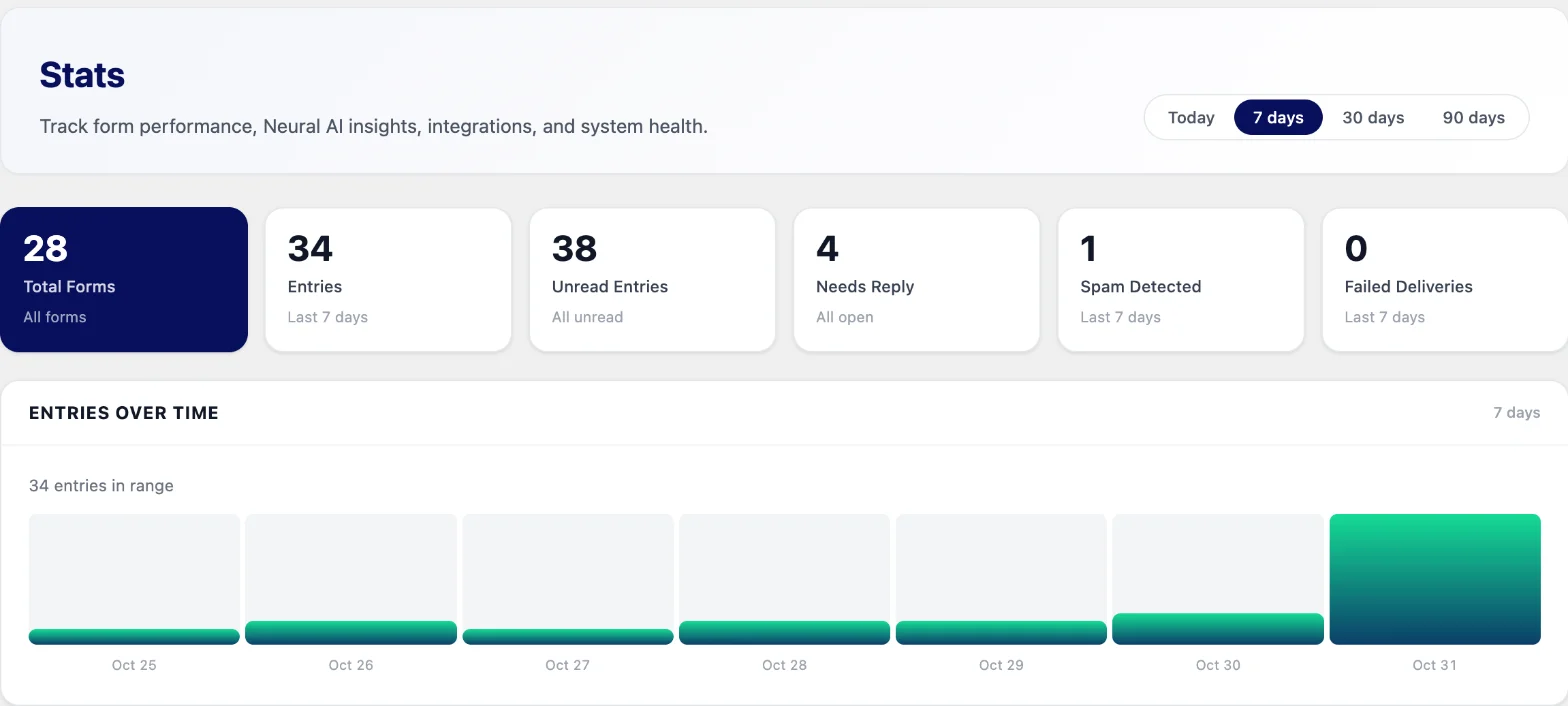
Use them together. If the daily trend jumps, check Page Performance for the form that grew to see which page caused it. If one page has a high spam share, compare the spam count on Stats over the next week after you add a CAPTCHA to that form.
For deeper digging, the lead inbox lets you filter by form, search and open each entry, and CSV export gives you the raw answers with a date range (all time, last 7 days, last 30 days, this month or last month). The source page is not one of the CSV columns, so per-page counts come from the report, not the spreadsheet.
What this does not measure
Page Performance counts entries. It does not count how many people saw the form, so it cannot give you a conversion rate, and it does not show where people started the form and gave up.
That matters. A page with 40 entries from 10,000 visits is doing worse than a page with 15 entries from 300 visits, even though it tops the table. The “Share” column is each page’s share of the form’s entries, not a conversion rate.
To get a rough conversion rate per page:
- Note the entries per page from Page Performance.
- Get page views for the same pages from your site analytics (Google Analytics, your host’s statistics or an analytics plugin), for a matching period.
- Divide entries by views. 15 entries from 300 views is 5%.
Because Page Performance has no date filter, this works best on a form that has been on the same pages for a while, or right after you set up a new form.
What to change once you know
- Add the form where it converts. If service pages bring most entries, make sure every service page has the form, near the end of the content where people decide.
- Trim it where it does not. A form on 40 blog posts that produces two entries a year adds page weight and spam risk. Replace it with a link to your contact page.
- Match the message to the page. If pricing-page entries are mostly ready-to-buy, give that form a heading like “Get a quote for your project” and a field for the budget. A blog-post form might ask a lighter question.
- Watch spam by page. A page with a high spam share is often linked from somewhere bots crawl. Turn on CAPTCHA for that form, or move the form off that page.
- Follow the priority, not only the volume. A page with fewer entries but more high-priority ones may deserve the most attention. Send ads or internal links there.
- Use separate forms when you need separate follow-up. If two pages need different questions or different people to reply, give each its own form. Page Performance then sits inside each form’s own report.
Other ways to track form entries by page
| Method | What you get | Trade-offs |
|---|---|---|
| Page Performance in Neural Forms | Entries, spam, priority and share per page, inside the plugin | Starter or Agency; no views or conversion rate; no date filter |
| Google Analytics 4 events | Form submissions by page path next to traffic, with conversion rates | Setup work (a tag or plugin to send an event when the form is sent); cookie consent affects the numbers; no link to the entry itself |
| An analytics plugin with form tracking | Views and submissions per page in the dashboard | Another plugin to install and keep updated; usually a paid add-on; counts submissions, not lead quality |
| A source field you fill in by hand | Whatever you type into a fixed hidden field per form copy | One form copy per page; easy to get wrong; Neural Forms hidden fields only hold a fixed value |
If you already run GA4 for marketing, use it for conversion rates and use Page Performance for what GA4 cannot see: which pages bring spam, and which bring the leads worth a quick reply.
FAQ
Can I see which page a form was submitted from?
Yes. Neural Forms stores the source page with every entry on every plan, and shows it as a link at the top of the entry. Page Performance on Starter and Agency groups all entries of a form by that page.
Does Neural Forms track form views or conversion rate?
No. It counts entries, not views, so there is no conversion rate in the plugin. Divide entries per page by page views from your site analytics to work one out.
Do I need Google Analytics to track form submissions?
Not to see which pages entries come from. Neural Forms records the page with each entry. You need Google Analytics or another analytics tool for page views and conversion rates.
Is the source page recorded when privacy mode is on?
Yes. Privacy mode stops Neural Forms from storing the IP address and browser user agent. The page address is still saved, and query strings are removed in the Page Performance report.
Is page performance available on the free plan?
No. The source page is recorded on every plan, but the Page Performance report is part of the Starter ($99 a year) and Agency ($199 a year) plans.
See where your leads start
Page Performance shows entries, spam, priority and share for every page a form sits on, with no tracking code. It is included in Neural Forms Starter and Agency, both for unlimited sites.

Leave a Reply