

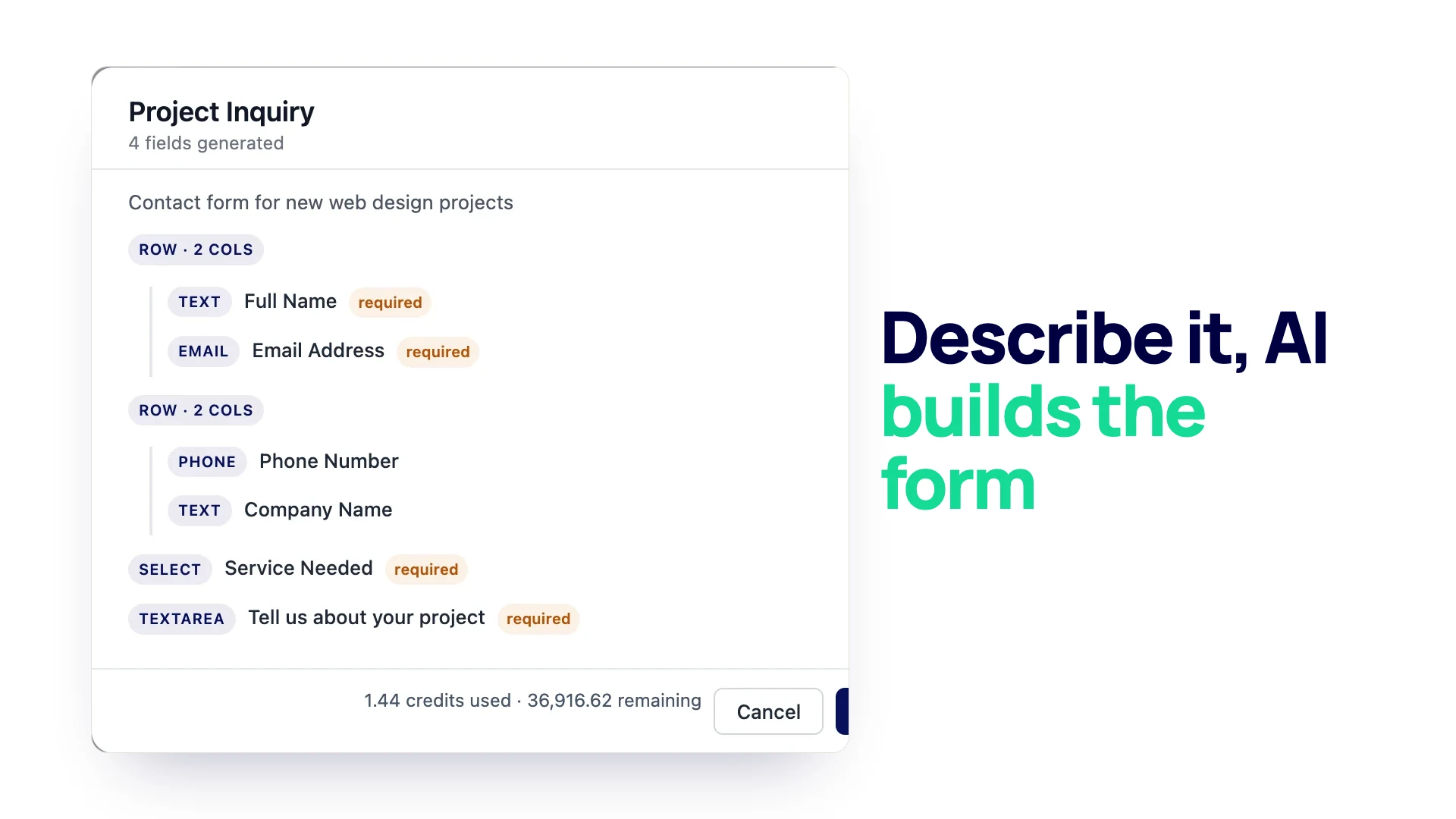
A one-line prompt like “make a contact form” gets you a generic form you then rebuild by hand. This guide is for anyone using an AI form generator in WordPress who wants a usable form on the first try. It gives you a prompt structure that works, copy-ready AI form generator prompts for eight common forms, the requests that go wrong, and a checklist for what to fix before the form goes live. Every prompt below was run in Neural Forms Pro 1.0.3 in November 2026, and the screenshot under each one is the review screen it returned, unedited.
What the generator can build
Knowing the limits saves you from writing prompts the generator cannot follow. In Neural Forms the AI drafts a form in the Neural Forms cloud, and the plugin then checks the result against its own rules before you see it.
| Part of the form | What the generator can return |
|---|---|
| Field types | Text, email, textarea, select, checkbox, checkboxes, number, phone, URL, date, radio, hidden, acceptance (consent), file upload, rating, poll, quiz question, matrix, repeater |
| Layout | Rows of up to 4 columns, and up to 8 steps |
| Size | Up to 40 fields, and up to 10 options in each choice field |
| Per field | Label, placeholder, help text, required or optional, and the options for choice fields |
| Special fields | Polls with 2 to 6 options; quiz questions with one correct answer and points; ratings on a 3 to 10 scale |
| Prompt length | Up to 1,500 characters |
Some things are not part of what the generator returns, so you add them in the builder afterwards:
- Conditional logic. “Show this field if” rules are set in the builder.
- Form settings. Notification emails, CAPTCHA, the success message and the AI processing mode come from the form’s settings, not from the prompt.
- Field limits. Character limits, number ranges and file size limits use the builder’s defaults until you change them.
When the generator returns something the plugin cannot use, such as a field type that does not exist, the plugin maps it to a close type or drops it, and lists what it changed under “2 notes from generation” in the AI panel. Read those notes every time.
A prompt structure that works
Good prompts answer five questions. Write them as plain sentences, in this order:
- Purpose. What the form is for and what happens after someone sends it.
- Who fills it in. Customers, job applicants, students, staff. This shapes the wording.
- The exact fields. Name each one, say what type it is when it matters (a dropdown, a set of checkboxes, a star rating), list the options for choice fields, and say which fields are required.
- Layout. Which fields share a row, and whether the form should be split into steps.
- Tone. Formal, friendly, short labels or full questions.
Here is the structure applied to a simple form, with each part marked:
[Purpose] Create a contact form for a landscaping company. People use it to ask for a garden visit.
[Who] It is filled in by homeowners, so use plain, friendly wording.
[Fields] Fields: full name (required), email (required), phone (optional), a dropdown "What do you need?" with Lawn care, Garden design, Tree work, Other (required), and a message box "Tell us about your garden" (required).
[Layout] Put email and phone side by side in one row.
[Tone] Keep labels short.
You do not need the labels in square brackets; they are there to show the parts. Use the same five parts in your own words.
Prompts by use case
Each prompt below follows the structure above and asks only for things the generator can build. Copy one, change the business details and options, and generate. Under each prompt is what to check before you publish.
Contact form with a service dropdown
Create a contact form for a small web design studio. Visitors use it to ask about a new project. Fields: full name (required), email (required), phone (optional), company name (optional), a dropdown "Service needed" with New website, Redesign, Maintenance, Other (required), and a message box "Tell us about your project" (required). Put name and email in one row, phone and company in a second row. Friendly, professional wording.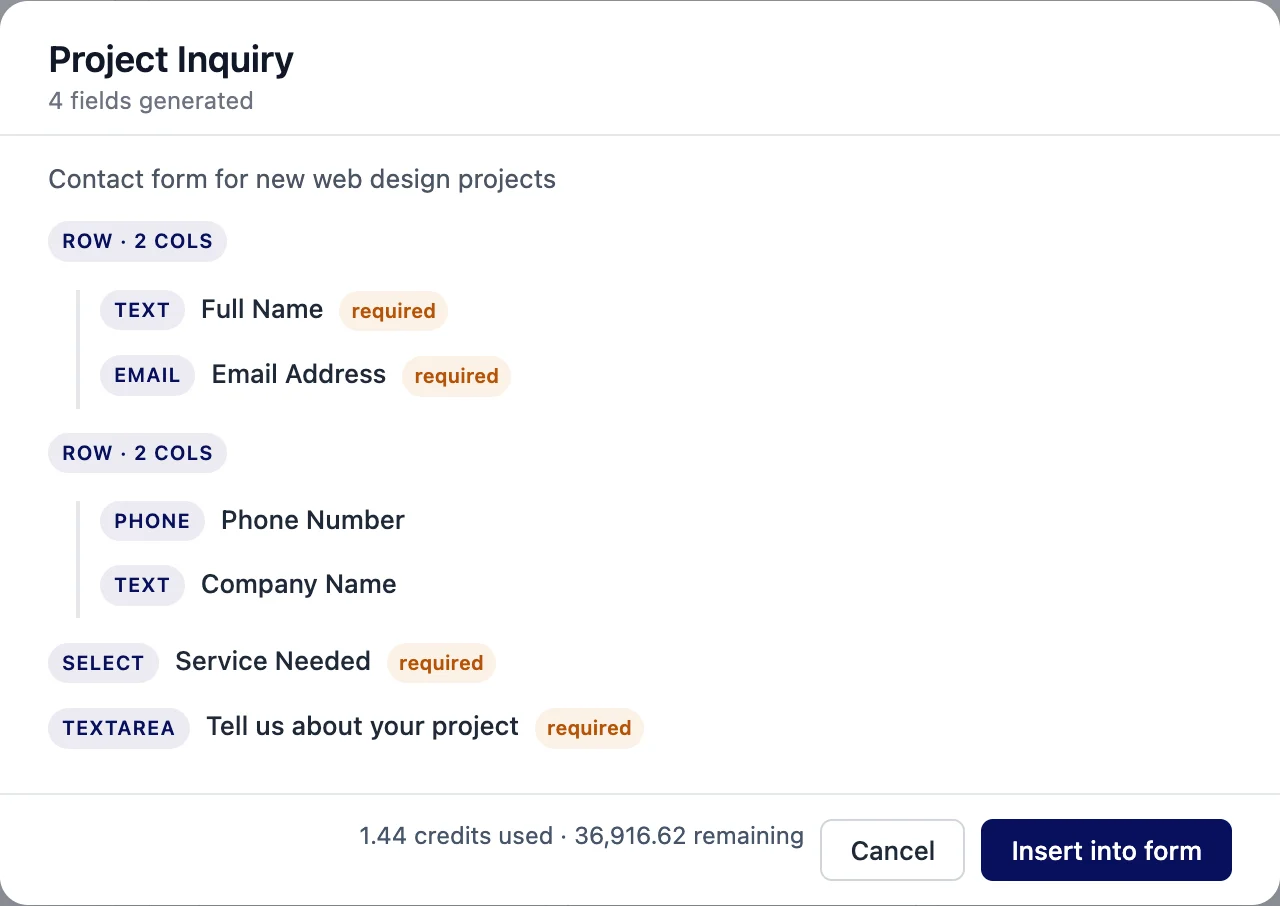
In our run every field came back as asked, with name and email in the first row and phone and company in the second.
Check after: that Email came back as an email field (not text) so the address is validated, and that the dropdown has your real services. Add a “Show this field if” rule in the builder if you want a follow-up question only for Redesign.
Quote request with budget and timeline
Create a quote request form for a kitchen renovation company. Homeowners fill it in to get a price. Fields: full name (required), email (required), phone (required), a dropdown "Type of project" with Full kitchen, Cabinets only, Countertops only, Other (required), a dropdown "Budget" with Under $10,000, $10,000 to $25,000, $25,000 to $50,000, Over $50,000 (required), a dropdown "When do you want to start?" with Within a month, 1 to 3 months, 3 to 6 months, Just researching (required), and a message box "Describe your kitchen and what you want changed" (required). Split the form into two steps: Your project first, Contact details second.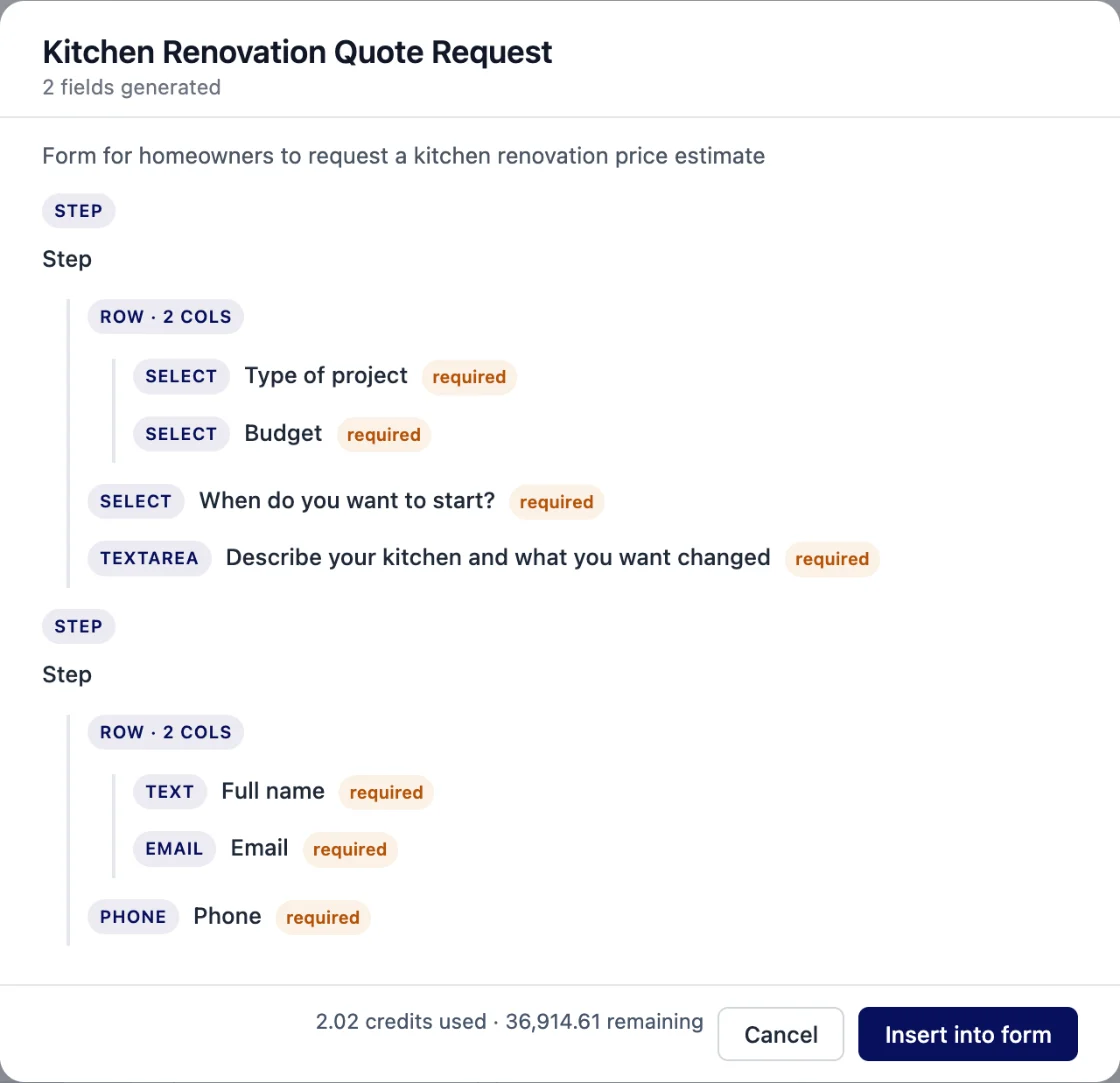
In our run the two steps came back in the right order with the right fields, but both were named “Step” instead of “Your project” and “Contact details”.
Check after: the step titles (rename them in the builder) and the order of steps, and that the budget ranges match your real price points. Budget and timeline as dropdowns give you answers you can sort; see how to qualify leads from your contact form.
Event registration
Create a registration form for a one-day photography workshop. Attendees sign up in advance. Fields: full name (required), email (required), phone (optional), a radio choice "Experience level" with Beginner, Intermediate, Advanced (required), a checkbox list "Which sessions will you attend?" with Morning portraits, Afternoon landscapes, Evening editing (required), a dropdown "Dietary needs" with None, Vegetarian, Vegan, Gluten free, Other (optional), and a consent checkbox "I agree to be photographed during the workshop" (required).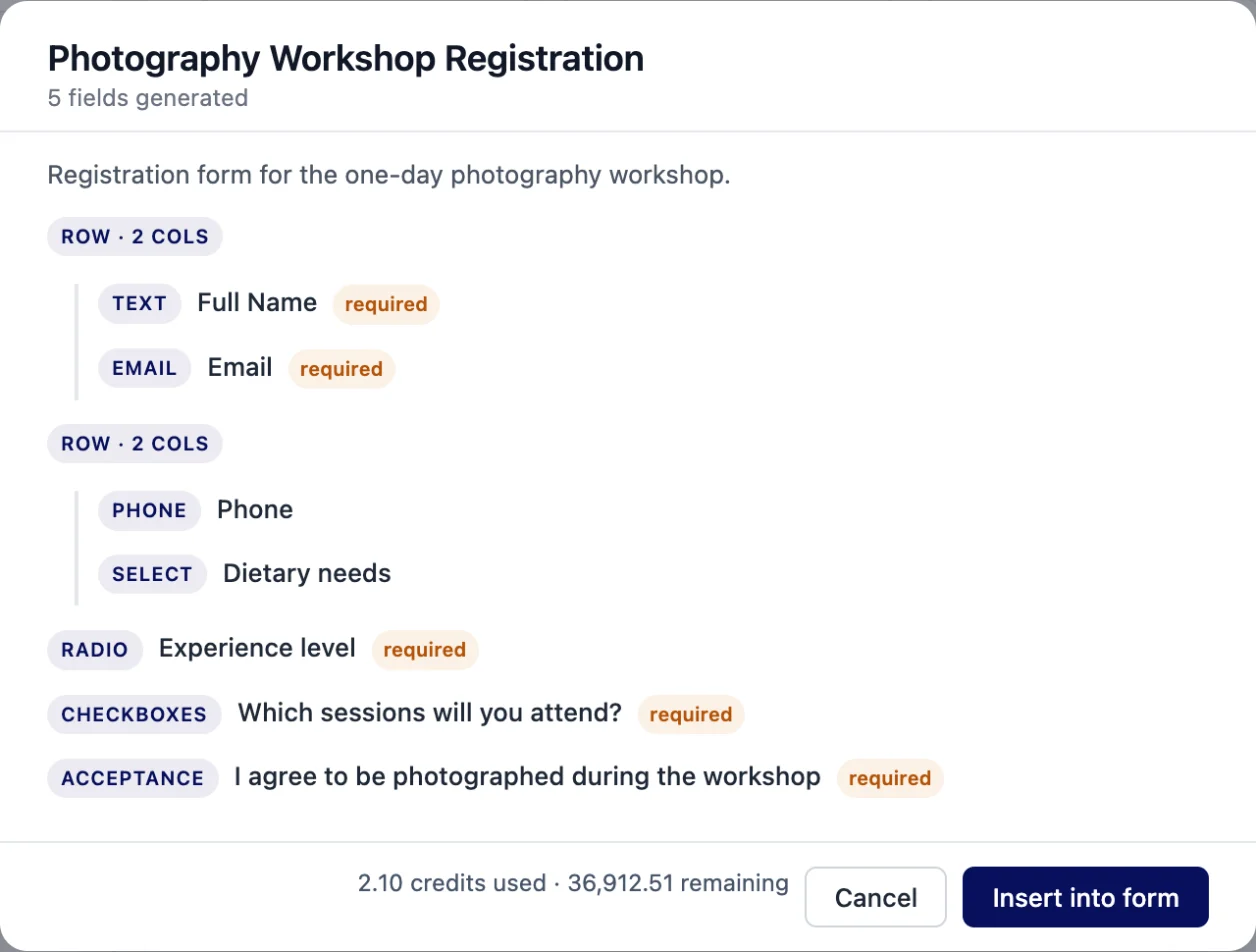
In our run the AI also put Phone and Dietary needs side by side in a row the prompt did not ask for. Fine on a desktop; move them out of the row if you want each on its own line.
Check after: the consent wording, and the success message in the form’s settings (tell people what happens next). The form does not limit seats or close itself when the workshop is full, so keep an eye on the entry count.
Job application with file upload
Create a job application form for a café hiring baristas. Applicants are job seekers, so use clear, welcoming wording. Fields: full name (required), email (required), phone (required), a dropdown "Position" with Barista, Shift lead (required), a checkbox list "Days you can work" with Monday to Sunday as separate options (required), a number field "Years of experience" (optional), a file upload "Upload your resume" (required), and a message box "Why do you want to work with us?" (optional). Split into two steps: About you, Your experience.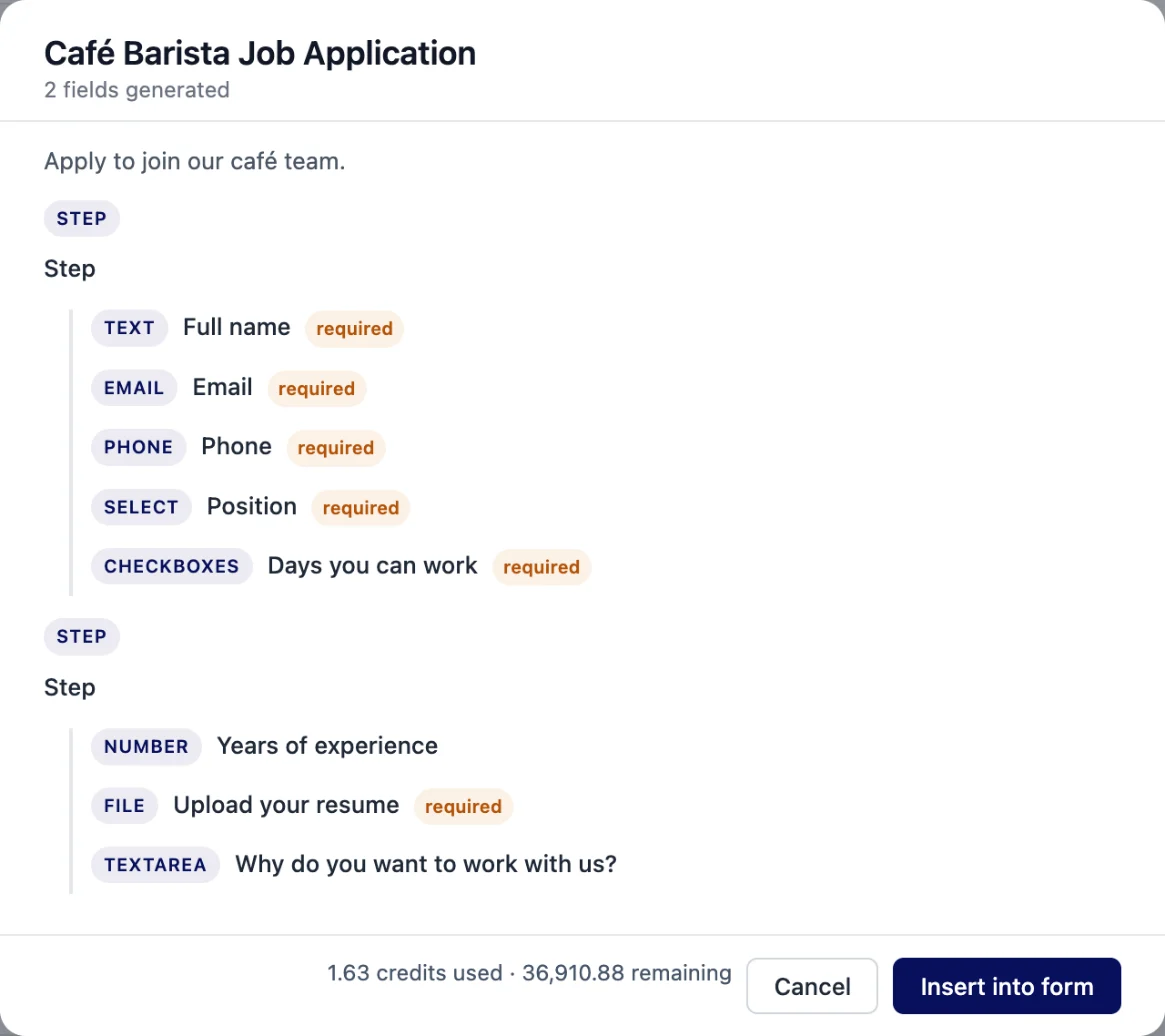
In our run the form came back in two steps with the resume upload in the second, and again both steps were named “Step”, so rename them to About you and Your experience.
Check after: the file upload. Each file field takes one file. Allowed types are images, PDF, Word and OpenDocument documents, and plain text or CSV, and the default size limit is 5 MB, capped by your server. If the generator adds help text with a different size, correct it so applicants are not told the wrong limit.
Customer feedback with a rating
Create a customer feedback form for a hotel. Guests fill it in after their stay. Fields: a star rating "Overall stay" on a scale of 5 (required), a star rating "Cleanliness" on a scale of 5 (required), a star rating "Staff friendliness" on a scale of 5 (required), a message box "What did you enjoy most?" (optional), a message box "What could we do better?" (optional), name (optional), email (optional), and a checkbox "You may contact me about my feedback" (optional). Warm, short wording.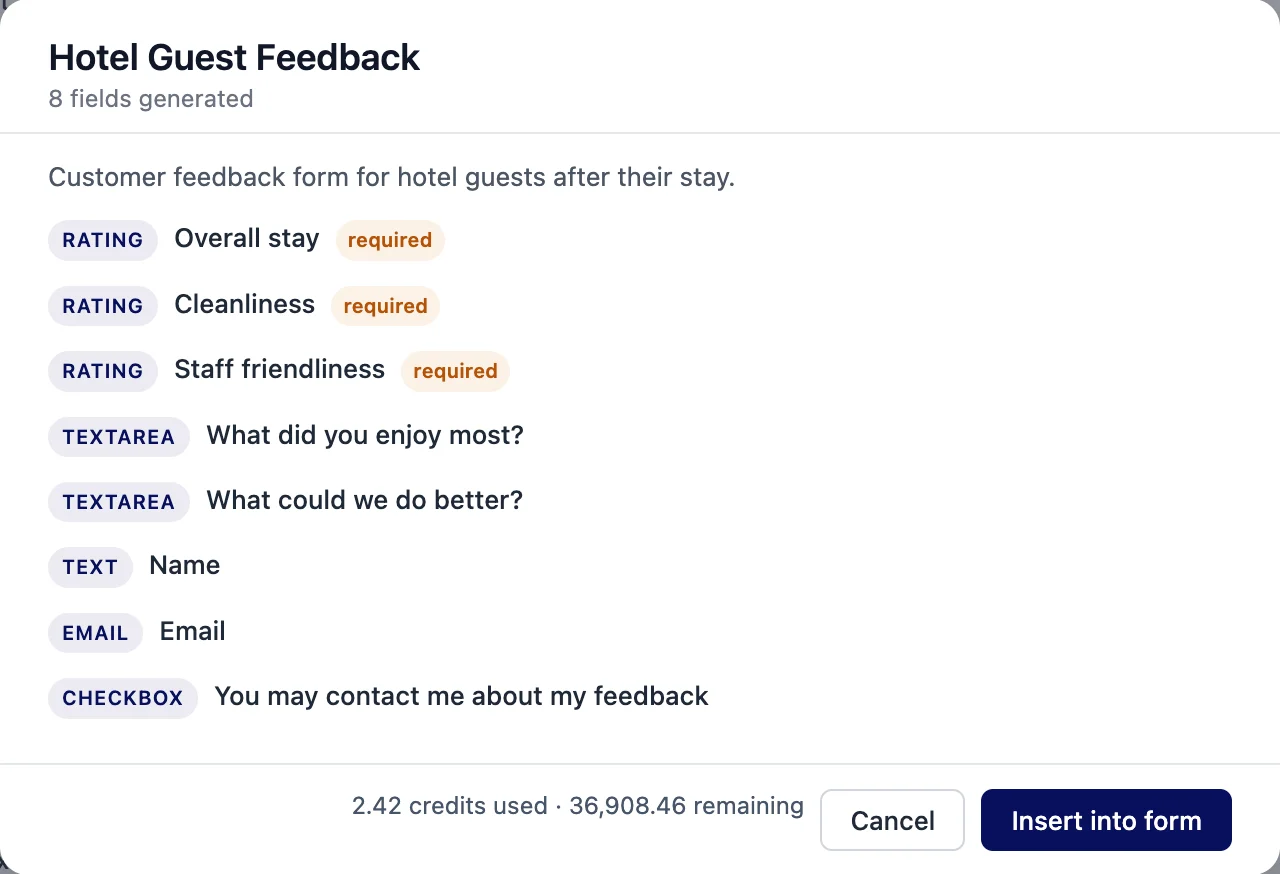
In our run all three came back as rating fields, followed by the two message boxes, name, email and the contact checkbox.
Check after: that the ratings came back as rating fields (not dropdowns) and the scale you asked for. If you want several statements rated on the same scale, ask for a matrix instead, for example “a matrix with rows Room, Breakfast, Location and columns Poor, Fair, Good, Excellent”.
Workshop quiz
Create a short quiz for students at the end of a first aid workshop. Five multiple choice questions about basic first aid, each with four options and exactly one correct answer, 1 point each. Then ask for the student's name (required) and email (required). Simple language.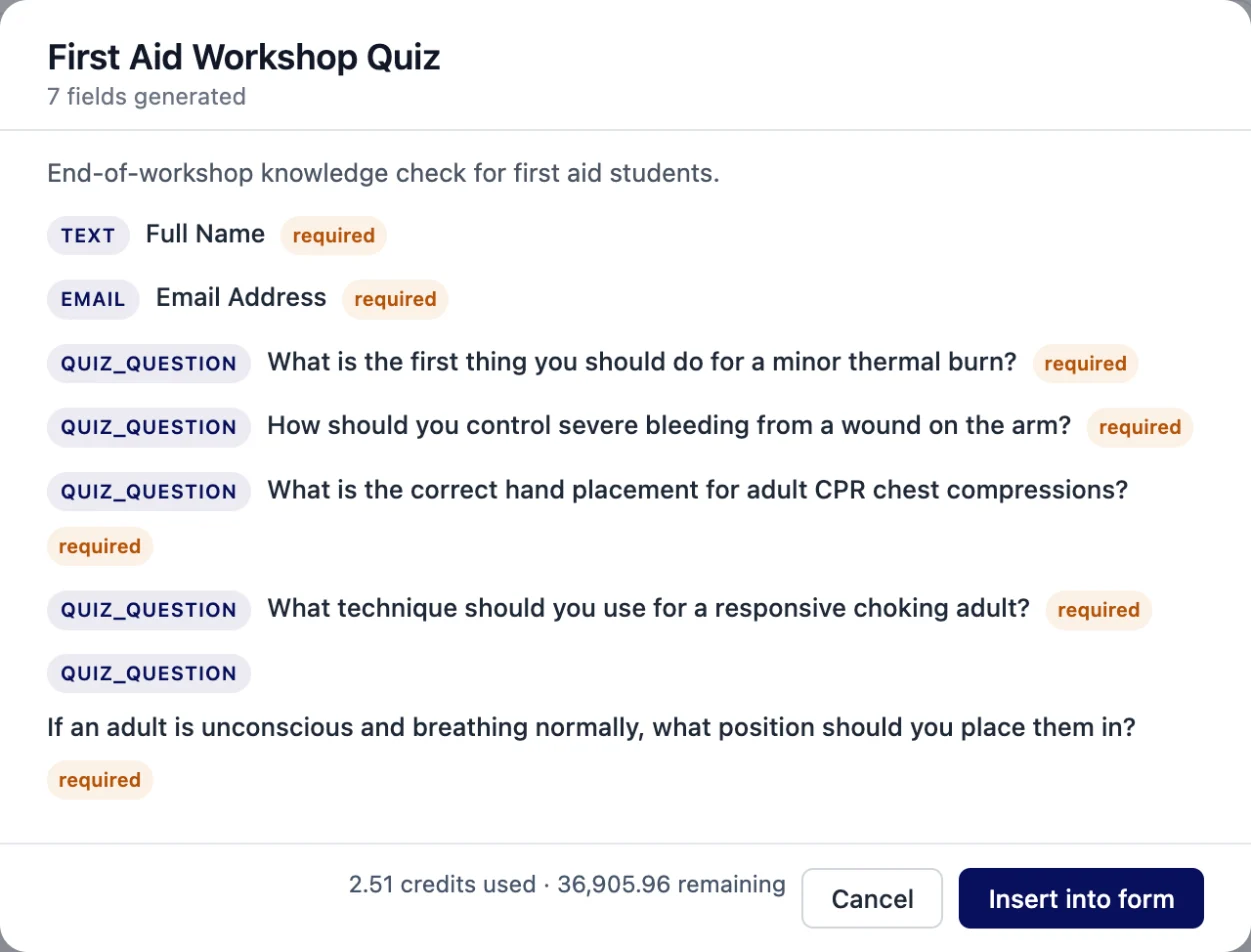
In our run the generator wrote five quiz questions, but put name and email at the top of the form rather than after the questions. Drag them to the end in the builder if the order matters to you.
Check after: every correct answer. The AI writes the questions and marks the answers, and you are the expert. Quiz questions allow one correct answer each; if the AI marks none or more than one, the plugin keeps one and says so in the notes. Set the pass mark and result messages in the form’s settings.
Newsletter signup with consent
Create a newsletter signup form for a bakery. Visitors sign up for a monthly email with new recipes and offers. Fields: first name (optional), email (required), a checkbox list "What are you interested in?" with Bread, Cakes, Gluten free, Baking classes (optional), and a consent checkbox "I agree to receive the monthly newsletter and can unsubscribe at any time" (required). Keep it short, one row for name and email.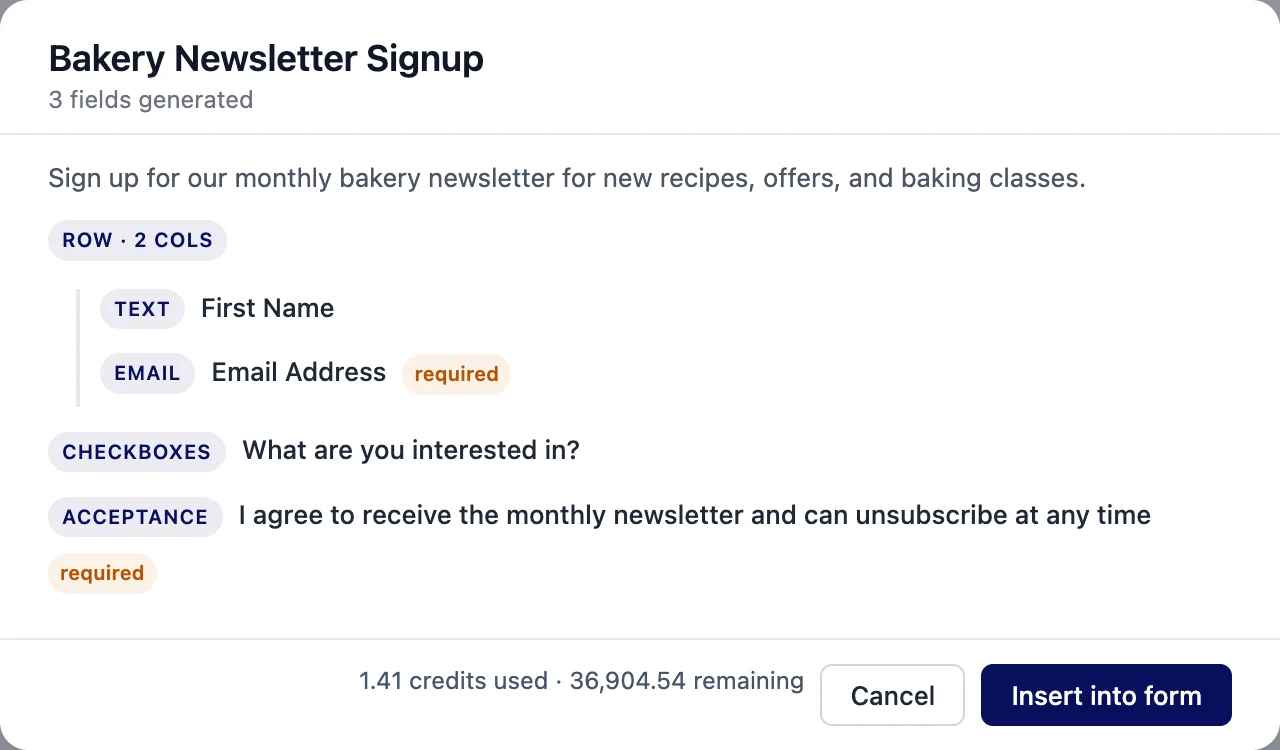
In our run name and email shared one row as asked, and the consent checkbox came back as a required acceptance field.
Check after: the consent label against your privacy policy. A signup form rarely needs AI analysis of each entry, so set Process with AI to Manual only or Do not process this form in the form’s settings.
Support ticket with a priority select
Create a support ticket form for a software company. Customers use it to report problems. Fields: full name (required), email (required), a dropdown "Product" with Desktop app, Mobile app, Web dashboard (required), a dropdown "How urgent is this?" with Low, Normal, High, Service is down (required), a text field "Subject" (required), a message box "Describe the problem and the steps to reproduce it" (required), a URL field "Link to the page with the problem" (optional), and a file upload "Screenshot" (optional).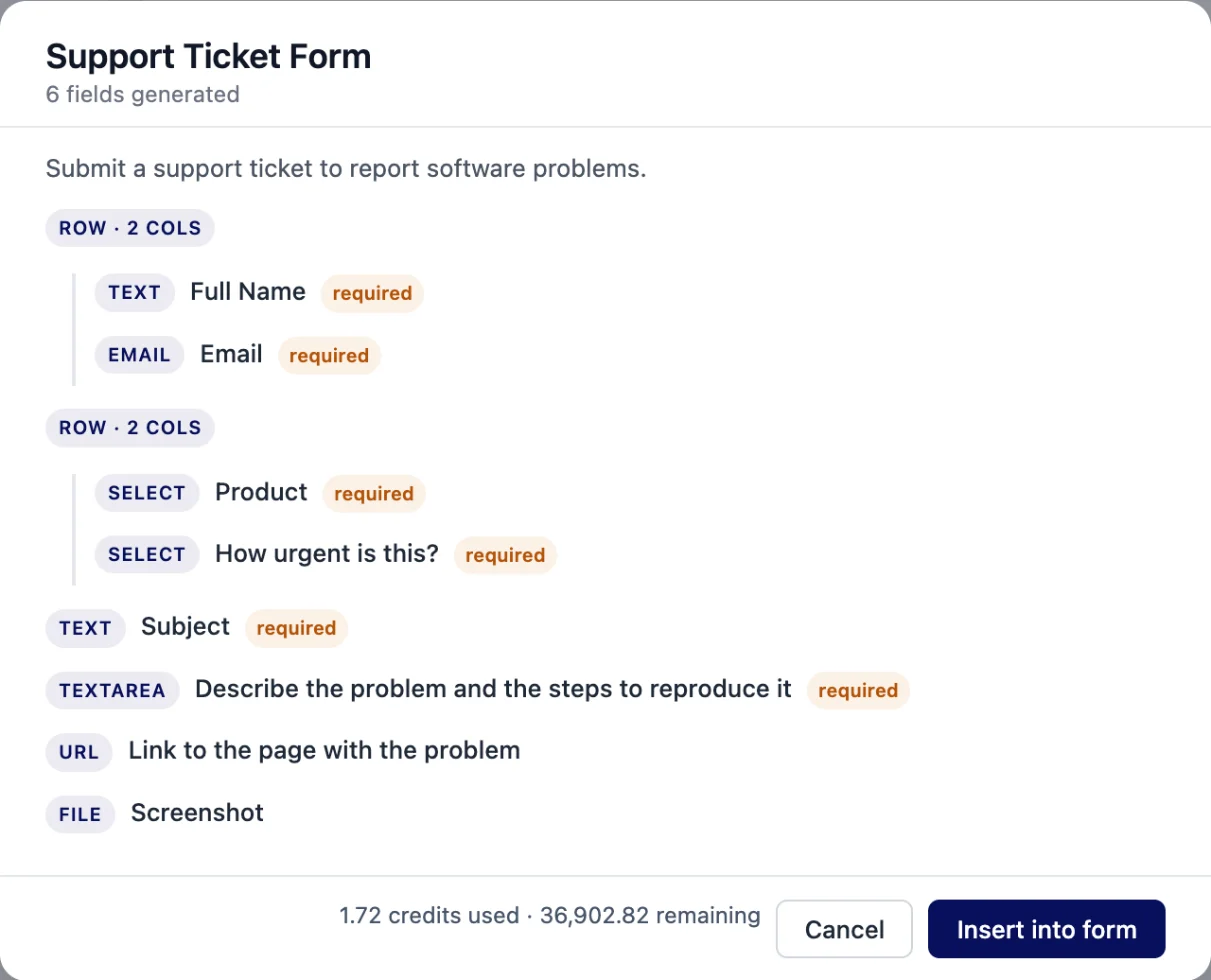
In our run every field type came back as named: two dropdowns side by side, a URL field and a file upload.
Check after: the urgency options against how your team really works. If you want the whole team to see urgent tickets first, the AI analysis on each entry also sets its own priority, which feeds the High Priority view in the inbox.
Prompts that go wrong and why
Most weak results come from one of four mistakes.
- A vague purpose. “Make a form for my business” gives the AI nothing to work with, so it guesses. Say what the form is for and who fills it in.
- Too many fields in one go. A prompt that lists 60 questions runs into the 40-field limit, and choice fields keep only their first 10 options. Long surveys are better generated in parts, using Append to current form for each part, or built from a template.
- Features the plugin does not have. Payments, order totals, price calculations, signatures, time pickers, address autocomplete and filling hidden fields from the URL are not field types in Neural Forms. Anything the generator returns in their place is mapped to another field type or dropped, and the notes tell you which. For a time, ask for “preferred time as a text field”. For an address, ask for separate text fields.
- Logic in the prompt. “Show the company field only if they choose Business” describes conditional logic, which you add in the builder after generating. Ask for the fields in the prompt and set the rule afterwards.
If the generator returns “Neural AI could not generate a valid form. Please try a more specific prompt.”, shorten the prompt, name the fields more plainly and try again.
What to check after generation
The review screen shows each field with its type and whether it is required. The count under the form name (“4 fields generated”) counts each row or step as one, so read the list, not the number. You can cancel, add the fields to the form you are building, or replace the current form. After you accept, go through this list before you publish:
- Required flags. Only the fields you truly need should be required.
- Field types. Email should be an email field, phone a phone field, website a URL field. The right type gives you validation for free.
- Labels and options. Read every label out loud. Fix options that do not match how you sell.
- Limits. Set character limits, number ranges and the file size limit in each field’s settings.
- Logic. Add any “Show this field if” rules.
- Notification email. In the form’s Notifications settings, check who gets an email for each new entry.
- CAPTCHA. Switch it on in the form’s Security settings if the form is public and busy.
- Success message. Tell people what happens next, in On success.
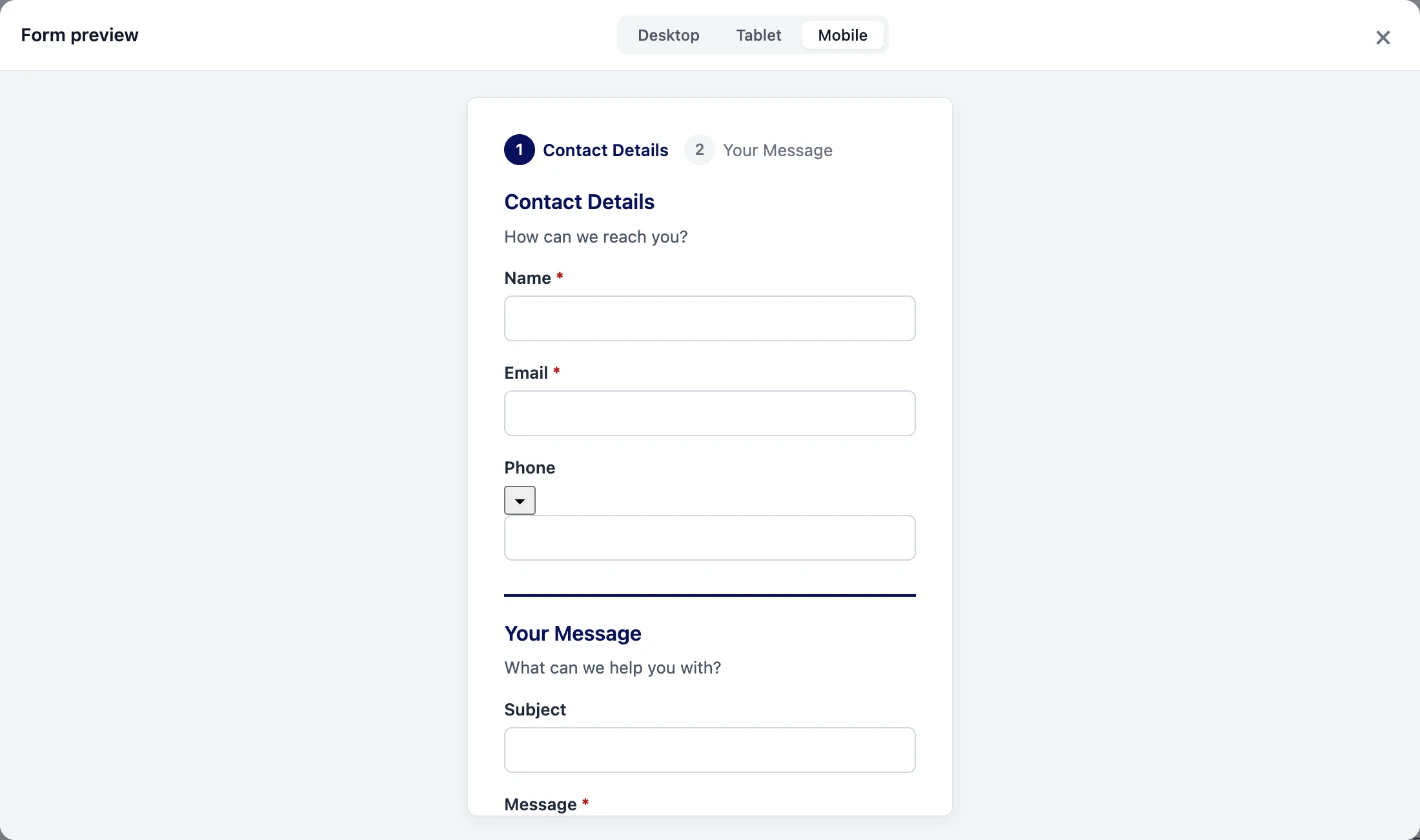
- Preview. Use the preview to fill the form in once as a visitor would, then send a test entry.
Plans and credits
AI form generation is part of Neural Forms Pro. It needs an active Starter plan ($99/year, 7,500 AI credits a year) or Agency plan ($199/year, 25,000 AI credits a year), a connected Neural Forms Cloud API key and credits left on your balance. The free Lite plugin and Lite-plan keys cannot generate forms, but Lite includes 12 starter templates and a template library you can start from instead. See form templates.
Generation runs in the Neural Forms cloud, which deducts the credits for each run. A longer prompt and a larger form use more. In our eight tests on an Agency plan each generation used between 1.41 and 2.51 credits: 1.41 for the newsletter signup and 2.51 for the five-question quiz. A clear prompt that works the first time is also the cheaper one. If a prompt is rejected by the safety check, no credits are deducted.
Start with one prompt
Pick the use case closest to your form, change the details and generate. Then spend five minutes on the checklist above; that is where a generated form becomes a form you can publish. For the basic walkthrough of the generator, read how to build a contact form with AI, and for the full feature, see AI forms.
FAQ
What is a good prompt for an AI form generator?
A good prompt says what the form is for, who fills it in, the exact fields with their types and options, which fields are required, the layout and the tone. Name every field; the more specific the list, the less you fix afterwards.
Can AI create multi-step forms?
Yes. In Neural Forms you can ask for steps in the prompt, for example “split into two steps: About you, Your experience”, and the generator can return up to 8 steps. In our tests the steps came back in the right order but named just “Step”, so rename them in the builder.
How many credits does AI form generation use?
It depends on the length of the prompt and the size of the form. In our tests one generation used between 1.41 and 2.51 credits. Generation runs in the Neural Forms cloud, which deducts credits for each run from your balance; Starter includes 7,500 AI credits a year and Agency 25,000.
Is AI form generation free?
No. AI form generation is part of Neural Forms Pro, on the Starter ($99/year) or Agency ($199/year) plan. The free Lite plugin includes the drag and drop builder and ready-made templates.

Leave a Reply