

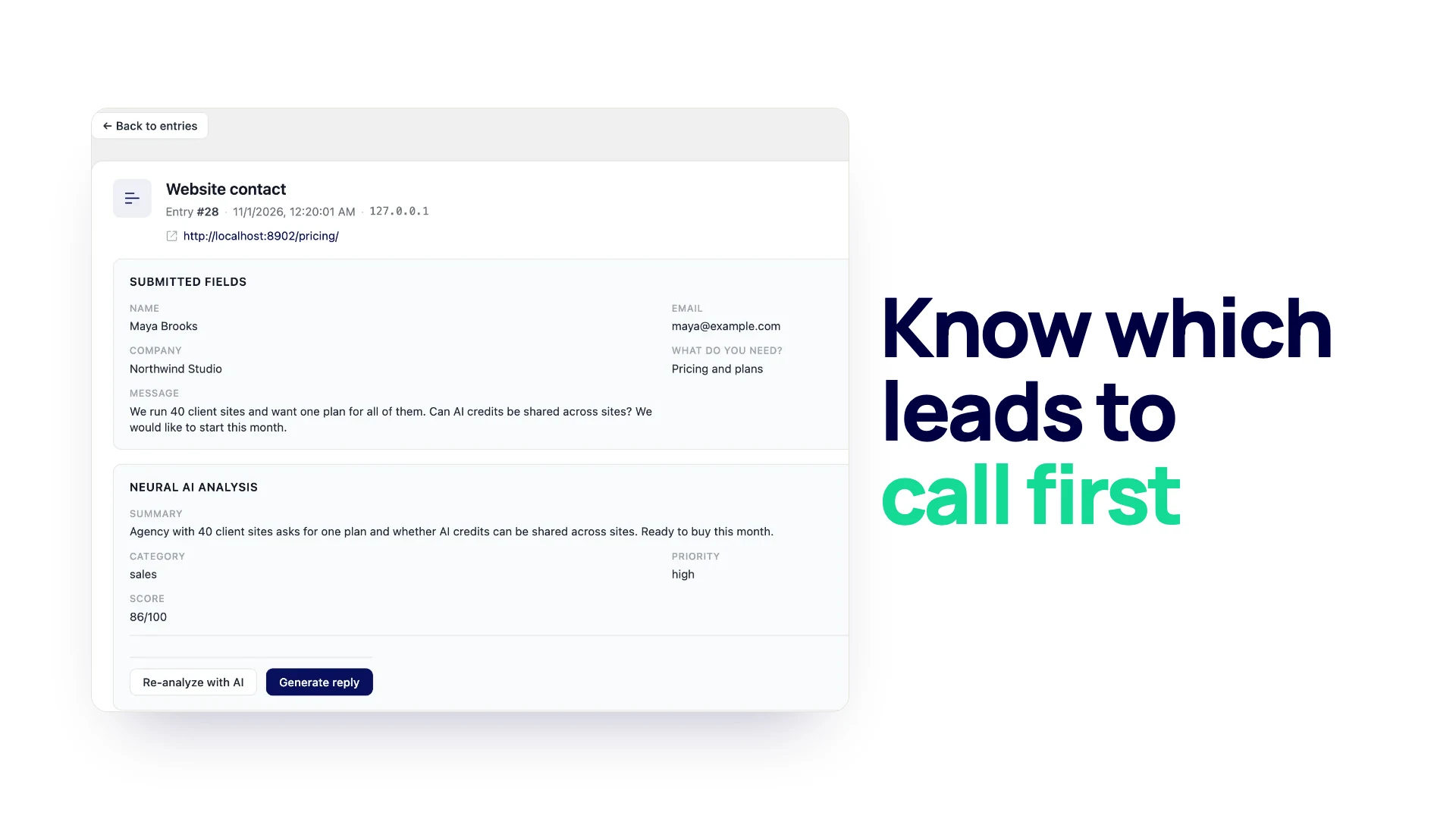
This guide is for business owners and agencies who get more form entries than they can answer well. By the end you will have a written definition of a good lead, a form that asks for the details that reveal one, and a daily routine for sorting entries so the best ones get a reply first. The examples use a form plugin for WordPress, Neural Forms, but the method works with any form.
Decide what “qualified” means for you
Most lead qualification advice starts with a framework: budget, authority, need, timing. Those four are a fair starting point, but for a small business the useful version is shorter. Write down, in one sentence each:
- Fit. Who you can help. A web agency might write “businesses with an existing site that need a redesign, not a first logo.”
- Need. What problem brings a good client to you. “Their current site is slow, outdated or hard to update.”
- Timing. When a good lead wants to start. “Within the next three months.”
- Budget. The smallest job worth taking. “At least $3,000.”
Do this before you touch the form. Each sentence turns into one question, and if you cannot write the sentence, you do not yet know what to ask. Keep the list where your team can see it; it is also the yardstick you will use when you check whether your sorting is working.
Ask questions that reveal intent
A contact form with Name, Email and Message tells you almost nothing until you read every message in full. Replace guesswork with two or three structured questions that map to your definition.
- Use Select fields for budget and timeline. “Budget range” with four options and “When do you want to start?” with options like “This month”, “In 1 to 3 months” and “Just researching” give you a clear answer you can sort and count. A free-text box for budget gets “depends” half the time.
- Ask what they need as a choice. A “Service needed” Select field tells you the type of job before you read a word of the message.
- Keep one open box. “Tell us about the project” still matters. It is where a real person shows they have read your site, and where the details live.
- Stop there. Every extra required field costs you some people who would have sent a message. Three to six fields is enough for most contact and quote forms.
The built-in Quote Request template in Neural Forms already follows this pattern: name, email, phone, a Service Needed select, a Budget Range select and a Project Details box. Adjust the options to match your own price points. For more on this form type, see quote request forms.
Use conditional logic to ask follow-ups only when they apply
Some questions only matter for some leads. A web agency might want the current site address only from people who picked “Redesign”, or a start date only from people with a budget over a certain amount.
Conditional logic shows a field only when an earlier answer matches. In Neural Forms each field can have one “Show this field if” rule. The rule compares another field’s answer using equals, does not equal, contains, is empty, is not empty, is greater than or equal to, or is less than or equal to (the last two compare numbers). Fields that stay hidden are not saved with the entry, so you do not get blank columns for questions that did not apply. The full setup is on the conditional logic page.
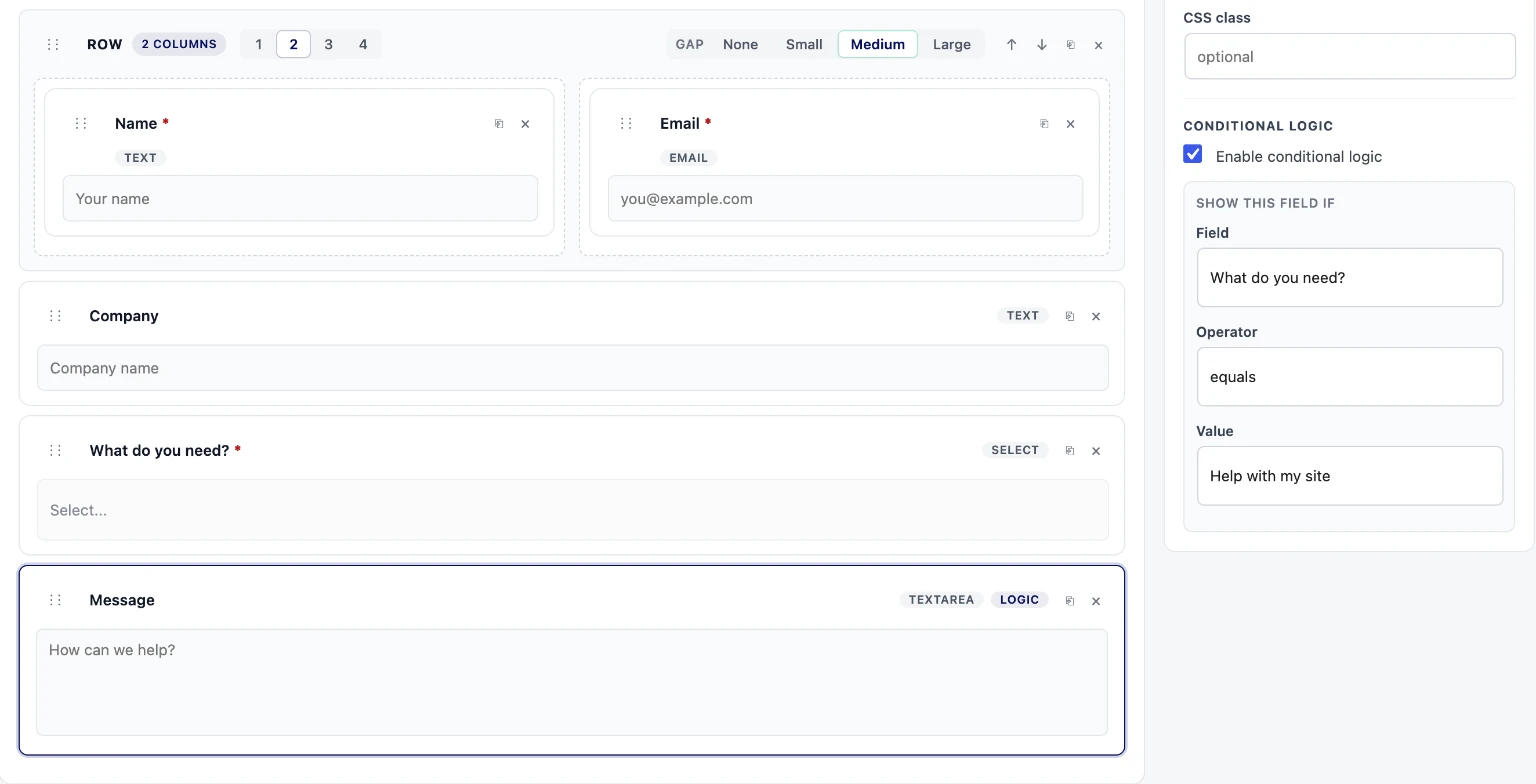
Because each field has one rule, plan follow-ups as a chain: “show Current site URL if Service needed equals Redesign” is one rule on one field. If you need a field to depend on two answers at once, split the question differently or ask both questions to everyone.
Split longer qualification forms into steps
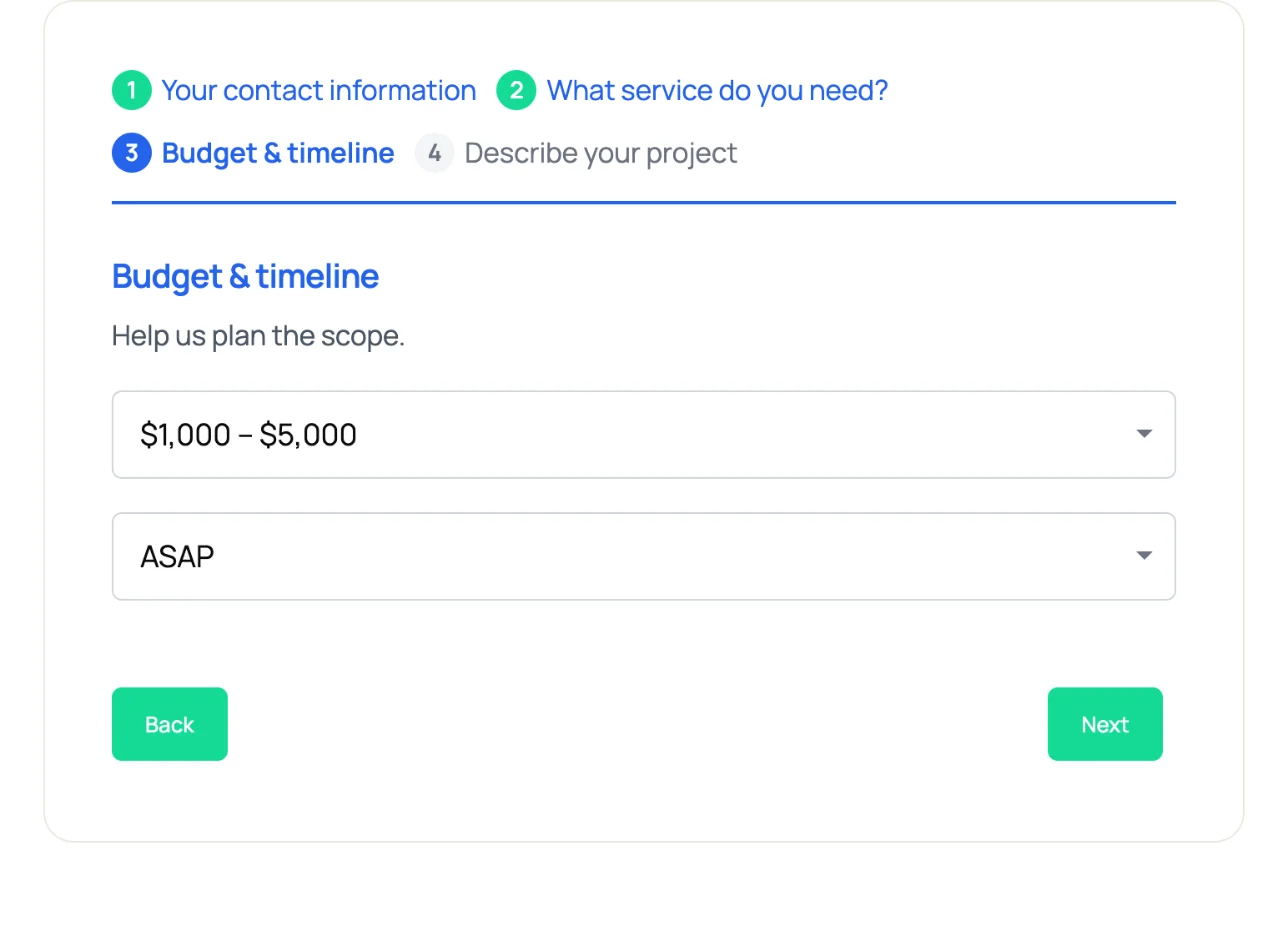
If your definition of a good lead needs more than six questions, use a multi-step form instead of one long page. Put contact details on the first step and qualification questions on the next, or the other way round if you want people to commit to the easy choices first. Multi-step forms are included in the free Lite plugin; each step is checked before the visitor can move on, and you can show the step titles or a progress bar.
Three ways to sort leads
Once the right answers arrive, you still need a way to put the best entries at the top. There are three common approaches.
| Method | How it works | Good for | Limits |
|---|---|---|---|
| By hand | You read every entry and decide | Under 10 entries a day, owner-run businesses | Slow, and the best lead can wait behind a pile of junk |
| Point rules | Each answer adds points (budget over $3,000 = 20 points) in a CRM or spreadsheet | Teams with a CRM and a stable form | Needs setup and upkeep; reads choices well and free text poorly |
| AI | The AI reads the whole entry, including the message, and sets a priority and score | Mixed inquiries where the message text matters | You review its judgment, especially at first |
The methods can be combined. Structured fields help every method, and the AI reads them along with the message.
Scoring entries with AI in Neural Forms
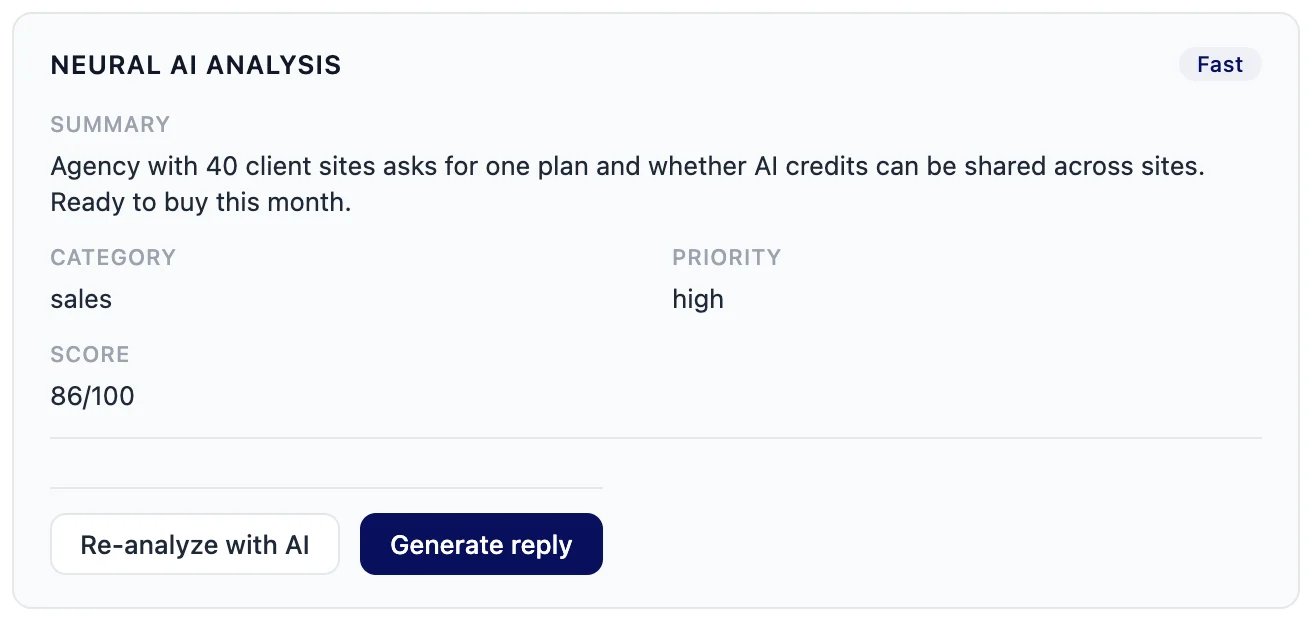
Neural Forms sends each entry to the Neural Forms cloud for analysis. The analysis card on the entry shows:
- Summary. One or two lines on what the person wants.
- Category. Sales, support, partnership, hiring, spam, general or other.
- Priority. Low, medium or high.
- Score. A lead score from 0 to 100 set by the AI.
The same analysis also drafts a reply and checks for spam. On Pro, the AI also gets your homepage text once a month as background, so it can judge an entry against what your business actually does.
In the free Lite plugin you can analyze any entry once by hand with the “Analyze with Neural AI” button, using the 100 lifetime AI credits that come with a free account. Automatic analysis of every new entry and re-analyzing are part of Neural Forms Pro, on the Starter plan ($99/year, 7,500 AI credits a year) or the Agency plan ($199/year, 25,000 AI credits a year).
Connect the API key and set the form to process every entry
- In Neural Forms > Settings, paste your Neural Forms Cloud API key and make sure the AI is switched on.
- Open your lead form and go to its settings, then Process with AI.
- Choose Process every entry. Each new entry is analyzed shortly after it is saved.
Credits are only used when an analysis runs successfully. For forms where scoring adds nothing, such as a newsletter signup, choose Manual only or Do not process this form to save credits.
Work the High Priority and Needs Reply views
The inbox sidebar has views that do the sorting for you:
- High Priority lists entries the AI marked high priority that are still in the inbox. Start every session here.
- Needs Reply lists entries flagged as needing a reply. When an entry looks like it needs an answer, the entry screen shows “This entry likely needs a reply.” with a Mark as Needs Reply button. Sending a reply from the inbox clears the flag.
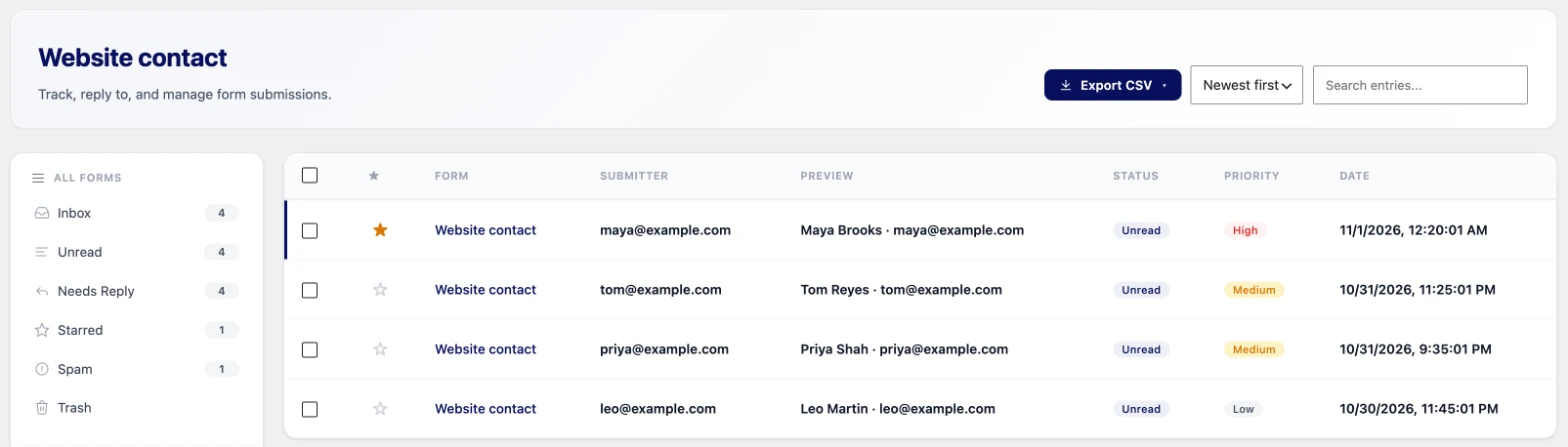
A simple routine: open High Priority first and reply or call, then flag anything that can wait until tomorrow with Needs Reply, then skim the rest of the inbox by date. The score sits on each entry’s analysis card, so use it to compare two similar leads, not as a column to sort the whole inbox.
Re-analyze when an entry changes or looks wrong
On Pro, the analysis card has a Re-analyze with AI button. Use it when the first result looks off, or after you have changed your site and the AI has fresh background about your business. Each re-analysis uses credits, so treat it as a second opinion, not a routine step.
When the AI gets an entry wrong, write down why. If it keeps rating one type of inquiry too high or too low, the fix is often in the form: a clearer Service Needed list or a budget question gives it, and you, more to go on.
Get the hot ones in front of someone fast
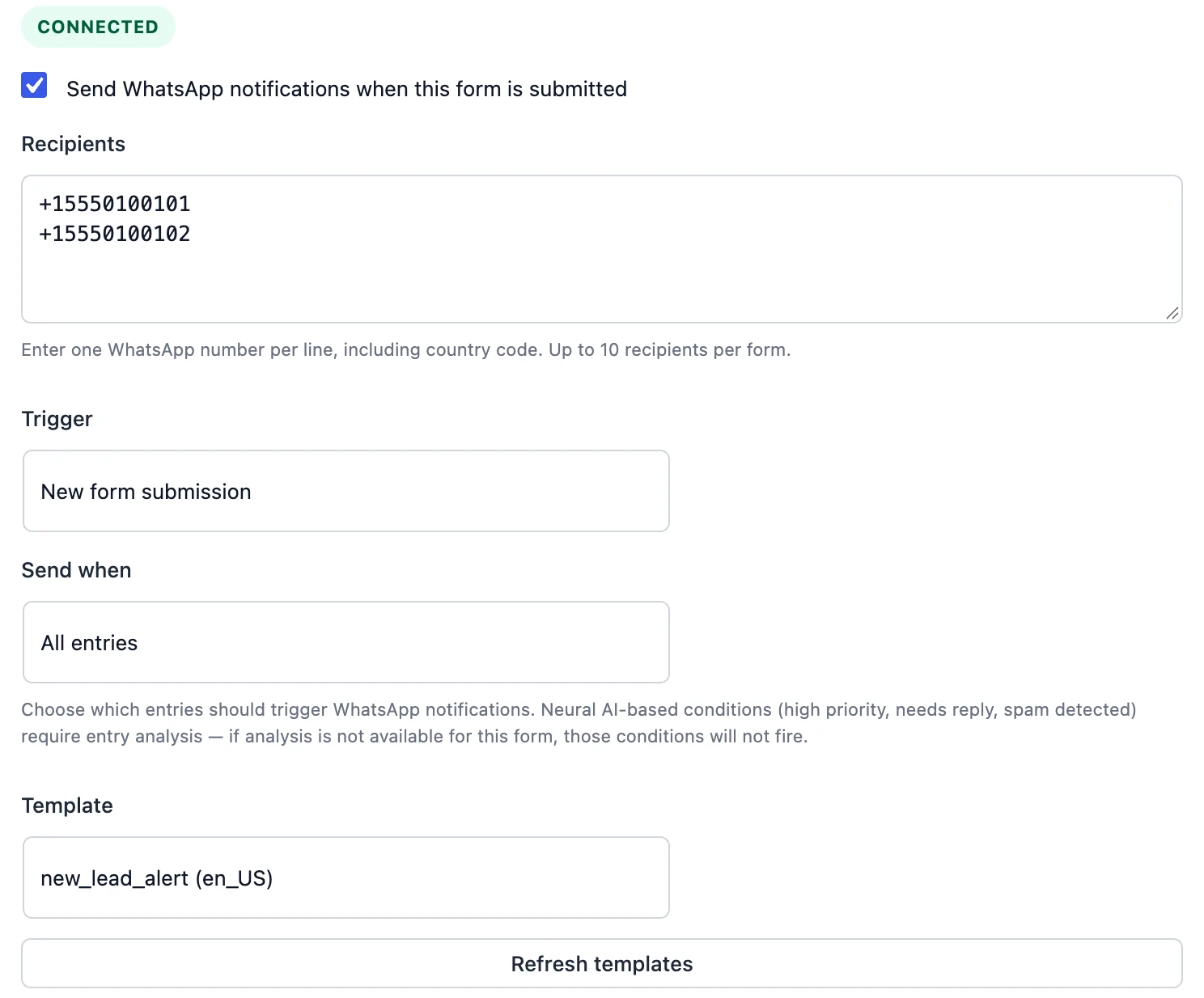
A high-priority lead that sits in an inbox until Monday is a cold lead. With Pro you can send a WhatsApp alert to your team when a good entry arrives.
Neural Forms sends an approved WhatsApp template message through Meta’s WhatsApp Cloud API to up to 10 numbers you enter, per form. Set Send when to High priority and only the entries the AI marks high priority trigger a message; the alert waits for the analysis to finish. The alert goes to your team, not to the person who filled in the form. Setup is on the WhatsApp integration page.
Hand qualified leads to your CRM
If your sales process lives in HubSpot, connect the HubSpot integration (Pro). You pick a HubSpot form and map your Neural Forms fields to its fields, and each entry is sent to HubSpot as a submission to that form, including the page it came from.
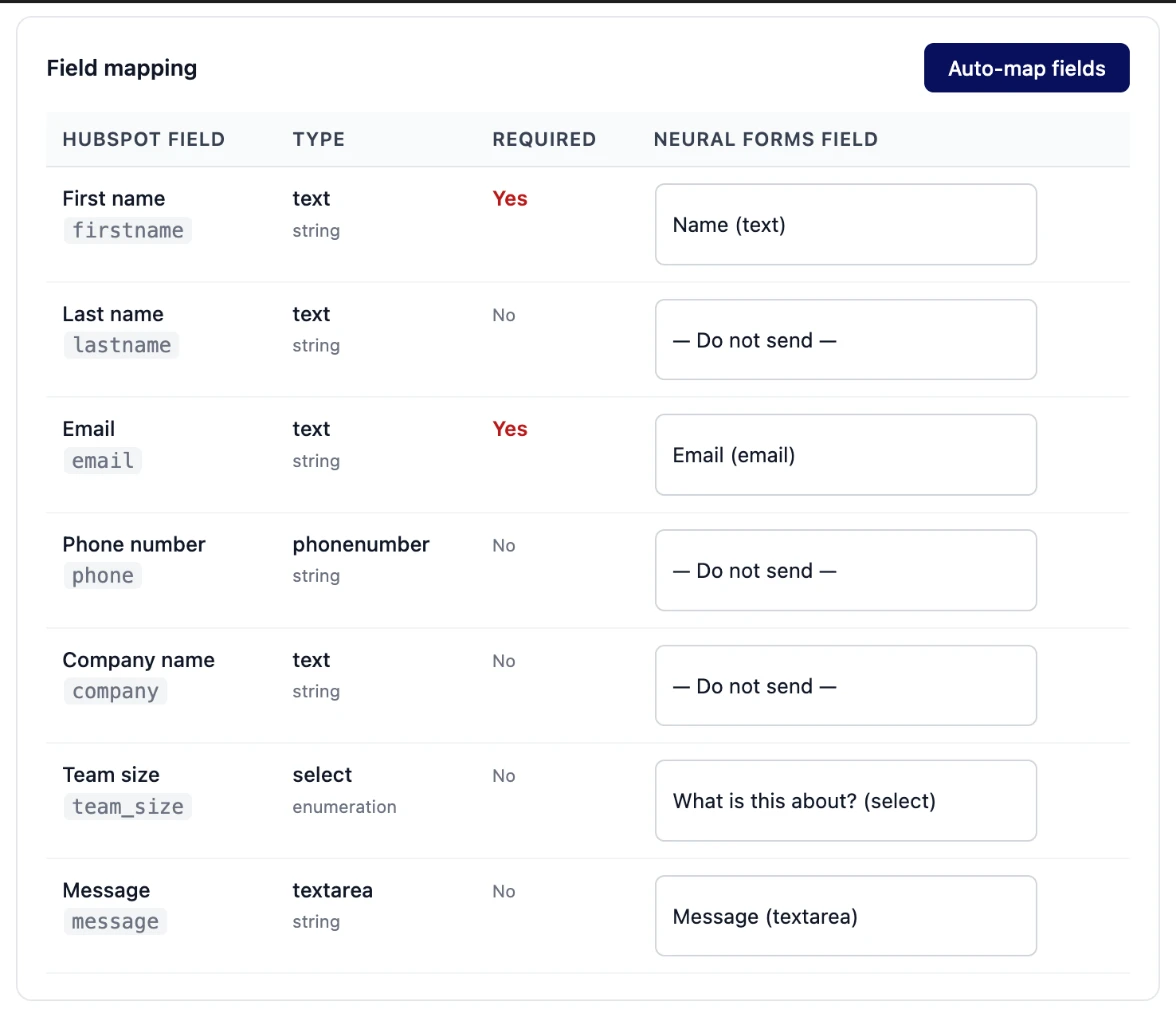
Every entry is sent, not only the high-scoring ones. Map your budget, timeline and service answers to HubSpot properties so you can sort and build lists there with the same structured answers you designed above.
A weekly review
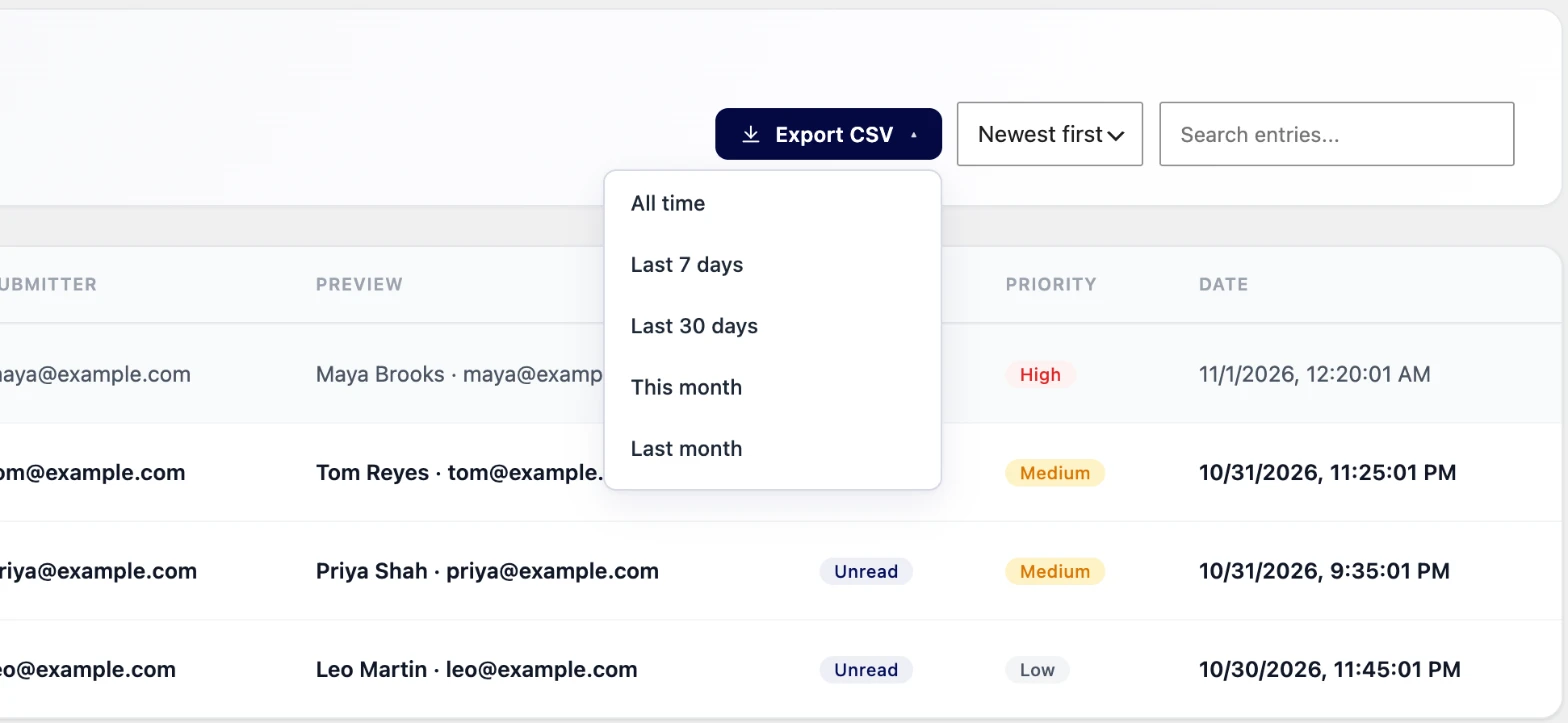
Qualification is a loop, not a setting. Once a week, export the last seven days of entries and look for patterns.
In the inbox, use Export CSV with the date range set to the last 7 days. The file includes the submitted fields plus columns for status, AI category, priority, spam flag, needs reply and starred, and it opens in Excel or Google Sheets.
Questions worth asking each week:
- How many entries were high priority, and how many of those became calls or quotes?
- Which budget and timeline answers show up most often among the leads you actually won?
- Which entries did you rate differently from the AI, and what did the form fail to ask?
- Is one page bringing in most of the junk? Each entry records the page it was sent from, and Pro adds Page Performance analytics that group entries by page.
Change one thing at a time on the form, such as a new budget range or a reworded timeline question, and compare the next week.
Start with the definition
The order matters: decide what a good lead is, ask for it with a few structured questions, then let the AI sort and score so the best entries reach you first. To see how scoring fits into the inbox, read about AI lead scoring.
FAQ
What makes a lead qualified?
A qualified lead fits the kind of client you serve, has a problem you solve, wants to start in a time frame you can meet, and has a budget at or above your smallest worthwhile job. Write those four points down for your own business before you change your form.
How many questions should a lead form ask?
Three to six fields is enough for most contact and quote forms: name, email, a choice for the service, a budget range, a timeline and one open message box. If you need more, split the form into steps.
What is a good lead score?
There is no universal number. In Neural Forms the AI sets a lead score from 0 to 100 for each entry; compare the scores of the leads you won with the ones you did not over a few weeks and set your own line.
Can I score leads without a CRM?
Yes. Neural Forms scores and sorts entries inside WordPress: each entry gets a priority and a score, and the High Priority view lists the best ones. A CRM helps later, when several people work the same leads.
How fast should I reply to a new lead?
As fast as you reasonably can, ideally the same working day. A WhatsApp alert to your team for high-priority entries helps you answer the best leads first.
Does AI lead scoring work on free form plugins?
In the free Neural Forms Lite plugin you can analyze each entry once by hand, using the 100 lifetime AI credits included with a free account. Automatic scoring of every entry and re-analysis need Neural Forms Pro (Starter $99/year or Agency $199/year).

Leave a Reply