

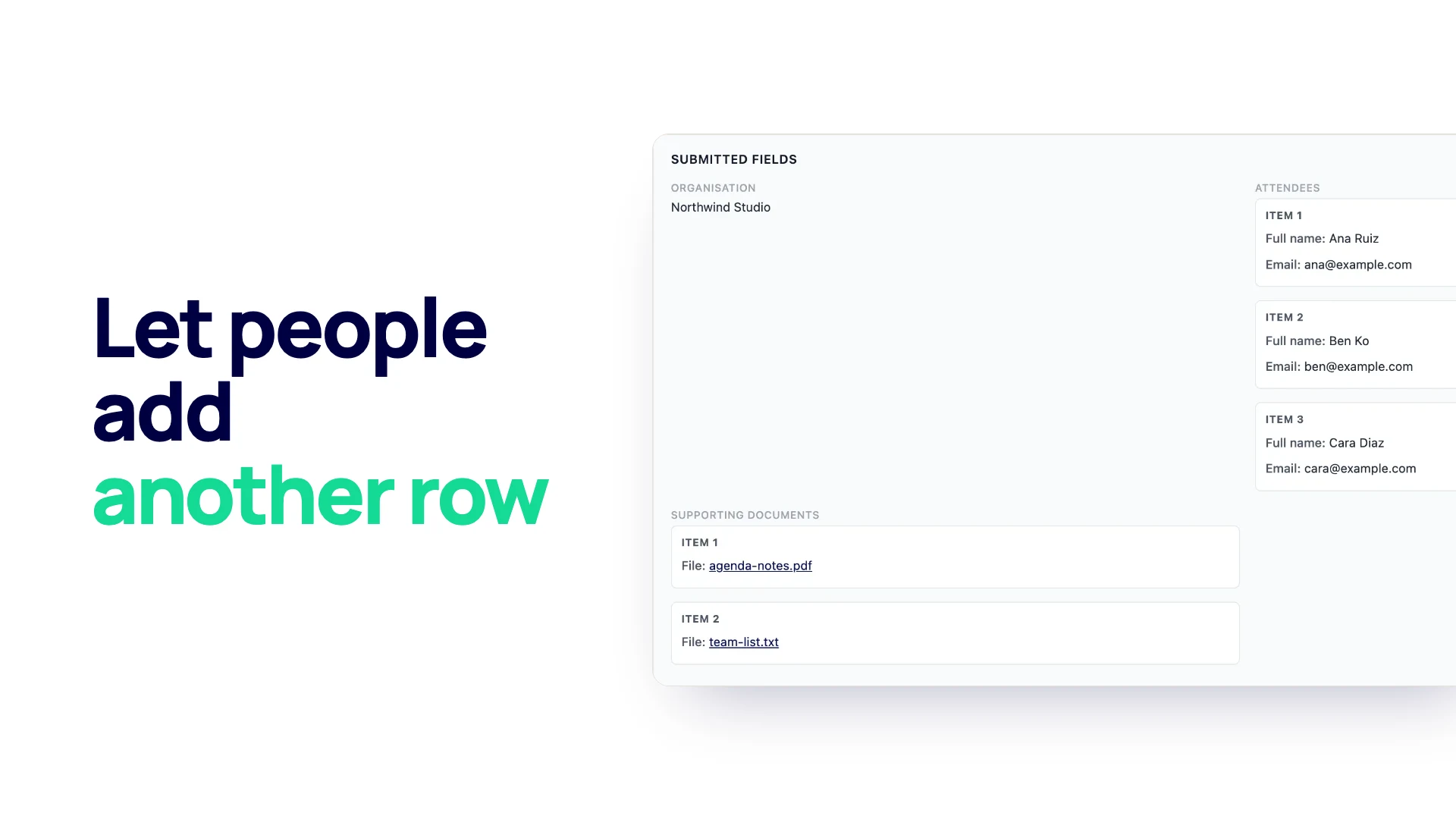
Some forms ask about a list whose length changes from person to person: one person books for themselves, the next for a team of six. This guide shows how to let visitors add another group of fields (another attendee, another job, another item) with a repeater field on a WordPress site, what the limits are, and how the answers look once they arrive.
The steps use the Repeater field in Neural Forms, which comes with the Starter ($99 a year) and Agency ($199 a year) plans.
What a repeater field does
A repeater is a group of fields that the visitor can copy as many times as they need. You build the group once, for example Name, Email and Dietary needs. On the page, the visitor fills in the first set, clicks a button such as “Add attendee”, and gets a fresh, empty set below it. Each set can be removed again before they submit.
The alternative is guessing: add “Attendee 2” and “Attendee 3” fields and hope nobody brings a fourth. That makes the form longer for everyone and still breaks for the big group. A repeater keeps the form short for the person with one item and lets the person with eight carry on.
When to use a repeater
Use one whenever the honest answer to “how many?” is “it depends”:
- Event registration: one form for the person booking, plus a set of fields per extra attendee.
- Job applications: previous jobs, each with employer, role and dates.
- References: name, relationship and contact details for each referee.
- Quote requests: several items or services, each with a description and quantity.
- Household or team details: children on a school form, team members on a contest entry, vehicles on an insurance inquiry.
If the number is fixed (always two parents, always one address), skip the repeater and add the fields normally. Fixed fields are easier to fill in and easier to read in the results.
Build it step by step
The example below builds an event booking form where the person booking can add up to six attendees. You need Neural Forms with the Starter or Agency plan installed, which unlocks the Repeater field.
Add the Repeater field
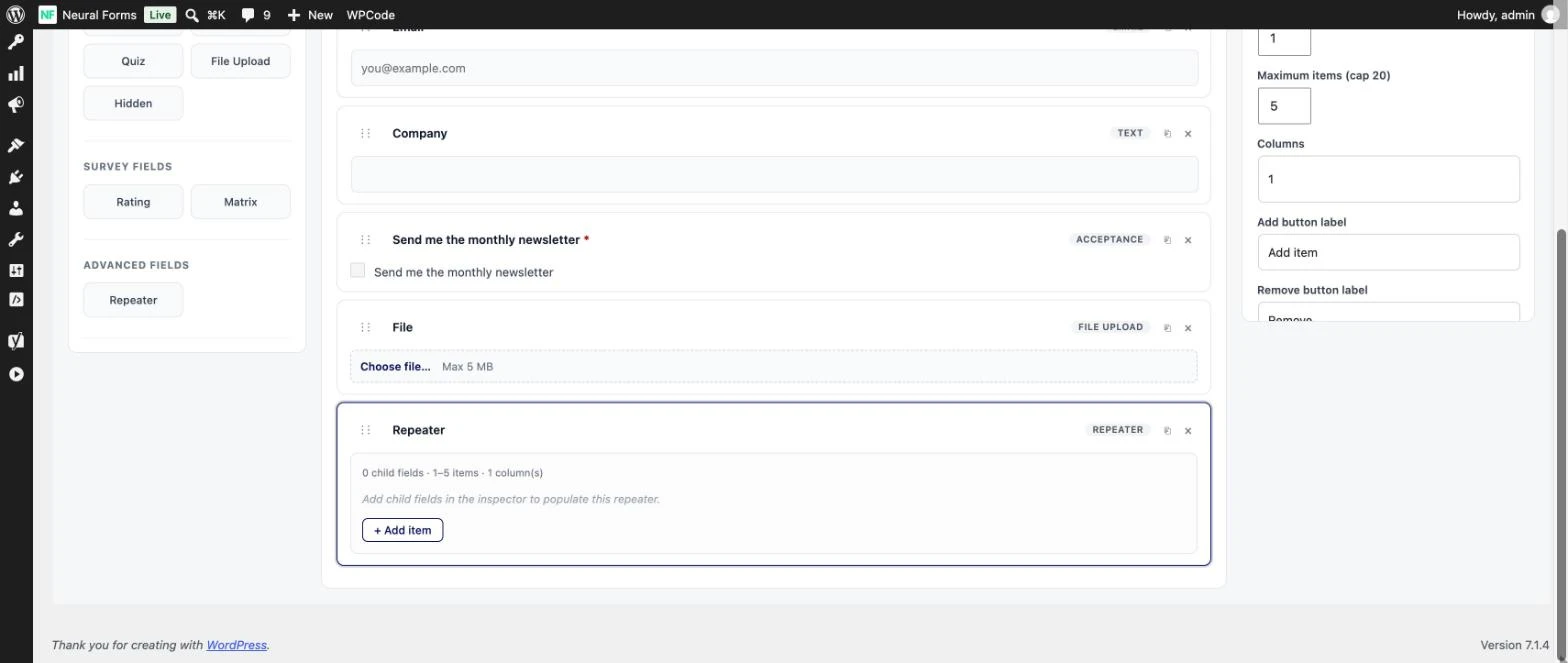
Open your form in Neural Forms > Forms (or create one), then drag Repeater from the field picker onto the canvas where the group should appear. Give it a label people will read above the group, such as “Attendees”.
Put fields inside
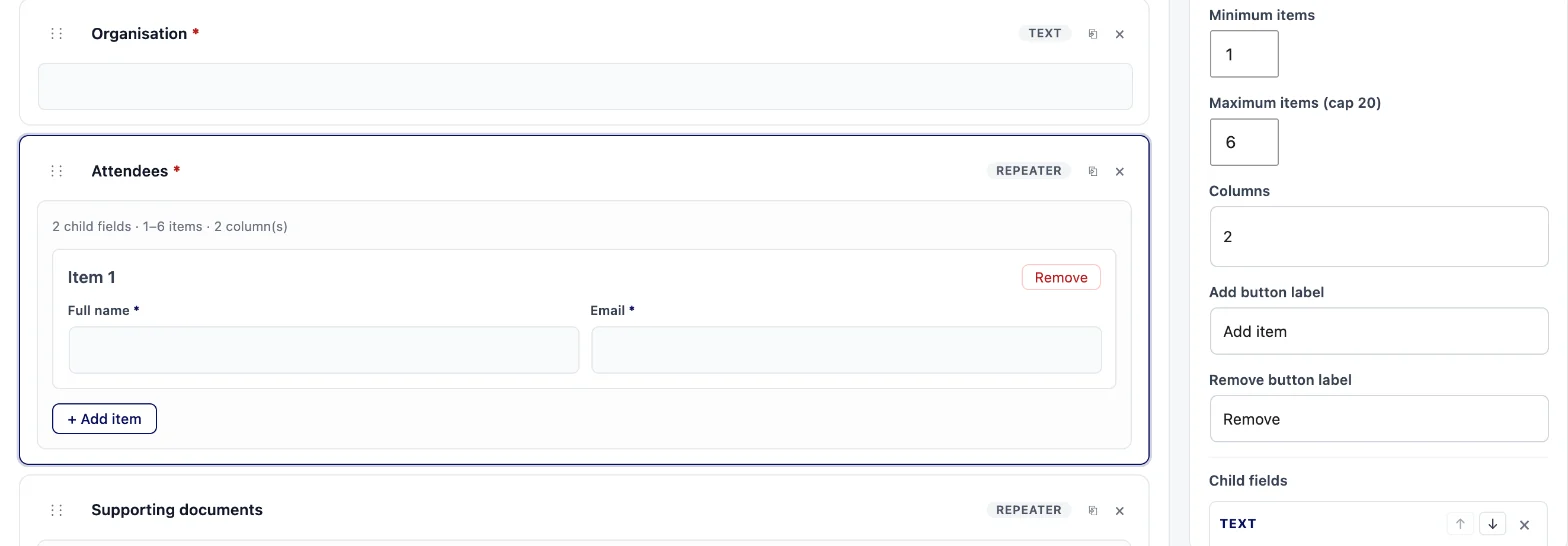
In the field settings, find Child fields. Choose a field type from the dropdown and click + Add child field. Repeat for each field in the group. For each child you can set the label, mark it Required, and, for Select, Radio and Checkboxes, edit the options. The arrows move a child up or down, and the cross removes it.
These field types can go inside a repeater:
| Allowed inside a repeater | Use it for |
|---|---|
| Text, Textarea | Names, descriptions, notes |
| Email, Phone, URL | Contact details per person, portfolio links |
| Number | Quantities, years of experience |
| Date | Start and end dates, dates of birth |
| Select, Radio, Checkbox, Checkboxes | Ticket type, meal choice, yes or no questions |
| File | A document per item, such as a certificate per course |
For the booking example, add Text (Name), Email (Email) and Select (Dietary needs, with the options None, Vegetarian, Vegan, Gluten free).
Set minimum and maximum items
Minimum items sets how many sets the visitor must fill in. Maximum items sets how many they can add. A new repeater starts at 1 and 5. The maximum can go up to 20, which is a hard cap.
On the page, the form shows as many empty sets as your minimum (at least one). The add button disappears once the visitor reaches the maximum, and the remove buttons disappear when they are at the minimum, so nobody can go below it. When the repeater is marked required, the server also checks that at least the minimum number of sets was sent, and rejects anything over the maximum.
For the booking form, set the minimum to 1 and the maximum to 6.
Choose 1 to 4 columns and rename the buttons
Columns sets how the fields inside each set are laid out: 1 to 4 across. Three short fields (name, email, meal) fit well in three columns on a desktop, while longer fields read better in one or two.
The buttons default to “Add item” and “Remove”. Change Add button label and Remove button label to words that match the form: “Add attendee” and “Remove attendee”, “Add another job”, “Add item to quote”. It is a small change that makes the form read like it was written for this purpose.
What cannot go inside a repeater
A repeater holds plain input fields only. These are not allowed inside one, and the builder will not save a form that tries:
- another Repeater (no repeaters inside repeaters)
- Matrix
- Poll and Quiz questions
- layout blocks: Rows, Columns, Steps, Sections and the Welcome Screen
Hidden, Range, Acceptance and Rating fields are also not on the list of allowed child types. If you need one of those, place it outside the repeater. For example, put the consent checkbox once at the end of the form rather than once per attendee.
There is also no price, total or calculation field in Neural Forms, so a repeater cannot add up quantities or prices. For a quote request, collect the items and work out the price when you reply.
Repeaters in multi-step forms
A repeater can sit on any step of a multi-step form. A common layout for registrations is: step 1, the person booking; step 2, the attendees repeater; step 3, consent and submit. Each step is checked in the browser before the visitor can move on, and if you set the form progress indicator to Progress bar, visitors see “Step 2 of 3” above the fields.
Steps and sections cannot go inside the repeater itself, so each set of fields always appears together on one step.
How the answers look in the inbox and the CSV
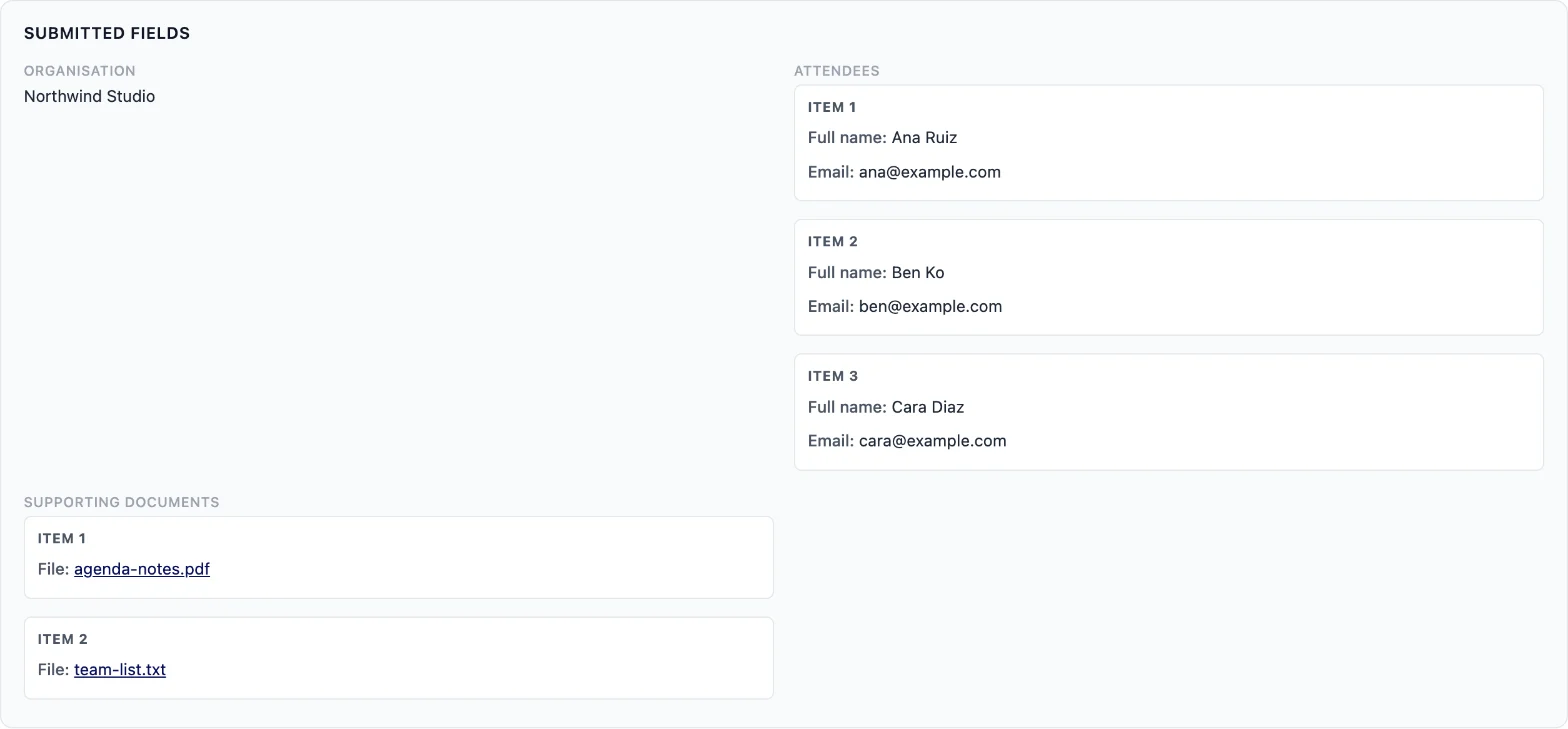
In the entry view, the repeater is listed under its label with each set numbered: Item 1, Item 2 and so on, with the child labels and answers under each. Empty sets are skipped. Files uploaded inside a repeater show as links to the file. The admin email for a new entry lists the repeater’s sets as well.
In a CSV export of that form (Neural Forms > Entries, choose the form, then Export CSV), each child field gets one column per possible set, up to your maximum. With a maximum of 6 and three child fields, that is 18 columns, named from the repeater ID, the set number and the child field ID. Sets the visitor did not use stay empty. A File child gets two columns per set, one for the file name and one for the file’s URL.
That is a good reason to keep the maximum realistic. A maximum of 20 with five child fields gives you 100 columns, most of them empty.
Three example builds
Event registration with attendees
- Fields outside the repeater: your name, your email, phone.
- Repeater “Attendees”: Name (Text, required), Email (Email), Dietary needs (Select).
- Minimum 1, maximum 6, three columns, buttons “Add attendee” and “Remove attendee”.
- Outside the repeater at the end: an Acceptance field for your terms.
Neural Forms does not count seats or close the form when an event is full, so set the maximum to the largest group you accept per booking and keep track of capacity yourself. More layouts on the event registration form page.
Job application with work history
- Fields outside the repeater: name, email, phone, the role applied for, a File Upload for the CV.
- Repeater “Work history”: Employer (Text), Job title (Text), Start date (Date), End date (Date), What you did there (Textarea).
- Minimum 1, maximum 5, two columns, buttons “Add another job” and “Remove this job”.
- A second repeater “References” with Name, Relationship and Email, minimum 2 and maximum 3.
See the job application form page for the full form.
Quote request with items
- Fields outside the repeater: name, company, email, the deadline (Date).
- Repeater “Items”: What you need (Text), Quantity (Number), Details (Textarea), Reference file (File).
- Minimum 1, maximum 10, one column, buttons “Add item to quote” and “Remove item”.
Each set can carry a file, which is also a neat way to collect several documents on one form. The guide to multiple file uploads on one form covers that pattern in detail.
FAQ
What is a repeater field in a form?
A group of fields that visitors can copy with an add button, so they can enter several attendees, jobs or items in one form. You build the group once and set how many copies are allowed.
How many rows can a visitor add?
As many as your Maximum items setting, which can be up to 20 in Neural Forms. The add button disappears when the visitor reaches the maximum.
Can I put a file upload inside a repeater?
Yes. File is one of the allowed child fields, so each set can carry its own file, and the entry view shows each file as a link.
Can a repeater calculate totals?
No. Neural Forms has no price, total or calculation fields, so the repeater collects the items and quantities and you work out totals yourself.
Is the repeater field free?
No. The Repeater field comes with the Starter ($99 a year) and Agency ($199 a year) plans. The free plugin shows it as locked in the field picker.
Try the repeater
The Repeater field lets visitors add up to 20 sets of fields, with your own button labels, 1 to 4 columns and clear limits on both ends. It is part of Neural Forms Starter and Agency, both for unlimited sites.

Leave a Reply