

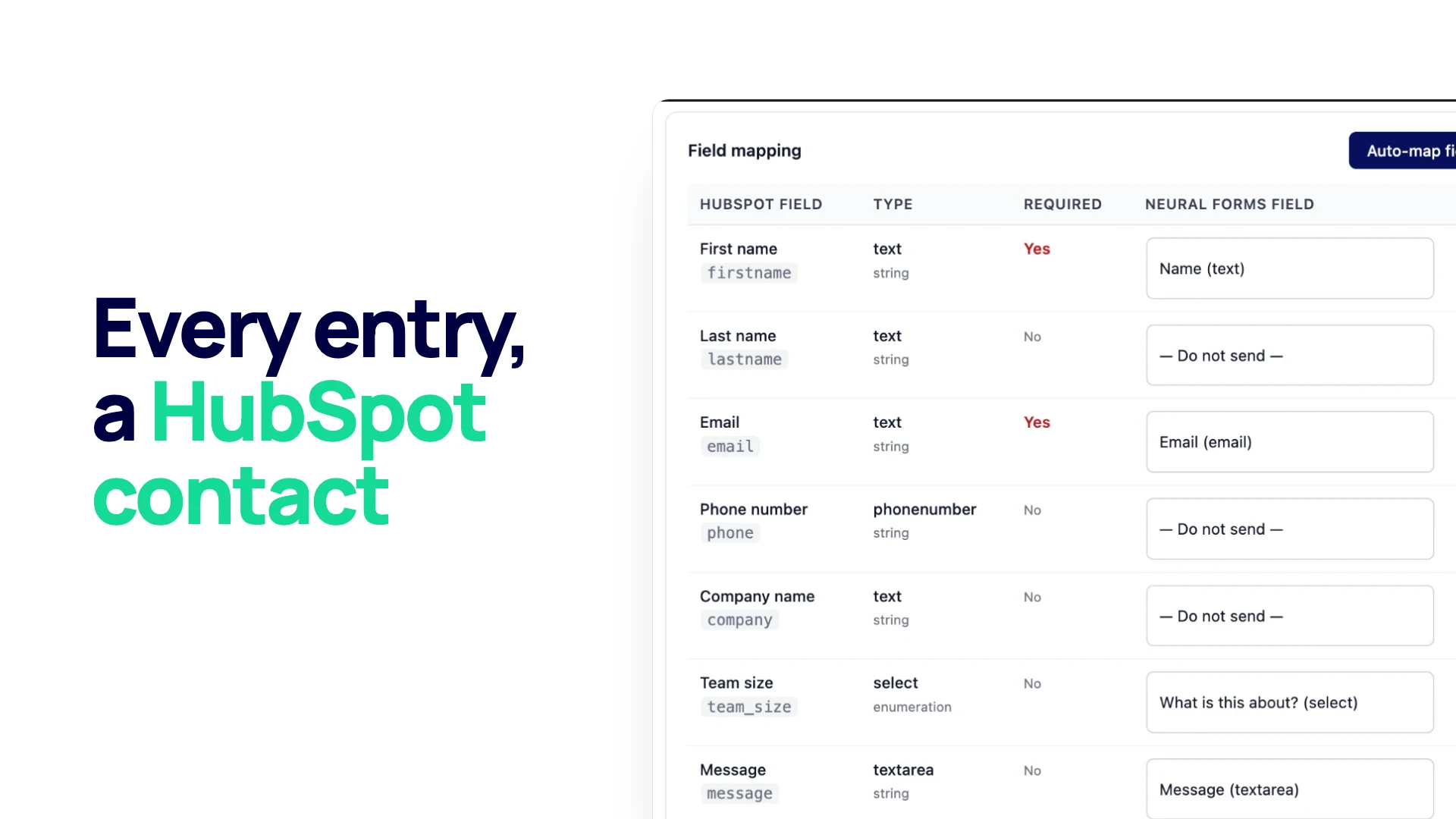
If your sales team lives in HubSpot and your site runs on WordPress, every form entry should reach HubSpot as a contact without anyone copying it across. This guide compares the three ways to connect a form on a WordPress site to HubSpot, then walks through the setup in Neural Forms, where each entry is sent to a HubSpot form field by field and a copy stays in your WordPress inbox.
By the end you will know which method fits your site, how to map each field, what HubSpot does with the submission, and what to check when an entry does not show up.
Three ways to connect a form on your WordPress site to HubSpot
There is no single “HubSpot integration” for WordPress. There are three different methods, and they put your data in different places.
- Embed a HubSpot form. You build the form in HubSpot and place its embed code (or HubSpot’s own plugin) on the page. Submissions go straight to HubSpot. Nothing is stored in WordPress, and the form’s look is set in HubSpot’s form editor.
- Let HubSpot collect your existing form. With the HubSpot tracking code on your site, HubSpot can capture submissions from ordinary HTML forms (it calls them non-HubSpot forms). HubSpot’s documentation lists what it cannot collect: forms inside an iframe, forms with JavaScript bound to the submit event or button, forms added after the page loads, and hidden fields. Neural Forms sends entries without a page reload, which is the JavaScript case, so do not rely on this method for it.
- Send each entry to a HubSpot form through its API. The form stays in WordPress. When someone submits it, the entry is saved on your site and then posted to a HubSpot form you choose, with each field mapped to a HubSpot property. This is how the Neural Forms HubSpot integration works.
| Embed a HubSpot form | HubSpot collects your form | Send entries through the API | |
|---|---|---|---|
| Where you build the form | HubSpot | WordPress | WordPress |
| Copy of the entry in WordPress | No | Yes, if your form plugin saves entries | Yes |
| Which fields reach HubSpot | All fields on the HubSpot form | What HubSpot detects (no hidden fields) | Only the fields you map |
| Styling | HubSpot form editor, plus CSS | Your theme and form plugin | Your theme and form plugin |
| Main risk | Form looks out of place on the page | Some forms are not detected at all | Unmapped required fields cause rejected submissions |
Why keep the form in WordPress
Embedding a HubSpot form is quick, so why send entries from a form on your own site instead? Three reasons come up most.
- You keep a copy of every entry. Neural Forms saves each submission in its lead inbox before anything is sent to HubSpot. If HubSpot is unreachable or rejects a submission, the entry is still on your site.
- AI reads each entry. With AI connected, the inbox adds a summary, a category, a priority, a lead score from 0 to 100 set by the AI, and a draft reply. On Starter and Agency this runs on new entries automatically. See AI lead scoring for how teams use the score. The AI results stay in WordPress; they are not sent to HubSpot.
- The form matches your site. You build it in the drag and drop builder, with fields such as Matrix, Repeater and File Upload that HubSpot forms do not have, and place it with a block, a shortcode or a Divi 5 module.
Before you start
- A paid Neural Forms plan. Integrations come with Starter ($99/year) and Agency ($199/year). In the free Lite plugin the Integrations page is shown locked.
- A HubSpot form that holds the properties you want. Neural Forms sends each entry to an existing HubSpot form, so create one in HubSpot first and add a field for every property you want filled: email, first name, last name, phone, company, message, and any custom properties. Mark fields as required in HubSpot only if your form on the site will always fill them.
- A HubSpot access token and your Portal ID. The Neural Forms connection screen asks for a Private App Access Token (copied from the private app’s Auth tab) and your Portal ID / Hub ID, the number that appears in the URL of any HubSpot page. The token must be allowed to read your forms; the connection test checks this by listing your HubSpot forms.
A note on tokens: HubSpot stopped the creation of new legacy private apps in September and October 2026 (existing ones keep working) and now points in-account integrations to service keys. If you already have a private app with forms access, use its token. If you need a new token, check with Neural Forms support which kind to create before you begin.
Connect HubSpot in Neural Forms
You connect HubSpot once for the whole site. Each form then decides whether it sends entries.
- In WordPress, go to Neural Forms > Integrations and open the HubSpot card.
- Paste the token into Private App Access Token. It is stored encrypted and is never shown again; the screen only shows a masked version.
- Enter your Portal ID / Hub ID. It must be a number.
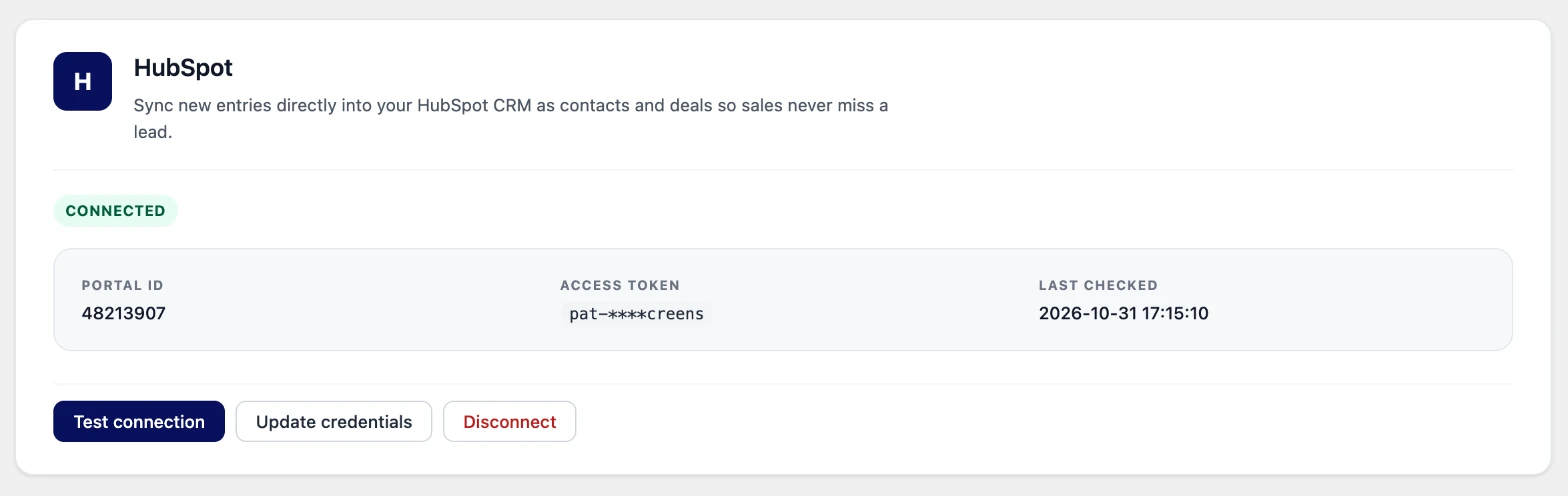
- Save, then click Test connection. When it works, the status reads Connected and shows the Portal ID, the masked token and the time of the last check.
Map the fields
Mapping happens per form, inside the form’s own settings.
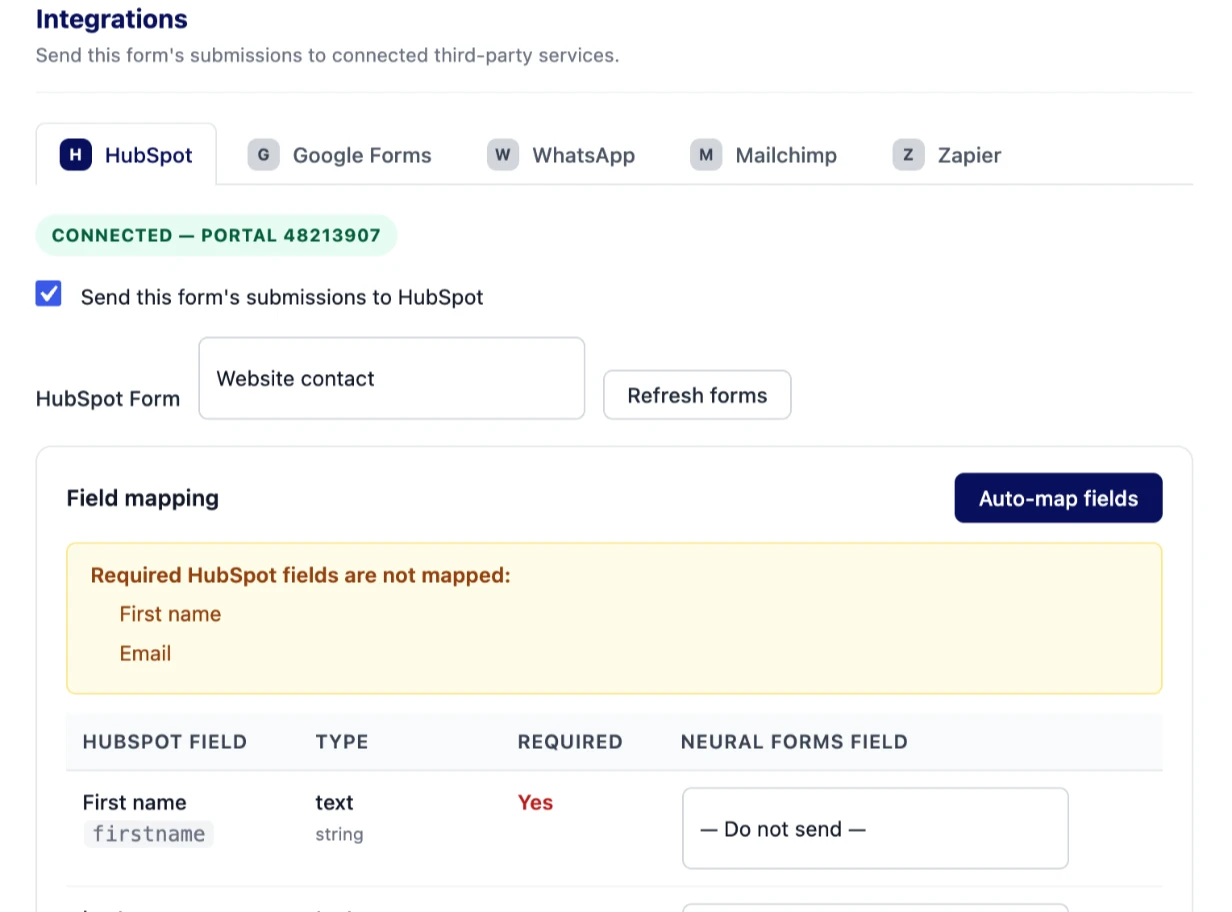
- Open the form in the Neural Forms builder, go to its settings and choose Integrations, then the HubSpot tab.
- Tick Send this form’s submissions to HubSpot.
- Choose the target in HubSpot Form. If you created it a minute ago, click Refresh forms. The list loads up to 100 of your HubSpot forms.
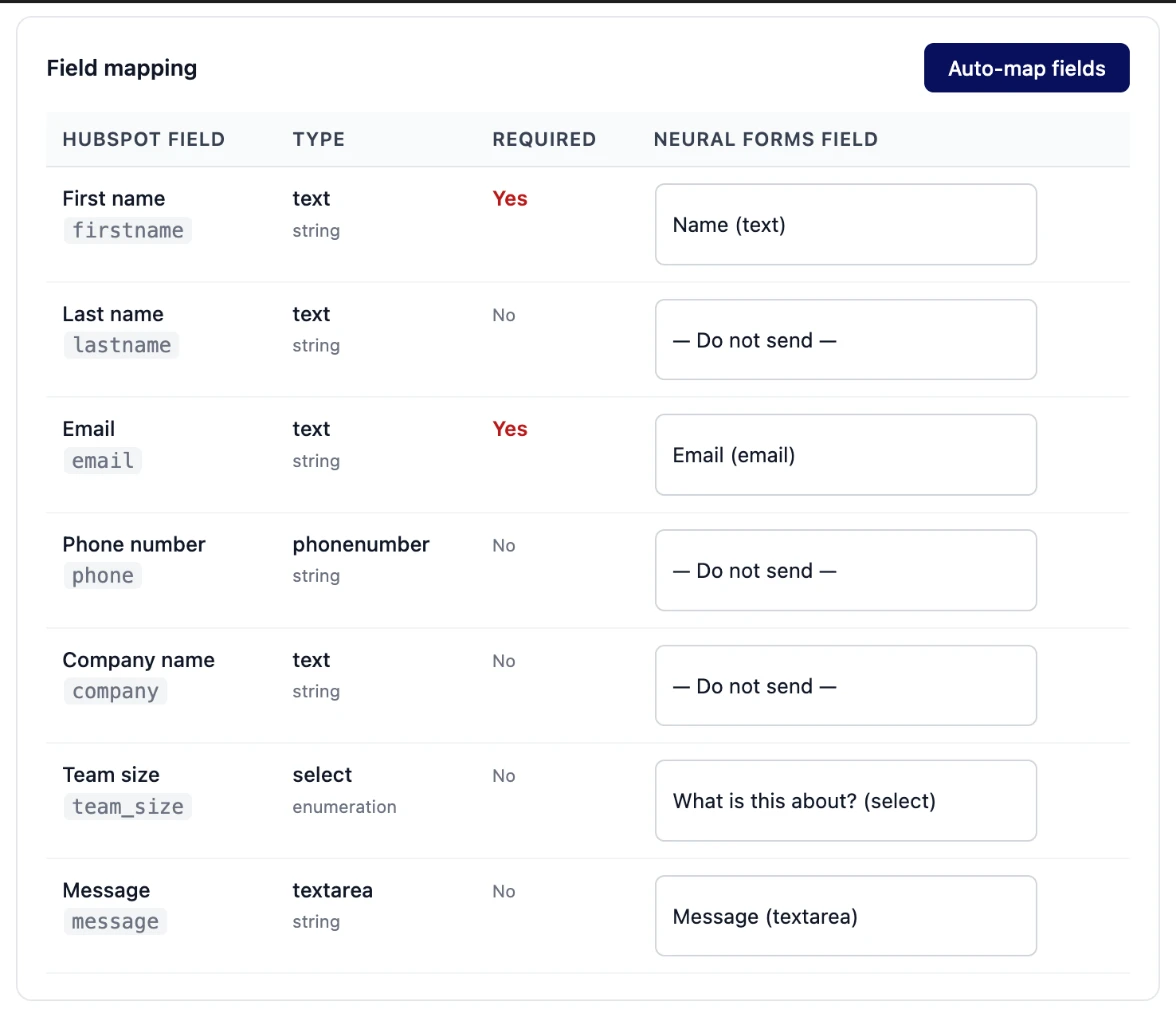
- The Field mapping table lists every field on the HubSpot form with its type and whether it is required. For each row, pick the Neural Forms field that fills it, or leave it on Do not send.
- Click Auto-map fields to fill the table for you. It matches names and labels, and it pairs HubSpot’s email field with your first Email field. Your own choices are kept.
- Save the form.
Map the email first. HubSpot uses the email address to decide whether a submission belongs to an existing contact, so a submission without one is far less useful. If a HubSpot field is marked required and nothing is mapped to it, the panel shows a warning that lists the missing fields.
How values are converted
HubSpot expects certain formats for certain property types. Neural Forms converts values before sending them:
| Neural Forms field | What HubSpot receives |
|---|---|
| Text, Textarea, Email, Phone, URL, Hidden, Select, Radio | The value as entered |
| Date | The date in HubSpot’s date format (midnight UTC) |
| Checkbox, Acceptance | true or false |
| Checkboxes | The chosen values separated by semicolons, the format HubSpot’s multiple checkbox properties use |
| Number, Range | The number; anything that is not a number is left out |
| Rating | A whole number |
| File Upload | The file name and its URL as text; the file itself is not uploaded to HubSpot |
| Matrix | One line of text, “Row: answer | Row: answer” |
| Repeater | Each item’s answers as text, items separated by a vertical bar |
Empty answers are never sent. That protects you from a blank optional field wiping out a value HubSpot already holds for the contact.
Test it
- Open the page with the form and send a test entry with an email address you can recognize.
- Check the Neural Forms inbox: the entry is there straight away.
- In HubSpot, open the form you mapped to and look at its submissions, or search Contacts for the test email.
Each submission also carries the URL of the page the form was sent from and the Neural Forms form name, so in HubSpot you can see where the lead came from.
Sending runs in the background after the entry is saved, so the visitor never waits for HubSpot. Neural Forms hands the job to WordPress’s scheduled tasks (WP-Cron), which run when the site receives a visit. On a quiet staging site the submission can take until the next page load to arrive.
What HubSpot does with each submission
Each entry arrives as a submission to the HubSpot form you chose, through HubSpot’s Forms submission API. From there HubSpot applies its own rules. According to HubSpot’s deduplication documentation, a submission whose email matches an existing contact is added to that contact; otherwise HubSpot creates a new contact. Neural Forms does not send HubSpot’s tracking cookie, so the match rests on the email address.
Because the data reaches HubSpot as a real form submission, anything you build in HubSpot around that form, such as a workflow that starts when the form is submitted, treats these entries like any other submission.
What this does not do
Knowing the limits up front saves a support ticket later:
- No deals, tickets, companies or custom objects. The integration sends form submissions. If you need a deal per lead, create it in HubSpot with a workflow.
- No sync back. Changes made to a contact in HubSpot do not come back to WordPress.
- No AI data. The summary, category, priority and lead score stay in the Neural Forms inbox.
- Every entry is sent. When the toggle is on, each new entry of that form goes to HubSpot. There is no rule to send only some entries.
- No automatic retries. If HubSpot is down or rejects an entry, that entry is not sent again. It stays in the inbox, and you can add it in HubSpot by hand or export it with CSV export and import it.
- One HubSpot form per Neural Forms form. To feed two HubSpot forms, use two forms on your site.
Troubleshooting
Nothing arrives in HubSpot
- Check that the form’s HubSpot toggle is on, a HubSpot form is selected and at least one field is mapped. With no mapped fields, nothing is sent.
- Run Test connection again under Neural Forms > Integrations. A failed test usually means the token was revoked or lacks access to forms.
- Make sure scheduled tasks run. If your host disables WP-Cron (the
DISABLE_WP_CRONsetting), a real server cron job must call it. - Neural Forms Pro 1.0.3 does not show a delivery status per entry, so confirm results on the HubSpot side.
Submissions are rejected
- Required HubSpot fields. HubSpot rejects a submission that leaves a required field of its form empty. Map every required field, and make the matching Neural Forms fields required too, because blank answers are not sent.
- Field type mismatches. A HubSpot number property only accepts numbers, so map it to a Number field. For dropdown and radio properties, make the option values in Neural Forms match the internal values of the HubSpot options.
Your HubSpot form is missing from the list
Click Refresh forms. The picker loads up to 100 HubSpot forms, so in a very large portal an older form may not appear.
Next step
If you also run other tools, the integrations overview covers Mailchimp, Zapier, WhatsApp alerts and Google Forms import.
Frequently asked questions
How do I connect a form on my WordPress site to HubSpot?
Connect HubSpot once under Neural Forms > Integrations with an access token and your Portal ID, then open the form’s settings, turn on HubSpot, pick a HubSpot form and map each field. Each new entry is then sent to that HubSpot form.
Do I need the HubSpot plugin?
No. Neural Forms sends entries to HubSpot directly. You only need HubSpot’s plugin if you also want its tracking code, chat or other HubSpot tools on the site.
Will form entries create contacts in HubSpot?
Entries arrive as submissions to a HubSpot form, and HubSpot creates a new contact or adds the submission to the existing contact with the same email address, following its own deduplication rules.
Can a form create deals in HubSpot?
Not directly. The integration sends form submissions only. You can build a HubSpot workflow that creates a deal when that HubSpot form is submitted.
Is the original page URL sent to HubSpot?
Yes. Each submission includes the URL of the page the form was sent from and the form’s name.
What happens if HubSpot is down when someone submits?
The visitor sees the normal success message and the entry is saved in the Neural Forms inbox. That entry is not resent automatically, so add it to HubSpot by hand or through a CSV import.

Leave a Reply