

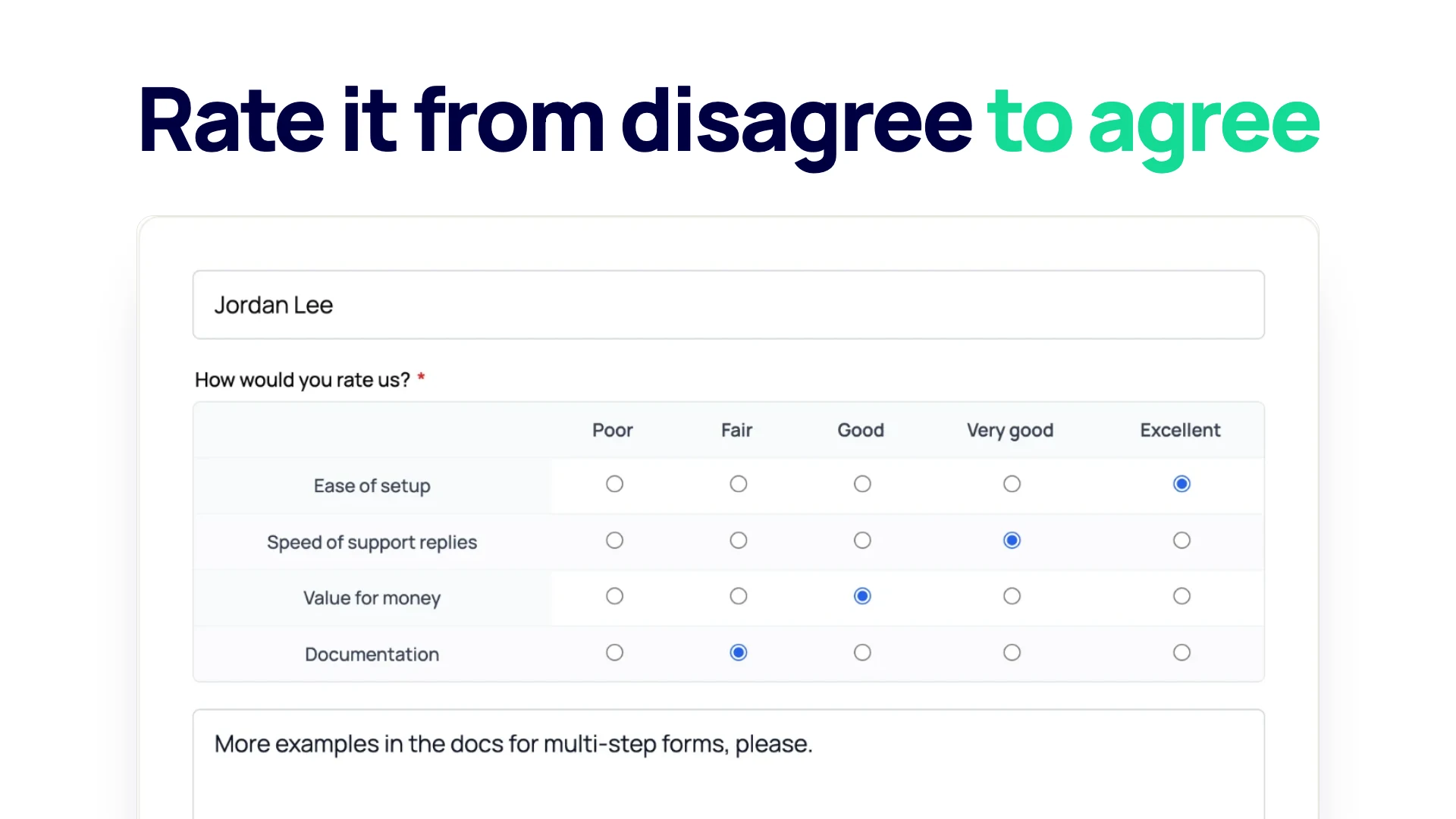
This guide is for site owners who run customer feedback, course evaluations or staff surveys on their own site. By the end you will know how to write Likert statements people can answer honestly, pick the right scale, build the whole grid as one field on a WordPress site, and read the results without fooling yourself.
The build uses the Matrix field in Neural Forms, which comes with the Starter ($99 a year) and Agency ($199 a year) plans. On the free plugin you can build the same survey with one question per statement (see the FAQ).
What a Likert scale is
A Likert scale asks people how much they agree with a statement, on a fixed set of ordered answers. The classic version has five points: Strongly disagree, Disagree, Neutral, Agree, Strongly agree. It is named after the psychologist Rensis Likert, who described the method in his 1932 paper “A Technique for the Measurement of Attitudes” (Archives of Psychology, no. 140).
Two parts make it work:
- The statement (also called the item): one clear claim, such as “The workshop started on time.”
- The scale: the same set of answers for every statement, in the same order.
Strictly, a Likert scale is a group of statements on one topic answered on the same scale; each statement is a Likert item. On a form, that group usually shows up as a grid: statements down the left, answers across the top.
One thing to keep in mind before you collect a single answer: Likert answers are ordered categories, not measurements. “Agree” is more than “Neutral”, but nobody can say it is exactly one unit more. That matters when you get to the results, and it is why this guide talks about medians and answer counts instead of averages.
5 point or 7 point, and the neutral middle
Most surveys use five points. It is quick to read, fits on a phone screen, and gives enough spread for feedback and course surveys. Seven points give people finer choices, which helps when you expect most answers to sit on the positive side and want to see the difference between “agree” and “strongly agree” more clearly. Past seven points, it gets hard to write labels that mean something different from their neighbors.
| Scale | Labels | Good fit |
|---|---|---|
| 5 point | Strongly disagree, Disagree, Neutral, Agree, Strongly agree | Customer feedback, course and event surveys, most sites |
| 7 point | Adds Somewhat disagree and Somewhat agree | Research-style surveys, staff surveys where you track small changes over time |
| 4 or 6 point | No middle answer | When you need people to lean one way, for example a go or no-go decision |
Should you keep the neutral middle? Usually yes. Some people really have no opinion, and taking the middle away pushes them into an answer they do not hold. Drop it only when a neutral answer is useless to you and every respondent has the experience to judge. If a statement may not apply to everyone (for example “The checkout was clear” for someone who never bought), add a separate “Does not apply” column at the end instead of letting them hide in the middle.
Label every point, not only the two ends. A grid with “1” to “5” and words only at the edges leaves people guessing what “3” means.
Writing statements people can answer
The grid is the easy part. The statements decide whether your data means anything.
- One idea per statement. “The trainer was clear and friendly” asks two things. Someone who found the trainer clear but cold cannot answer it. Split it.
- Neutral wording. “How much did you enjoy our excellent support?” leads the reader. Write “The support team solved my problem.”
- Concrete, not abstract. “The course was valuable” is vague. “I can use what I learned in my job next week” is something a person can judge.
- Short. One line on a phone. If a statement needs a second sentence, it is probably two statements.
- Same direction for the scale. Keep Strongly disagree on the left and Strongly agree on the right in every grid on the form. Switching sides between pages causes mistakes.
- One reverse-worded statement per block. Most statements are positive (“The pace was right”). Add one negative one (“Parts of the session felt rushed”). It helps you spot people who click the same column all the way down, and you flip its score when you analyze it.
Matrix grid or separate questions
A grid is the right choice when several statements share one scale. It takes less room, people answer faster, and the answers line up in the results. The risk is straight-lining: people get tired and pick the same column for every row.
Use a grid when:
- the statements share the same answer scale
- there are roughly 4 to 8 statements in the group
- the statements belong to one topic (the trainer, the venue, the website)
Use separate questions when a statement needs its own scale (“How likely are you to recommend us?”), when there are only one or two statements, or when most visitors are on phones and the statements are long. In Neural Forms a wide grid scrolls sideways on a narrow screen, which works but is less comfortable than a stacked question.
Build it in WordPress, step by step
The steps below build a workshop feedback survey with one Likert grid. They use Neural Forms with the Starter or Agency plan installed, which unlocks the Matrix field.
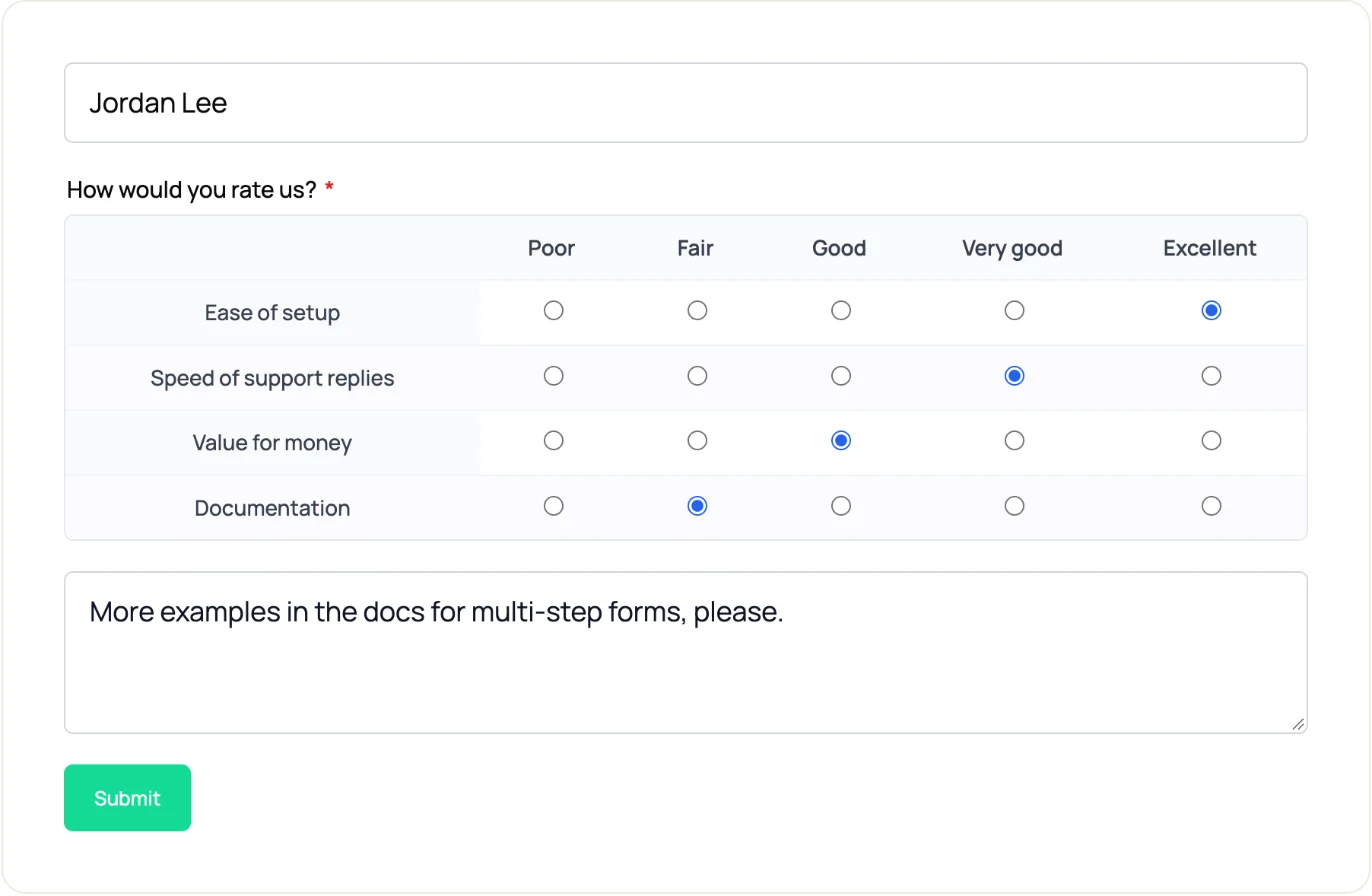
Start from the Survey template or a blank form
Go to Neural Forms > Forms and create a new form. The Survey template gives you Name, Email, an “Overall experience” star rating, a “How did you hear about us?” question and an “Any suggestions?” box. Keep what you need and delete the rest, or start from Blank Form if the survey is only the grid and a comment box.
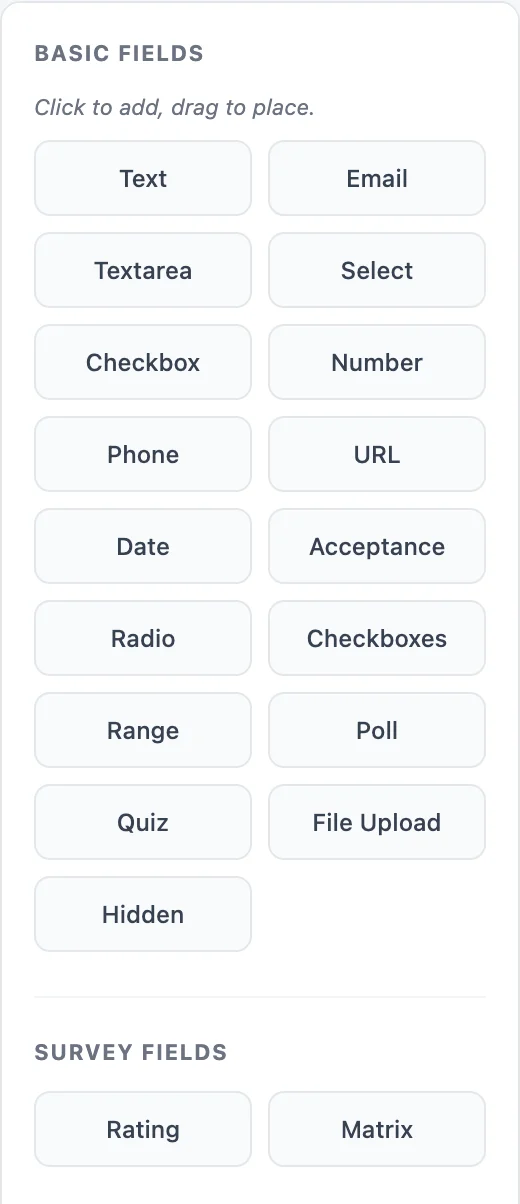
Add a Matrix field
Drag Matrix from the field picker onto the canvas. A new Matrix field starts with three placeholder rows and three columns. Rename the field label to something people will read above the grid, such as “How far do you agree with each statement?”
Rows are your statements. In the field settings, replace “Row 1”, “Row 2” and so on with your statements, and use + Add row for more. Each row also has a value (the builder fills it in from the label), which you can shorten to something like pace or materials. Keep it short and readable, because it shows up in the CSV column names later.
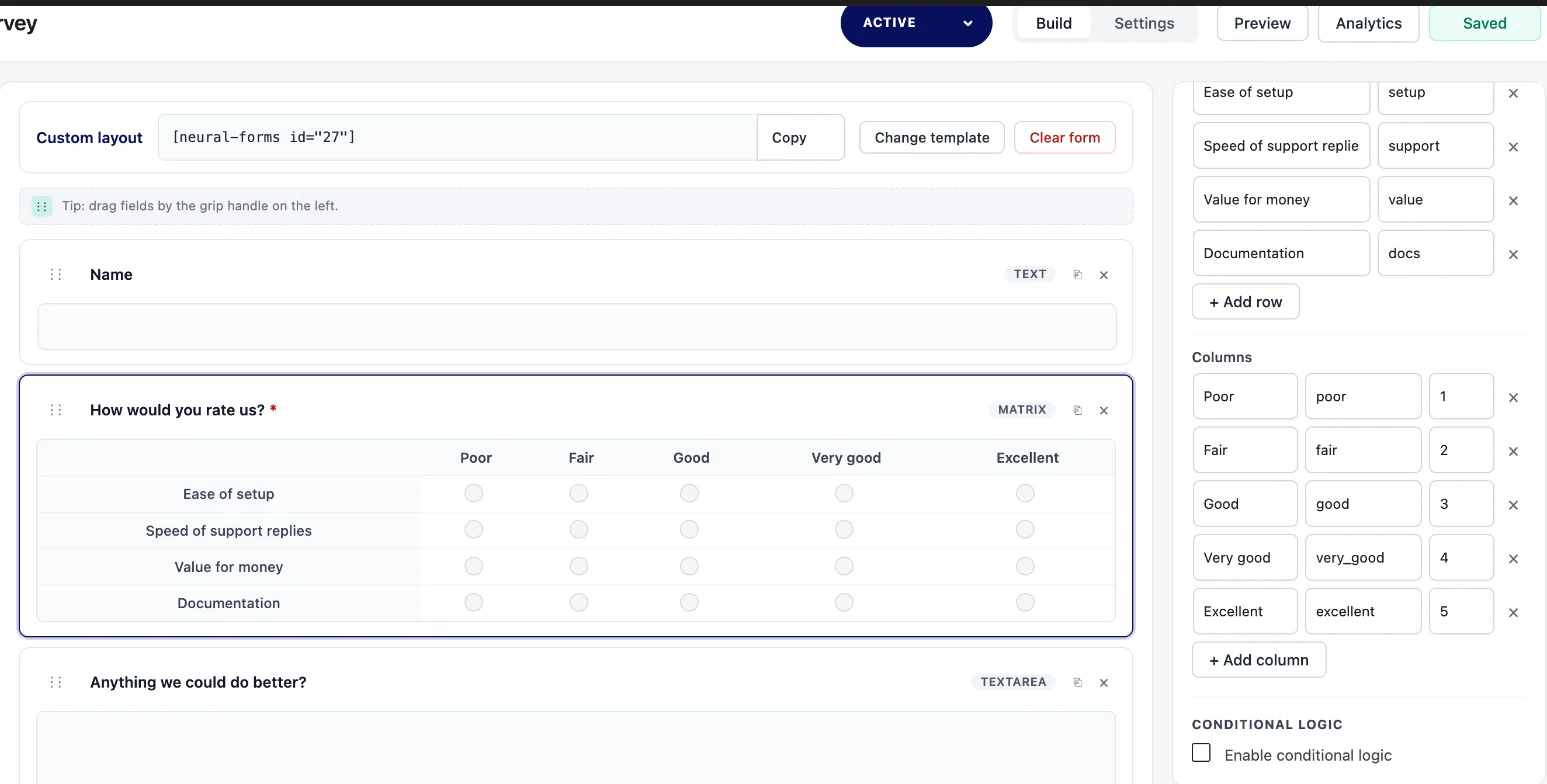
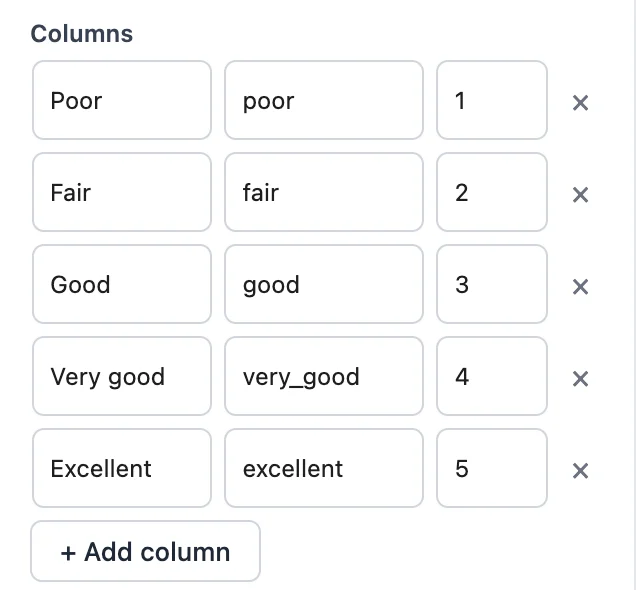
Columns are your scale. Replace “Option 1” to “Option 3” with your labels, and use + Add column until you have all five (or seven).
Choose one answer per row
Set Selection type to Single choice per row (radio). That is the Likert setup: one answer for each statement. The other choice, multiple choices per row, is for grids like “Which of these did you use?” and is not a Likert scale.
Give the columns scores 1 to 5
Each column has a score box. Give Strongly disagree 1, Disagree 2, Neutral 3, Agree 4 and Strongly agree 5. The score is saved with the column, and it is sent along with the answers when Neural Forms AI analyzes an entry, so the AI sees which end of the scale is positive.
Two honest notes. First, the entry view and the CSV show the label each person picked (“Agree”), not the score, so you turn labels into numbers in your spreadsheet (covered below). Second, write down which statements are reverse-worded. The scores are set per column, so a reverse statement gets the same scores as the others and you flip it at analysis time.
Split long surveys into steps and add a progress bar
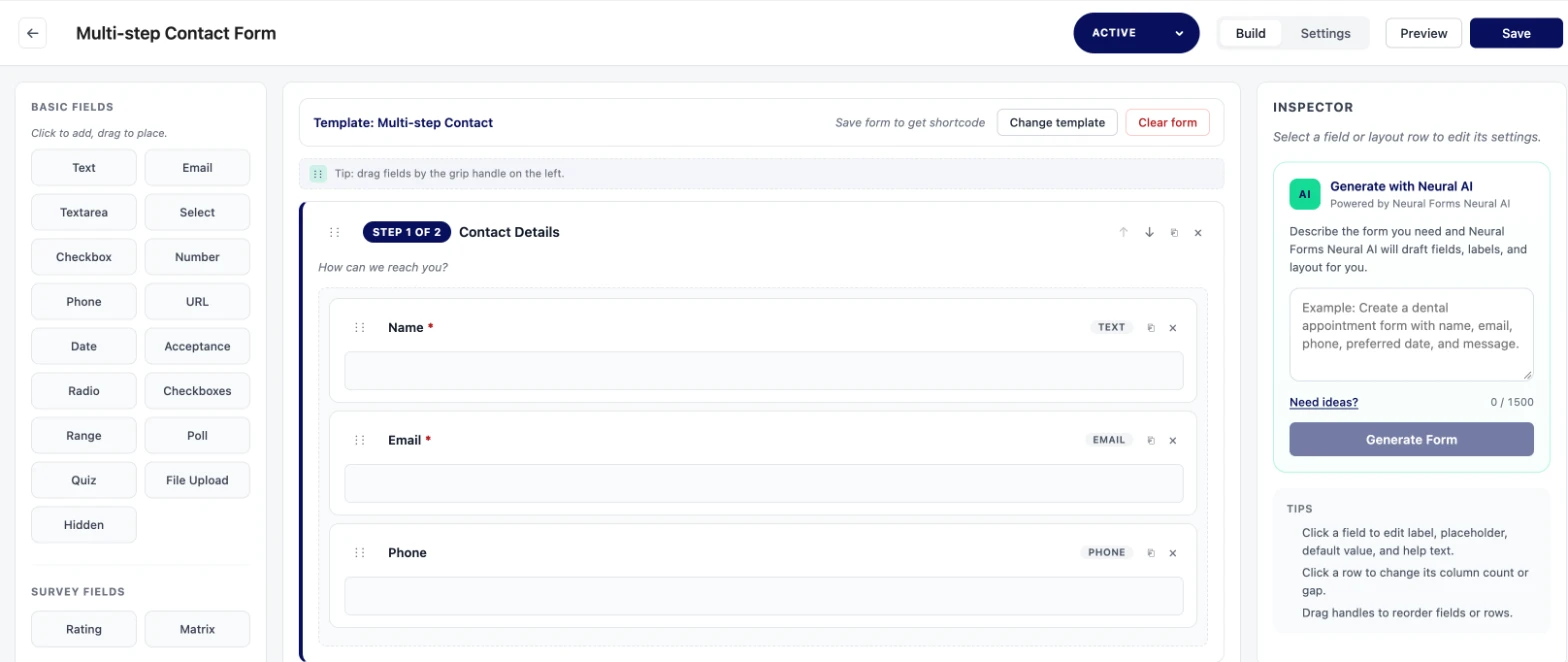
If your survey has more than one grid, or a grid plus several other questions, put each part on its own step. Drag a Step from the layout blocks, give it a title such as “About the session”, and move the fields into it. Only fields inside steps are submitted once a form uses steps, so make sure every field sits in one.
In the step settings, set Form progress indicator to Progress bar. Visitors then see “Step 1 of 3” above the questions, and each step is checked before they can move on. Multi-step forms work on the free plugin too, so this part does not need a paid plan. More on this in the multi-step form guide.
Publish with the block or shortcode, and preview
Click Preview in the builder to see the form exactly as visitors will, including unsaved changes. Check the grid on a phone-sized window. Then save and place it on a page with the Neural Forms Form block (or the Multi-step block), or paste the shortcode, for example This form is currently unavailable. Please try again later.
Reading the results
Answers land in the Neural Forms inbox like any other entry. Open one and the Matrix field lists each statement with the answer next to it, which is handy for reading individual feedback. For the overall picture, export the answers.
- Go to Neural Forms > Entries and choose your survey in the form filter.
- Pick a date range (all time, last 7 days, last 30 days, this month or last month) and click Export CSV. One export holds up to 5,000 entries, and the file is saved so Excel opens it with the right characters.
- Each statement gets its own column, named from the field ID and the row value (for example
..._pace). Each cell holds the label the person picked.
Export with the form filter set. When you export all forms at once, a grid’s answers are squeezed into one cell instead of one column per statement.
In the spreadsheet:
- Turn labels into numbers. Add a column next to each statement with a lookup (Strongly disagree = 1 up to Strongly agree = 5). In Google Sheets or Excel, a
SWITCHorXLOOKUPagainst a small two-column table does it. - Flip reverse statements first. On a 5 point scale, the flipped score is 6 minus the original (1 becomes 5, 2 becomes 4).
- Report the median and the spread. The median tells you where the middle respondent sits. Then count how many people picked each answer, or report the share who chose Agree or Strongly agree (“top two box”). A statement with 40% strongly agree and 40% strongly disagree has a neutral-looking average and a very split audience.
- Averages, with care. Many teams still average Likert scores to track a trend over time. That is fine as a rough signal if you use the same statements and scale every time, but do not read small differences (3.8 against 3.9) as real changes.
Ready-to-use statement sets
Use these as a starting point. Each set is written for a 5 point agreement scale. Statements marked (R) are reverse-worded, so flip their scores before you analyze.
Customer satisfaction (8)
- The product does what I expected it to do.
- I found what I needed on the website without help.
- Prices are clear before I buy.
- My order arrived when I was told it would.
- Support answered my question in a reasonable time.
- Support solved my problem on the first contact.
- I had to repeat my issue to more than one person. (R)
- I would buy from this company again.
Course or workshop evaluation (8)
- The session goals were clear from the start.
- The content matched the course description.
- The trainer explained ideas in a way I could follow.
- The pace was right for me.
- Parts of the session felt rushed. (R)
- The exercises helped me practice what I learned.
- The materials will be useful after the course.
- I can use what I learned in my work next week.
Employee pulse (7)
- I know what is expected of me at work.
- I have the tools I need to do my job well.
- My manager gives me useful feedback.
- I feel comfortable raising a problem with my team.
- My workload is manageable most weeks.
- I often think about leaving this company. (R)
- I would recommend this company as a place to work.
Website usability (7)
- The menu labels made sense to me.
- I found the page I was looking for quickly.
- The text was easy to read on my device.
- Forms on the site asked only for what was needed.
- I was unsure what to click next at some point. (R)
- Pages loaded fast enough for me.
- I trust this site with my personal details.
Mistakes that spoil Likert data
- Double-barreled statements. “Fast and friendly” hides two answers in one. Split every “and”.
- Leading wording. Praise inside the statement (“our award-winning support”) pulls answers up.
- Unlabeled points. Numbers without words give each respondent a different scale.
- Too many rows. The longer a grid runs, the more people click down one column without reading. Keep each grid short and split long surveys across steps.
- Mixed scale directions. Agree on the right in one grid and on the left in the next produces errors you cannot fix later.
- No space for why. Add one optional comment box after each grid. The numbers tell you where the problem is; the comments tell you what it is.
FAQ
What is a 5-point Likert scale?
A set of five ordered answers to a statement, usually Strongly disagree, Disagree, Neutral, Agree and Strongly agree. It is the most common Likert format because it is quick to answer and fits on a phone.
Should a Likert scale have a neutral option?
In most surveys, yes. People without an opinion otherwise pick a side they do not hold. Leave it out only when you need a lean either way, and add a separate “Does not apply” column for statements some people cannot judge.
Can you average Likert scale answers?
Likert answers are ordered categories, so the median and the count per answer are the safer summary. Averages are common for tracking a trend with the same statements over time, but treat small differences as noise.
What is the difference between a Likert scale and a rating scale?
A Likert scale measures agreement with a statement on labeled points. A rating scale asks for a score of something, such as 1 to 5 stars for a product. Both are ordered, but a Likert grid asks several statements on one shared scale.
How many questions should a Likert survey have?
Ask only what you will act on. For feedback and course surveys, 4 to 8 statements per grid and one or two grids is a common size; longer surveys work better split into steps with a progress bar.
Can I make a Likert scale survey in WordPress for free?
Yes. On Neural Forms Lite, add one Radio field per statement with the same answer options, or a Rating field per statement. The Matrix field, which puts all statements in one grid, comes with the Starter and Agency plans.
Build your grid
The Matrix field puts every statement and the whole scale in one field, with one answer per row and a score on each column. It is included in Neural Forms Starter ($99 a year) and Agency ($199 a year), both for unlimited sites. For more survey layouts, see the survey form and feedback form pages.

Leave a Reply