

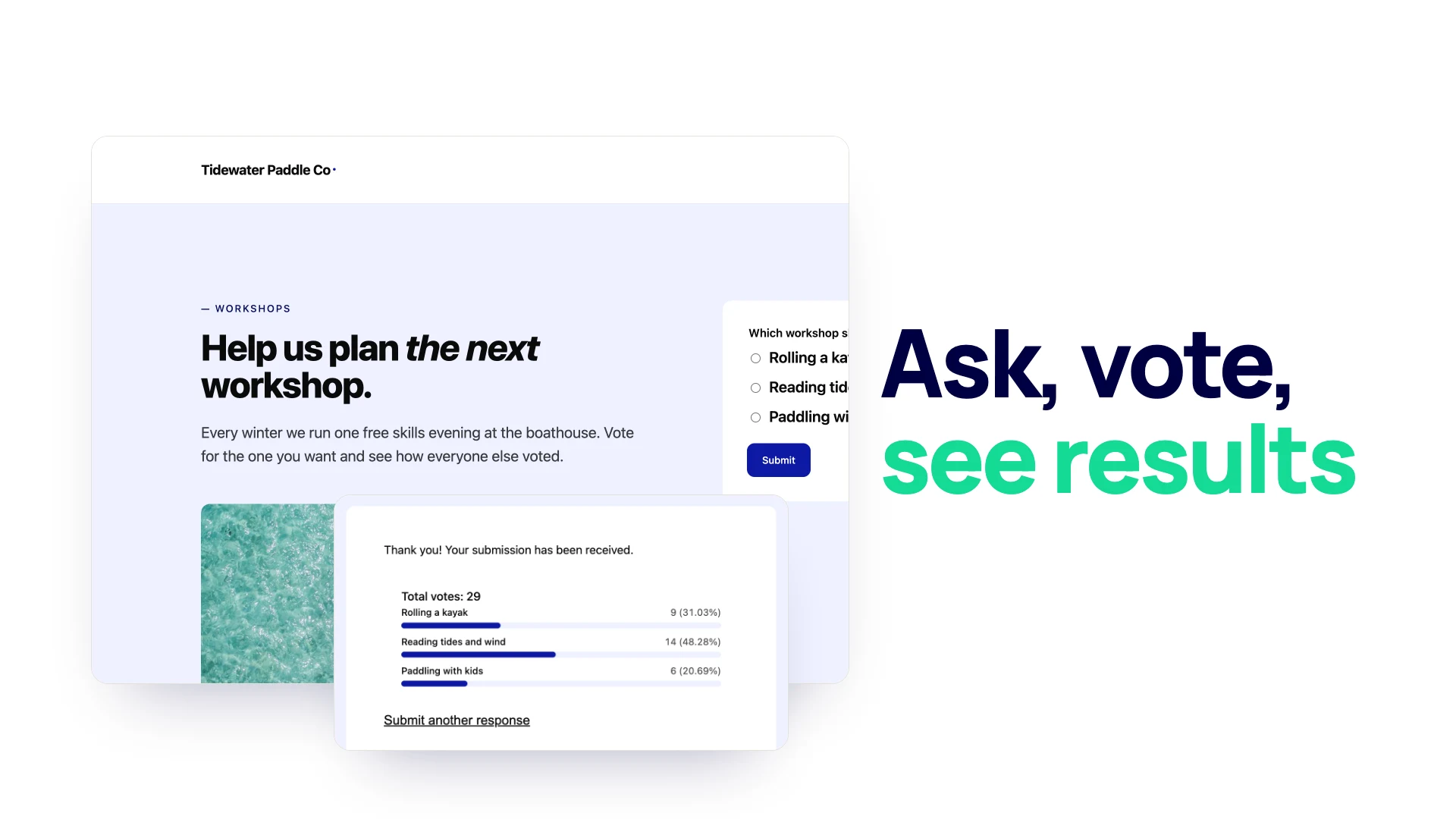
A poll asks one question and shows everyone the answer. It is the quickest way to hear from your readers: which workshop to run next, which product name they prefer, which day suits them for an event. Voting takes one click, and people see the results right after.
This guide adds a poll to a page with the free Neural Forms plugin: building it from the Poll Form template, choosing when results are shown, what voters see, and where you read the totals. Everything was built and tested on a WordPress site with only the free plugin active.
Step 1: Start from the Poll Form template
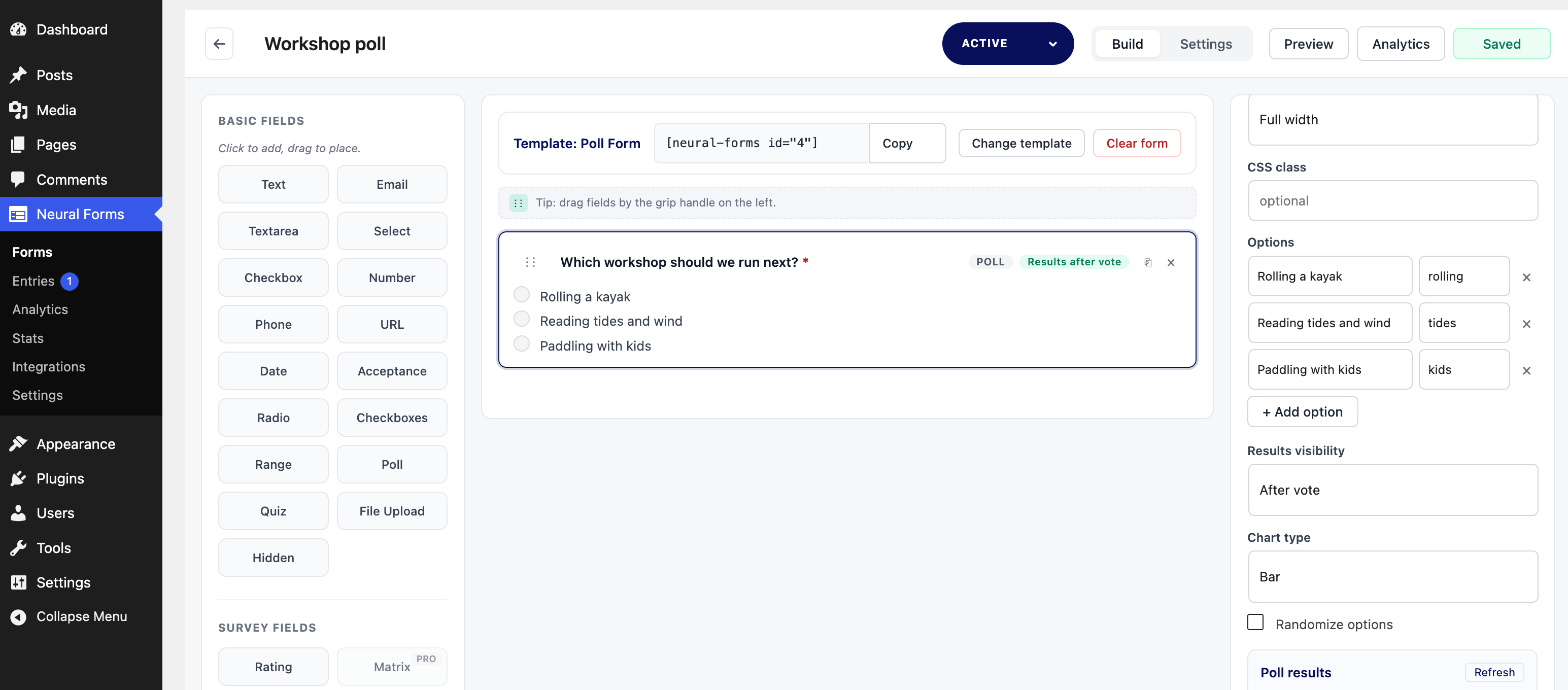
Go to Neural Forms > Forms, click + New Form and pick Poll Form under More templates (“Single-question poll with live results”). It creates a form with one Poll field and three options. Click the form name at the top and give it a name you will recognize, such as “Workshop poll”.
You can also add a poll to any form: click Poll in the field list, next to the other fields.
Step 2: Write the question and the options
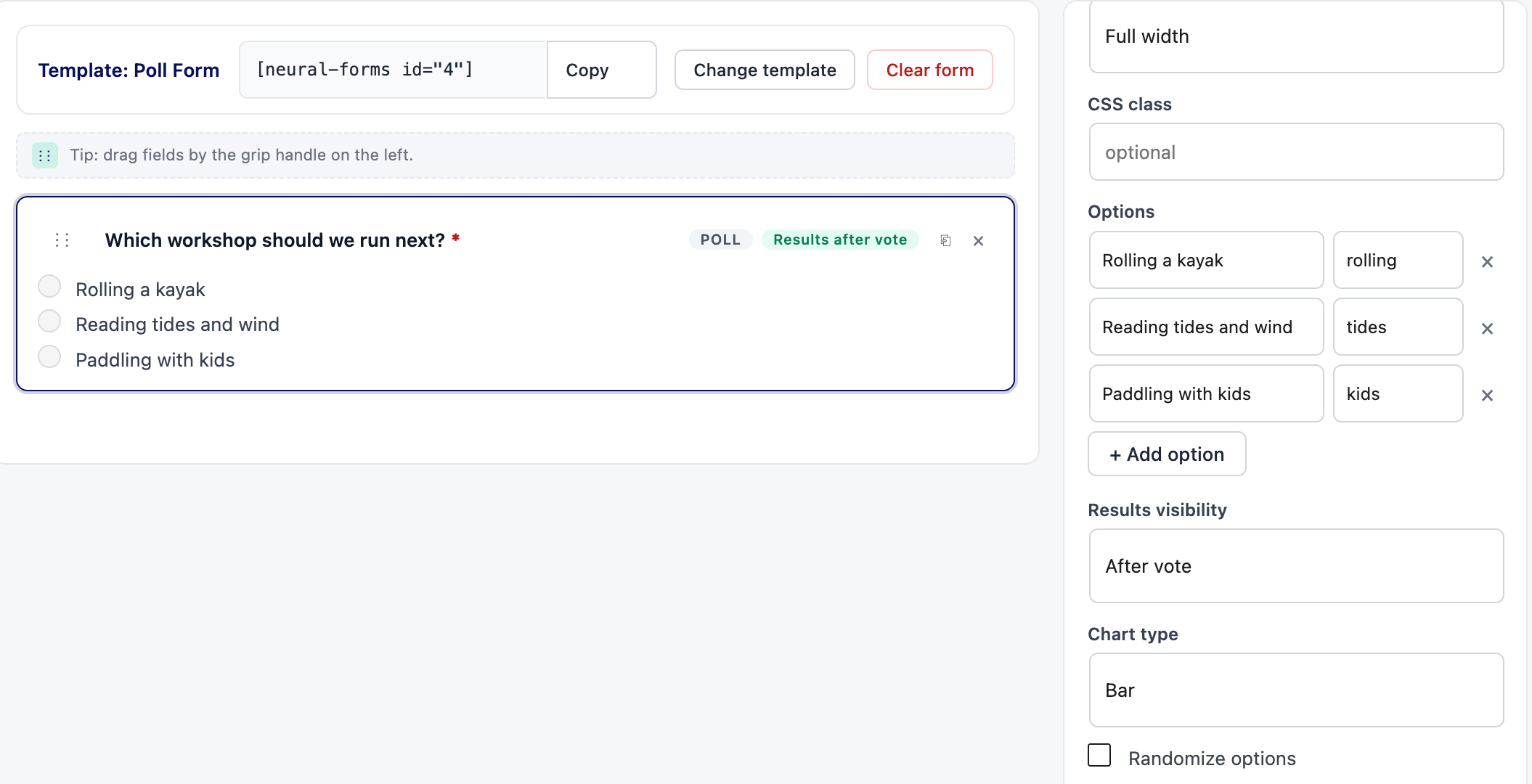
Click the Poll field to open its settings on the right:
- Label is the question: “Which workshop should we run next?”
- Under Options, each choice has the text voters see on the left and a stored value on the right. Click + Add option for more.
- Results visibility decides when voters see the totals: After vote (the default), Always or Never.
- Chart type sets how results are drawn: Bar or Percentage.
- Randomize options shuffles the order for each visitor, so the first option does not get extra votes for being first.
Tips for a poll people answer:
- One clear question. “Which workshop should we run next?” beats “What do you think about our events?”
- Two to five options, short enough to read at a glance, that do not overlap.
- Ask about something you will act on. Then share what you did with the result.
Click Save.
Step 3: Add the poll to a page
Open a page or post in the block editor and add the Neural Poll block. It lists forms that contain a Poll field; choose yours and turn on Show Field Labels in its display settings so the question appears above the options. A poll works well inside a blog post, right after the section it asks about.
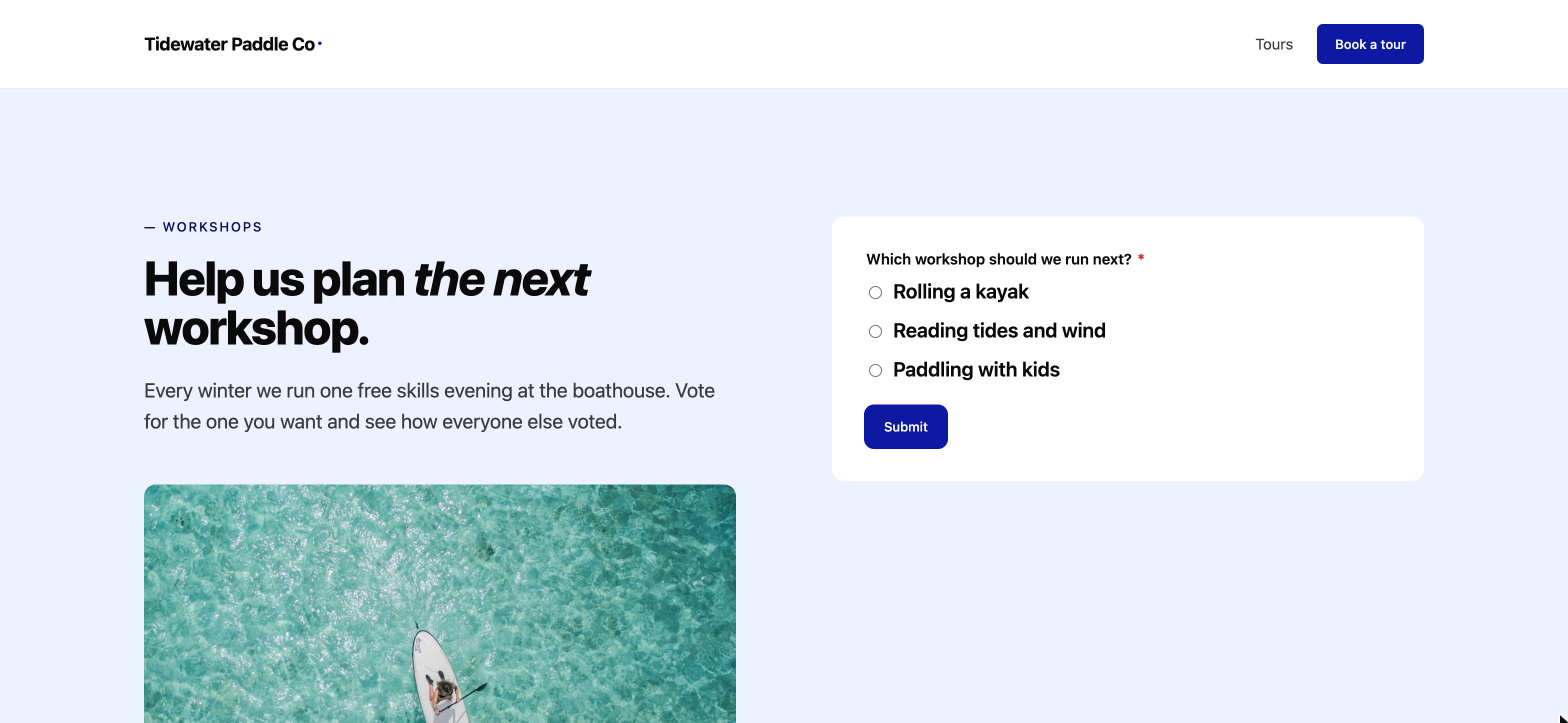
What voters see after they vote
With Results visibility set to After vote, the poll is replaced by the thank-you message and the live totals: the number of votes, and a bar for each option with its count and percentage. Below them is a Submit another response link.
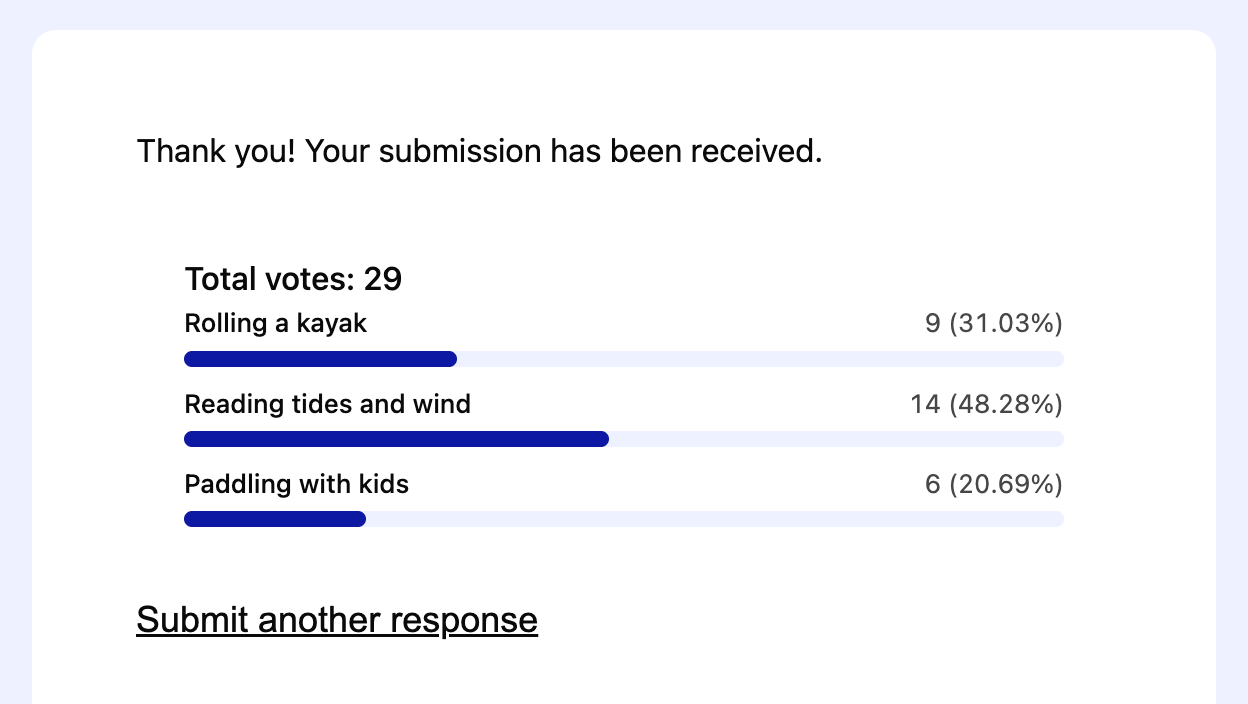
Showing results after the vote is the usual choice: people see where they stand, and nobody is swayed by the totals before choosing. Use Never when the answers are for you only, for example when you are testing price points.
Step 4: Read the results
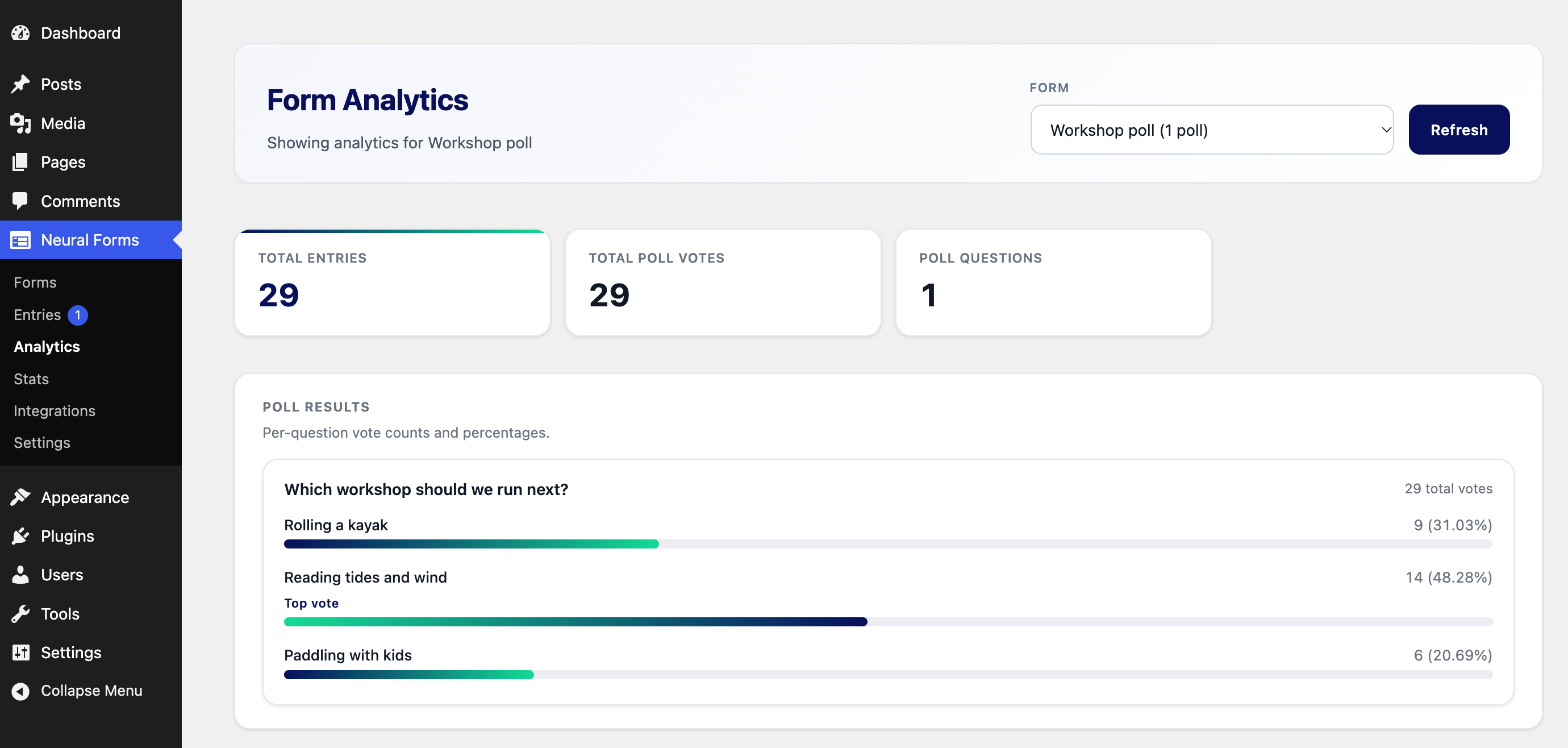
Go to Neural Forms > Analytics and choose the poll. You see the total entries, total votes, and each option’s count and share, with the leading option marked Top vote. Each vote is also an entry in Neural Forms > Entries, which you can export to CSV.
Limits to know about
- Repeat votes are possible. The poll does not remember who voted; the “Submit another response” link and a page reload both allow another vote. The only brake is the general limit of 10 submissions per visitor (per IP address) every 10 minutes. Treat poll results as a signal, not a ballot.
- 200 votes per poll form in the free version. After that, new votes are refused. For a poll you expect to run long, start a new poll form for each round.
- One choice per voter. Each vote picks one option.
Ideas for polls
- Content planning: “What should our next guide cover?”
- Events: “Which evening works best for the meetup?”
- Products: “Which color should we make next?”
- Inside a post: “Did this tip solve your problem?” at the end of a tutorial.
For anything with more than one question, a survey form fits better; for questions with a right answer, use a quiz form.
Frequently asked questions
Can I add a poll in WordPress for free?
Yes. The Poll field, the Poll Form template and the Neural Poll block are part of the free Neural Forms plugin on WordPress.org. Each poll form accepts up to 200 votes in the free version.
Can voters see the results?
Yes, if you want them to. Results visibility can be After vote, Always or Never.
Can someone vote more than once?
Yes. The poll does not track who voted, so a visitor can vote again, up to 10 submissions in 10 minutes from the same IP address.
Where do I see the poll results?
In Neural Forms > Analytics: choose the poll to see total votes and each option’s count and percentage.
Can I put a poll inside a blog post?
Yes. Add the Neural Poll block anywhere in a post or page.
Ask your readers one question
Start from the Poll Form template, write one clear question with a few options, choose when results show, and place the poll where readers already are. For totals over time, the form analytics page shows what else you can see.

Leave a Reply