

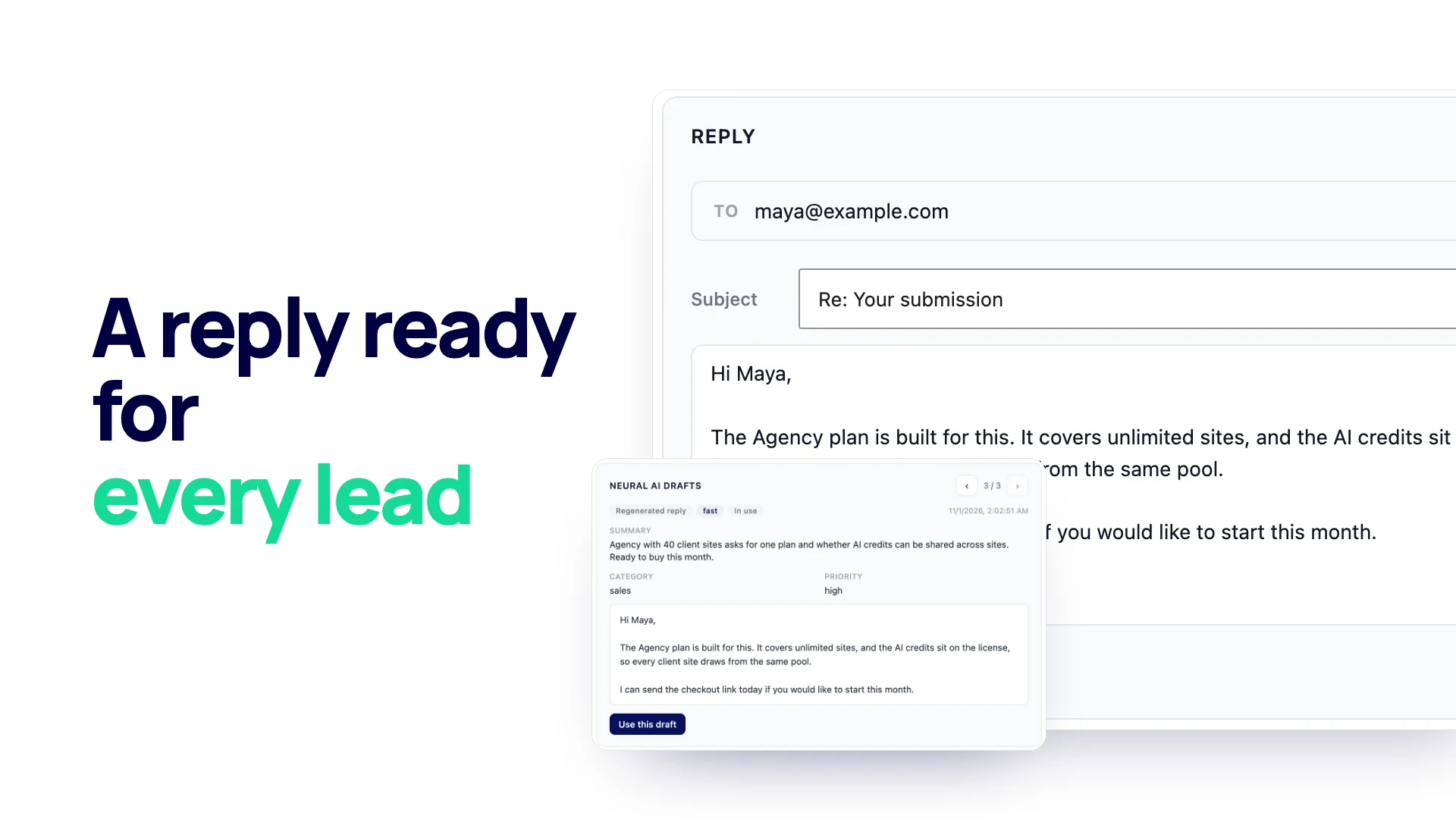
This guide is for anyone who answers website inquiries by hand, one email at a time, often from a shared mailbox. It shows how to reply to form submissions faster with AI drafts without letting the AI send anything on its own: where the draft comes from, how to set it up in WordPress, a reply routine you can follow every day, and the cases where you should write the reply yourself.
Auto-responder vs personal reply
Two kinds of email go back to the person who filled in your form, and they do different jobs.
| Auto-responder | Personal reply | |
|---|---|---|
| When it goes | Right after the form is sent | When someone on your team answers |
| Who it is for | Everyone who submits | One person and their question |
| What it says | “Thanks, we got your message” | An answer to what they asked |
| Who writes it | Written once, sent by the site | Written for each entry |
In Neural Forms the auto-responder is one global email for all forms. It is off by default, it is plain text, it goes to the first email field on the form, and it can use the tokens {site_name}, {form_name} and a field’s ID to drop in an answer. It confirms receipt. It cannot answer the question.
The personal reply is where the time goes, and it is what this guide is about. An AI draft does not replace it. It gives you a first version to check, change and send.
Where the draft comes from
When an entry is analyzed, the AI writes a reply draft along with a summary, category, priority and lead score. It works from three sources:
- The entry itself. Every field the person filled in, including the message.
- Your site. Neural Forms Pro sends the text of your homepage to the Neural Forms cloud once a month as background about your business. You can see the result under Neural Forms > Settings in the Business context card (industry, summary and topics) and update it with Refresh now after you change your homepage.
- Your earlier replies. Drafts draw on the patterns in replies you have already sent, so they move closer to the way you write over time.

The draft does not know your prices, your calendar or anything that is not on your homepage or in the entry. Keep that in mind when you check it.
Setup
Reply drafts need the Neural Forms Cloud connection. In the free Lite plugin you can analyze an entry once by hand, which also writes its first draft, using the 100 lifetime AI credits included with a free account. Automatic drafts on every new entry, Regenerate reply and Refine with AI are part of Neural Forms Pro, on the Starter plan ($99/year) or the Agency plan ($199/year).
- In Neural Forms > Settings, paste your Neural Forms Cloud API key and make sure the AI is switched on.
- Open the form you answer most often and go to its settings, then Process with AI.
- Choose Process every entry. Each new entry is analyzed, and gets a draft, shortly after it is saved.
- While you are in Settings, fill in Sender name, Sender email and Default reply subject under Email Settings. The subject starts as “Re: Your submission” and accepts {site_name} and {form_name}.
The reply routine
Here is a routine that keeps a person in charge of every email that leaves.
Open the entry and read the summary
Open the entry from the inbox. Read the Neural AI Analysis card first: the summary tells you what the person wants in a line or two, and the category and priority tell you how urgent it is. Then read the submitted fields yourself. The summary is a shortcut to the message, not a replacement for it.

Edit the draft, or write your own and use Refine with AI
The draft is already in the reply box at the bottom of the entry. The To address comes from the email the person entered, and the Subject is filled in from your default, which you can change for this reply.
Read the draft as if a new colleague wrote it. Check every fact, change anything that sounds unlike you, and add the detail only you know: a price, a date, a link to the right page.
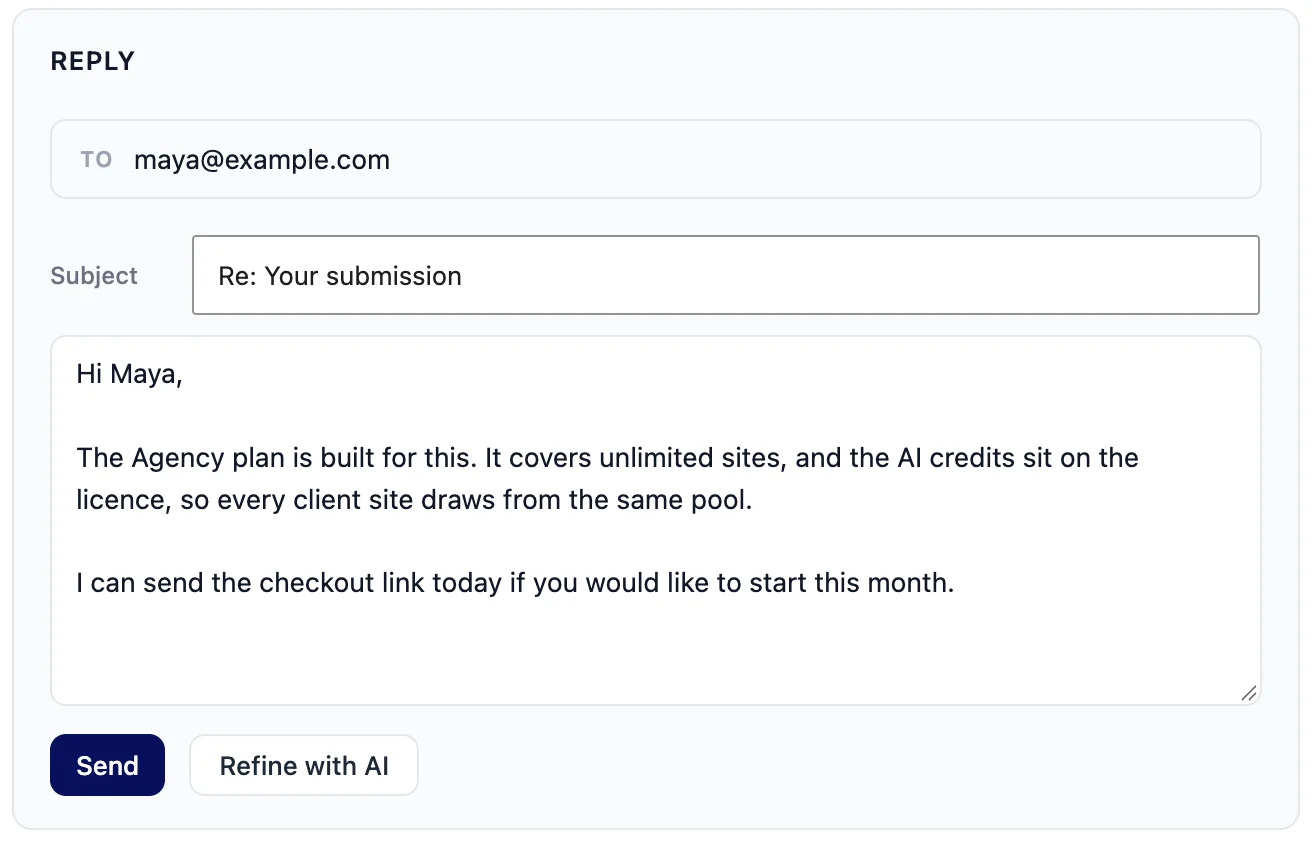
If you would rather write the reply yourself, clear the box and type it in your own words, rough is fine. Then click Refine with AI. The AI tidies tone and clarity and puts the result back in the reply box, where you can edit it again before sending.
Regenerate when the draft misses the point
Sometimes the draft answers the wrong question, usually when a message covers two topics or the person was vague. On Pro, click Regenerate reply under the analysis card to get a new draft.
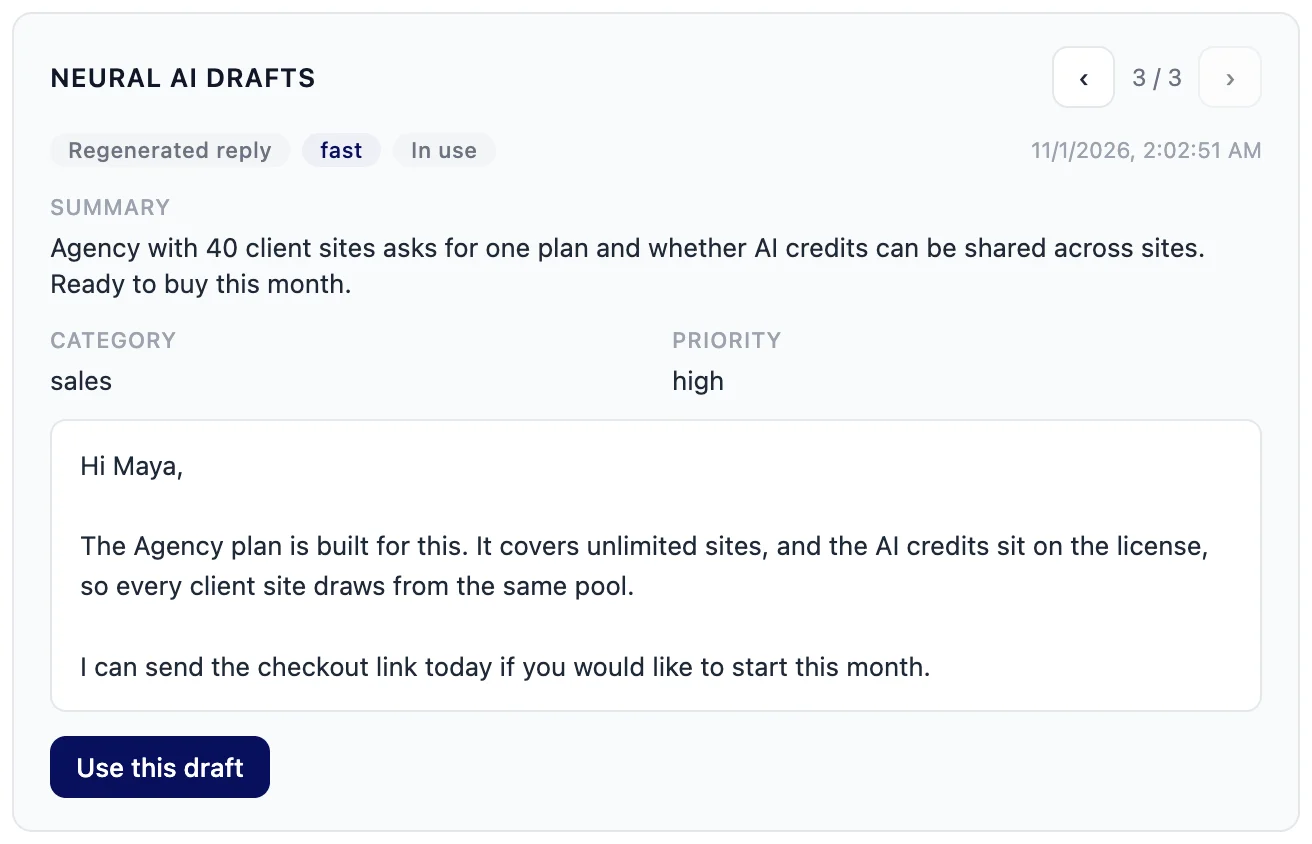
Each draft is kept on the entry. The Neural AI drafts panel lets you page back and forth between the original draft, regenerated drafts and refined versions, and Use this draft puts the one you pick back in the reply box. Unused drafts are deleted after 30 days.
If two regenerations still miss, stop and write the reply yourself. The entry probably needs a human reading anyway.
Send; the reply joins the entry’s thread
Click Send. The reply goes out as a plain-text email, and it appears in the entry’s Conversation thread under the original submission, so anyone on your team who opens the entry can see what was said. The entry shows as replied and leaves the Needs Reply view. If a reply fails to send, you can retry it from the entry.
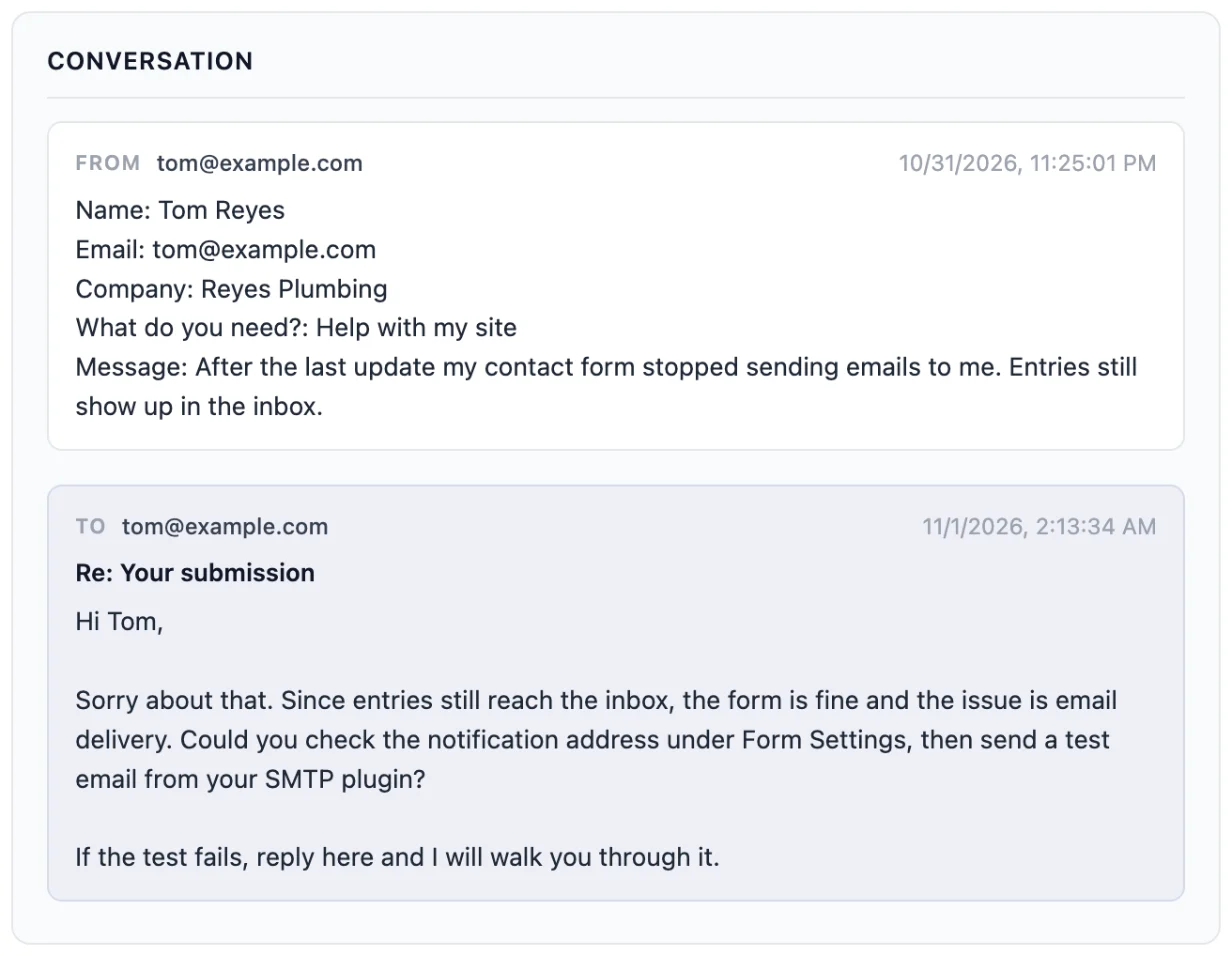
Replying from the inbox is limited to administrators. When the person answers, their reply arrives in your normal mailbox, not in WordPress; the thread in Neural Forms holds the submission and the replies you sent from it.
Make sure replies arrive
Replies are sent through your site’s own email setup, the same way WordPress sends its other emails. In version 1.1.3, the From line uses the Sender name and Sender email from Email Settings (your site title and the WordPress admin email if you leave them blank), and the Reply-To is set to the same address so answers come back to you.
Before you rely on it, test it:
- Send a test entry through your form using a personal email address you can check.
- Reply to it from the inbox.
- Check that the email arrives, that it is not in spam, and that the From name and address look right.
- Reply to that email and check it lands in the mailbox you expect.
If emails go missing or land in spam, install an SMTP plugin and send through a proper mail service, and use a Sender email on your own domain. A Gmail or other free address as the sender is a common reason for replies being filtered.
When not to use a draft
A draft is a good start for routine questions: availability, what is included, how to book, where to send files. Write the reply yourself, and use Refine with AI at most, when the entry involves:
- Complaints. An unhappy customer can tell a generic answer from a personal one. Start from what went wrong for them.
- Legal, medical or financial questions. Anything where a wrong sentence has consequences needs a person who knows the answer.
- Prices and promises you have not confirmed. The AI does not know your current prices or your calendar. Never send a number or a date you have not checked.
- Anything personal or sensitive. Health, money trouble, a bereavement. Write it yourself.
Credits used and how to save them
Each analysis, regeneration and refine uses credits from your Neural Forms Cloud balance, and credits are only used when the AI call succeeds. After a Refine or Regenerate the entry shows the credits used and the balance left, so you can see the cost as you work. Starter includes 7,500 AI credits a year and Agency 25,000; top-ups are $19 for 2,000 credits and $49 for 10,000.
To make them go further:
- Set low-value forms, such as a newsletter signup, to Manual only or Do not process this form under Process with AI. You can still analyze a single entry when you need to.
- Write your own rough reply and use Refine with AI instead of regenerating several times.
- Keep your form’s spam protection on so junk entries never reach the analysis.
Faster replies, written by you
AI drafts save the slowest part of answering an inquiry: the blank reply box. The routine stays the same: read the summary, check the draft, add what only you know, send. For the full feature, see AI reply drafts, and for the inbox they live in, the lead inbox. For the emails your forms send on their own, see email notifications.
FAQ
Can I reply to a form submission from WordPress?
Yes. In Neural Forms you open the entry, write or edit the reply in the box at the bottom and click Send. The reply goes out by email through your site and is saved in the entry’s conversation thread.
Is it safe to send AI-written replies to customers?
It is safe when a person checks each one. Neural Forms never sends a draft on its own: you edit it and click Send. Write complaints, legal or medical answers and anything with prices yourself.
Does the AI learn my writing style?
Drafts draw on the patterns in replies you have already sent, and on your homepage text for background about your business. Editing each draft before you send it is still the best way to keep replies in your voice.
Will the customer’s reply show up in WordPress?
No. When the customer answers your email, the answer arrives in your normal mailbox. The thread in Neural Forms shows the original submission and the replies you sent from the inbox.
What is the difference between an autoresponder and a reply?
An autoresponder is one automatic email that confirms receipt to everyone who submits. A reply is a personal answer to one person’s question, written or checked by you and sent when you are ready.

Leave a Reply